

Tutorial Overview
What is Amazon AppStream 2.0?
Amazon AppStream 2.0 is a managed application streaming service.
It provides users with instant access to their desktop applications from anywhere.
In Part 1 we will,
- Configure Amazon Web Services (AWS) Managed Microsoft Active Directory (Managed Microsoft AD).
- Verify the prerequisites for Amazon AppStream 2.0 are provisioned.
In Part 2, we will set up Amazon AppStream 2.0, and in Part 3, we will perform the managed Active Directory integration.
Prerequisites for Part 1
- A working knowledge of Microsoft Active Directory (AD).
- Fundamentals of Windows Server 2019 will be useful to the discussion.
- Read through and provision the AWS Managed Microsoft AD prerequisites.

Configuring the AWS Active Directory Integration
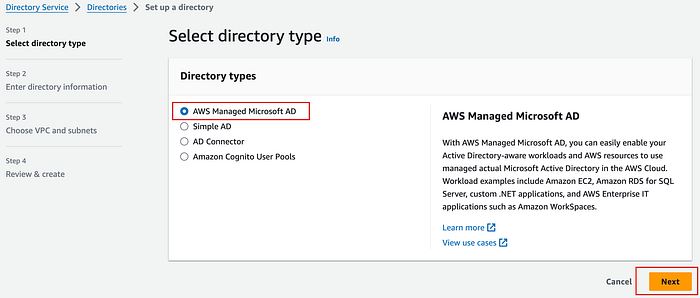
Sign in into the AWS Console and navigate to the Directory Services screen.
Step 1
Select AWS Managed Microsoft AD and proceed to the next step by clicking next.
Step 2
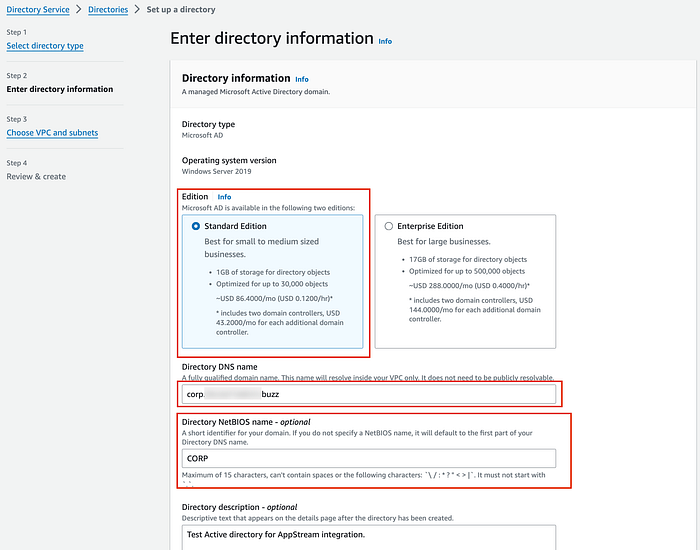
On this page, we get to setup the basic Active Directory integration.
For the edition, we will select, we will select the Standard Edition for our Amazon AppStream 2.0 demo.
- We will use corp.example.buzz or another similar domain name for the directory DNS name.
- Directory NetBIOS name: we will use CORP for this example.
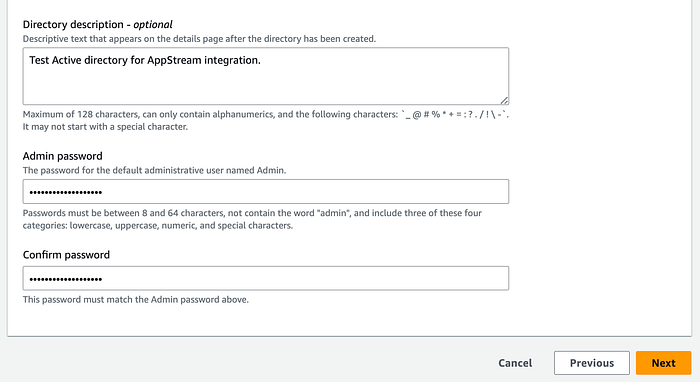
Proceed to enter a suitable description for this directory.
- Select a strong password and store it in a secure place.
- (We will need this password for parts 2 and 3 of the tutorial).
Step 3
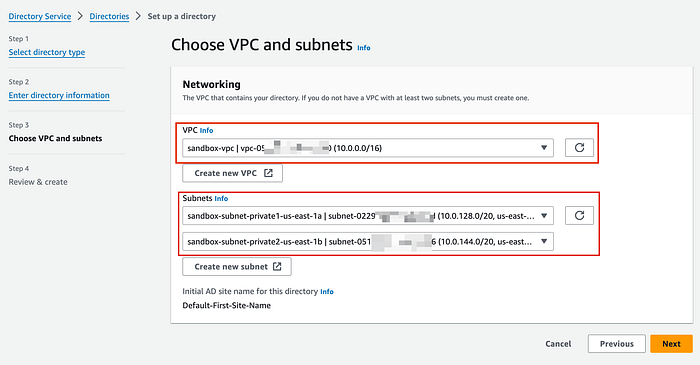
This step lets us configure the Virtual Private Cloud (VPC) and network settings for the Managed Microsoft AD instance.
- Select the VPC that you want to use.
- Select two subnets that are private.
- The subnets can be public as well, but for better security use private subnets.
- The subnets have to be in different Availability Zones (AZs).
Review and Create
Review the configuration and proceed to create the directory.
Managed Microsoft AD takes about 20–45 minutes to provision.
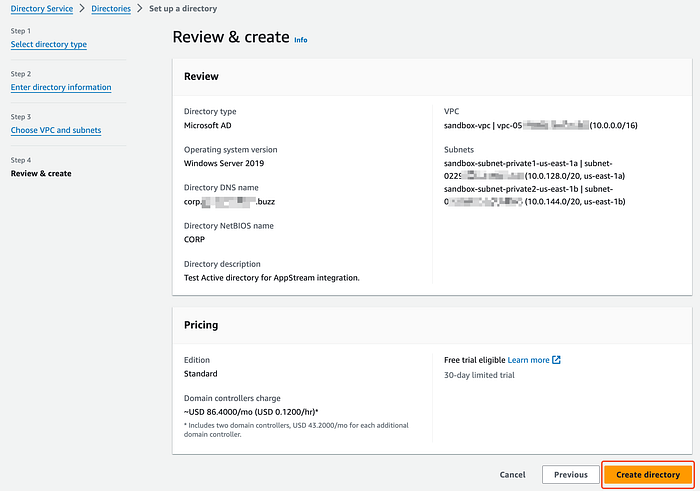
Create and Assign DHCP Option set.
A DHCP Option set can ensure new EC2 instances can auto join the AD domain. Create the same using the DHCP Option set tutorial.
Make sure to change the default DHCP Option set on your VPC.


Launch the Directory Administration instance.
We next launch a directory administration EC2 instance.
Managed Microsoft AD using the AWS Systems Manager (SSM) automation document AWS-CreateDSManagementInstance will,
- Provision a Windows 2019 Server EC2 instance.
- Join the EC2 instance with the Managed Microsoft AD.
- Install the Remote Server Administration Tools (RSAT).
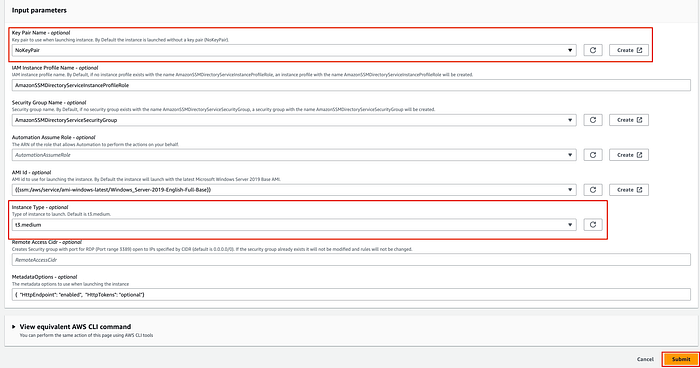
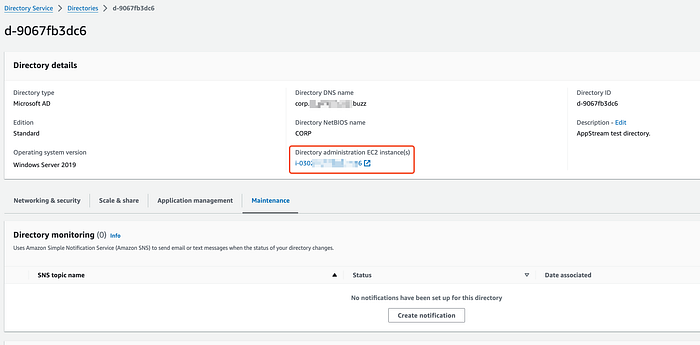
The administration instance takes 6–10 minutes to launch.
Ensure that the provisioning process is completed without errors.
Connecting to the Administration instance
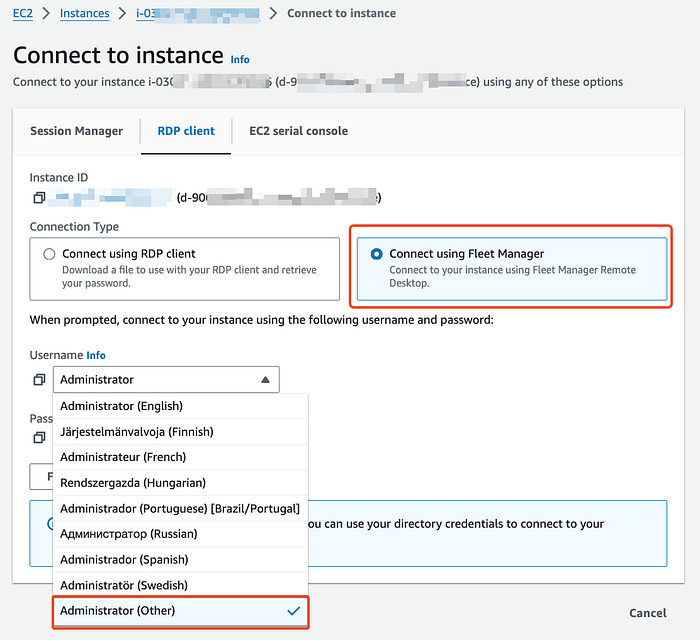
Connect to the directory administration EC2 instance as corp\admin.
If the instance is in a private subnet, you should connect using SSM Fleet Manager.
When connecting to the EC2 instance, we use Administrator (other) username. The user is corp\admin and admin password we setup earlier in the tutorial.
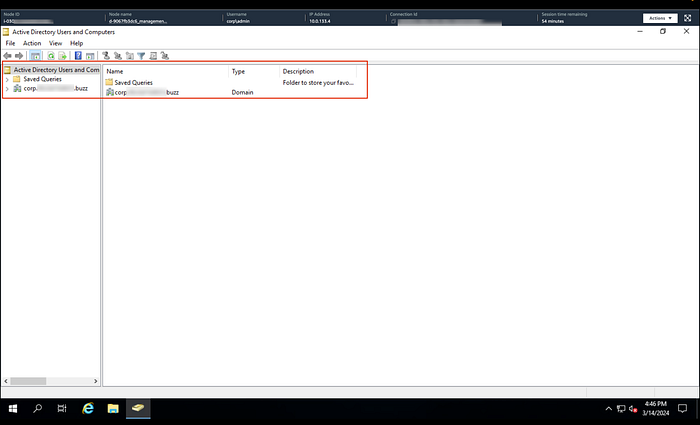
Once logged in, navigate to Start > Windows Administrative Tools > Active Directory Users and Computers.
You should see the AD domain listed.
**Important Notes for the Amazon AppStream 2.0 Managed Active Directory Integration**
Note 1 The standard edition of Managed Microsoft AD is not used for production deployments. This is because of the below listed limits,
- Total number of Active Directory (AD) objects supported.
- Total storage available for AD objects — 1Gb.
Note 2
AWS Managed Microsoft AD deploys a set of Active directory instances (one in each AZ). AD is a replication based system. AD object changes on any instance are seamlessly replicated to the other instances that are part of the domain (with eventual consistency). There are also extra components created as part of the offering.
Note 3
Managed Microsoft AD uses a non standard structure for the AD forest. A new Organizational Unit (OU) stores all the AWS groups and accounts. A custom administrator account called admin, provisioned by Managed Microsoft AD, is used to perform administrative operations.
By implementing the tutorial part 1,
- We should have a working managed Microsoft Active Directory instance.
- A Windows server administration instance that is able to perform AD operations.
See you for part 2 of the tutorial series. 👋