

If you are going to use Amazon FSx for OpenZFS you should be aware of the Deployment Types and how they work behind the scenes. There are currently 3 supported deployment types: Single-AZ (non-HA), Single-AZ (HA) and Multi-AZ (HA).
When setting up your new file system, you’ll encounter two creation methods: Quick Create and Standard Create. While Quick Create offers a streamlined setup process, Standard Create provides more comprehensive configuration options.
In fact, Standard Create isn’t just recommended — it’s actually required for two out of the three deployment types. This makes Standard Create the preferred choice for most implementations, as it gives you greater control over your file system’s configuration from the start.
Single-AZ (non-HA) Deployment Type
When using Single-AZ (non-HA) you have to choose the standard create procedure, as the Single-AZ (non-HA) deployment type is not available when choosing the quick create (see figure 1). You get a single file system and in a failure event the file system should automatically recover by replacing the failed infrastructure component, however there will be downtime during the failure event, and you will experience loss of data. In rare cases, the file system might be unrecoverable, and you will lose all data that you did not back up.
Do note, you need to make sure to attach the correct security group and create the correct security group rule to allow traffic (If you use quick create, the VPC’s default security group is attached by default), this is true for all deployment types.
Figure 1 — showing the FSx creation UI for Quick create .
Single-AZ (HA) Deployment Type
When using Single-AZ (HA), you can choose either the quick or the standard create process, but it is preferable to choose the standard create as it allows you to choose your desired subnet and security group.
This deployment type creates 2 file systems within the same subnet, and it also creates an Endpoint IP address (We will deep dive a bit more into that when we get to Multi-AZ setup). That Endpoint IP address is used by FSx to handle a failover event in this deployment type. The FSx has a DNS name that points to the Endpoint IP address and that Endpoint IP address is attached to the ENI of the currently active file system, as a secondary IP address. When a failover occurs, the Endpoint IP address is detached from the currently active file system’s ENI and attached to the standby file system ENI. Now the DNS points to the same IP, but it is attached to the standby ENI, until the main file system fully recovers.
Both of the above deployment types allow you to mount your file system to your EC2 instances with minimal setup, however there is an extra step required when using the Multi-AZ deployment type.
Multi-AZ Deployment Type
When using the Multi-AZ deployment type, it is important to always choose the standard create over the quick create, as quick create does not allow you to choose the subnets and associate route tables. Associating route tables to the FSx file system is only available for Multi-AZ setup.
Multi-AZ setup when created with quick create will only use the default route table for association, while your subnets are likely using their own route tables. Why is that important? Well, if you create the setup this way, you will not have network connectivity out of the box and your connection will time out. That is what happened to a client of mine that tried using the quick create and that is where we needed to learn more to understand how this works.
You might expect that resources within the same VPC would automatically connect to your FSx file system through the ‘local’ route — after all, this is how you can reach other AWS services like RDS, ElastiCache, and EC2 instances in your VPC, even single-AZ FSx file systems are accessible this way. However, here’s the unexpected twist: this assumption doesn’t hold true in this case. The ‘local’ route alone isn’t sufficient to establish connectivity to your FSx file system under these conditions.
How can you enable connectivity in this scenario? Well, the quick answer is, you need to associate the route tables of the subnets in which your EC2 instances reside with the FSx file system. You can do that by clicking on “manage” next to “route tables” and associate or disassociate route tables (see figure 2).
Figure 2 — FSx route table association change.
After you enabled connectivity you will notice an entry of an ENI within your route table (see figure 3). That ENI route is how you get from your instance to the FSx file system. The entry consists of an Endpoint IP address and the ENI of the currently active file system.
Figure 3 — ENI entry within your associated route tables.
This is configured this way in order to enable the failover procedure. As with Single-AZ (HA), we are using an Endpoint IP address, however, that IP address cannot be moved between the ENIs when they are in different AZs. In addition, that Endpoint IP Address is created within an existing subnet for Single-AZ (HA), which is not the case for Multi-AZ deployment.
Multi-AZ Setup
When you set up FSx in Multi-AZ mode, it creates two separate file systems in two subnets in different AZs for redundancy. Each file system has its own Elastic Network Interface (ENI). During setup, FSx needs a special IP address (a “floating” IP) that will be used for failover purposes. This IP address will be a single address (/32).
You can specify the IP address range yourself using the ‘EndpointIpAddressRange’ parameter, or let FSx automatically choose an unused /28 CIDR range from your VPC.
An important detail about this floating IP: While it exists within your VPC’s IP range, it’s intentionally placed outside of any existing subnet ranges. This means that from Amazon EC2’s networking perspective, this IP address isn’t tied to any specific networking resource or subnet.
Your file systems and their ENIs are still within your subnets, but the endpoint IP address , the floating IP, is not inside any subnet CIDR within your VPC. The route table entry is required in order to route traffic destined for the floating IP to the correct ENI of the currently active file system. Without that route, the traffic is dropped as the floating IP is not part of any subnet (see figure 4).
The reason this is configured this way is because FSx does not perform DNS-based failover due to failover limitations of the NFS client. DNS lookups are done only once at mount time. This requires FSx to use a different failover mechanism than is typically being used in other AWS Multi-AZ services such as RDS for example, otherwise NFS clients would need to re-mount after every file system failover.
So essentially, in order to enable seamless failover between Multi-AZ Primary and Standby file systems, you need the ENI entry in the route tables of the subnets that your clients are deployed in. During file system failover events, FSx will update all FSx associated customer Route Tables, so that the floating IP (Destination) stays the same, but the target is that of the standby file system during the failover event.
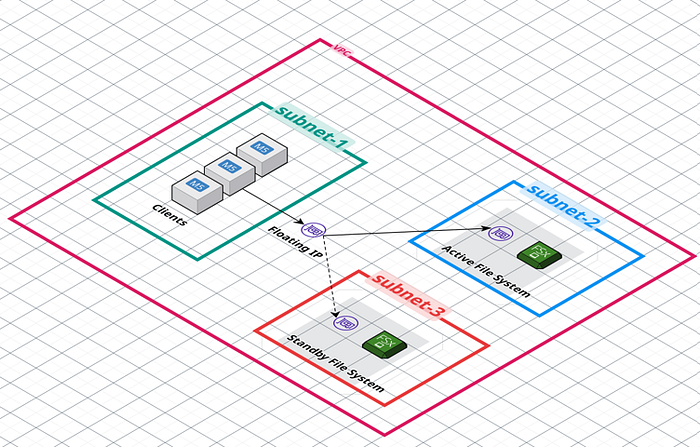
Figure 4 — FSx Setup.
Summary
This blog post discussed implementing Amazon FSx for OpenZFS, the create options, how the networking works and why the implementations work differently between deployment types.
Have Questions About Making FSx for OpenZFS Work for Your Organization?
If you’re still wondering how to apply OpenZFS Multi-AZ setup— or any other GCP or AWS infrastructure solution — for success in your organization, we’re here to help.
At DoiT International, our team is staffed exclusively with senior engineering talent. We specialize in advanced cloud consulting, architectural design, and debugging services. Whether you’re planning your first steps with distributed databases, optimizing an existing system, or troubleshooting complex issues, we provide tailored, expert advice to meet your needs.
Reach out today and let us help you unlock the full potential of your cloud infrastructure.