

Photo by SuPatMaN from Shutterstock
First, I would like to say AWS Config is a great service. If you don’t already know, AWS Config can continually assess, monitor, and record resource configuration changes. I won’t list all of AWS Config’s features, but you can read more about it here. The AWS Config pricing section tells how AWS Config is charged and there are some good examples to understand it better. But to summarize, AWS Config charges are based on the number of configuration items recorded, the number of active AWS Config rule evaluations, and the number of conformance pack evaluations in your account with some additional costs like S3 storage and SNS. If your infrastructure is dynamic and making many configuration changes, AWS Config costs can increase dramatically. This blog aims to dissect AWS Config costs, some strategies to reduce costs, and tips on investigating unexpected cost spikes.
NOTE — Considering privacy policies, I will be using my AWS playground for demonstration purposes. I do not have much config data, but it should be enough to understand the strategy I used.
- Configuration Items recorded — Look at configuration items recorded by AWS Config from the AWS Config Dashboard (image1) or see the same metrics available on CloudWatch Metrics (image2).
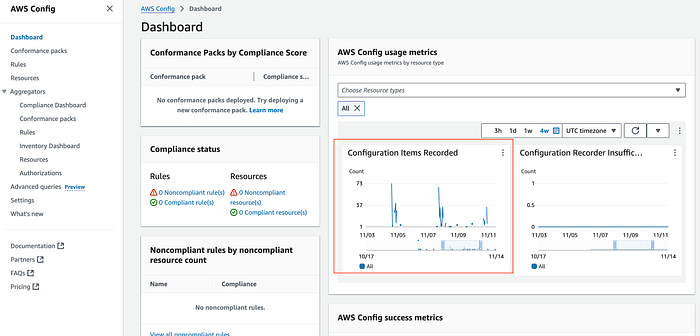
image1 — Configuration Items Recorded — AWS Config Dashboard

image2 — Configuration Items Recorded — AWS CloudWatch Metrics
- Well, this doesn’t tell us much, does it? But these recorded items can go up from a few hundred to a few thousand a day depending on what is happening within your account. To further understand what is been recorded, I used the AWS Config recorded data in my configured S3 bucket(image3) and tried to analyze it with the AWS Athena service. You can find it under the AWS Config > Settings > Delivery Method section.
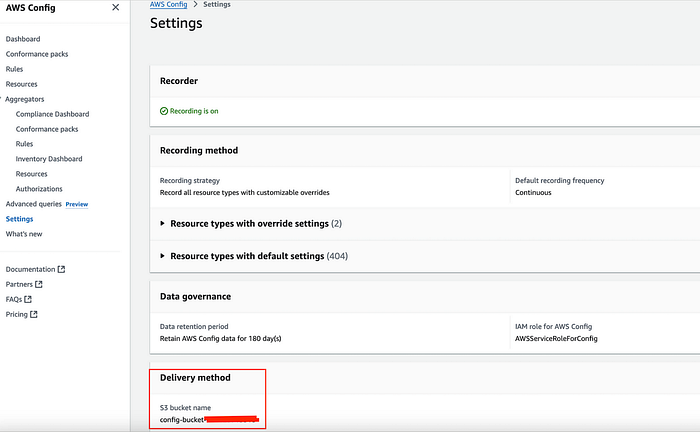
image3 — S3 used for AWS Config record delivery method
- Now, if you go to S3, you will see multiple JSON files delivered by AWS Config and organized with organization ID, Account ID, Region, Month, Date, etc. e.g. below, and the size of files can vary depending on recorded items by AWS Config.
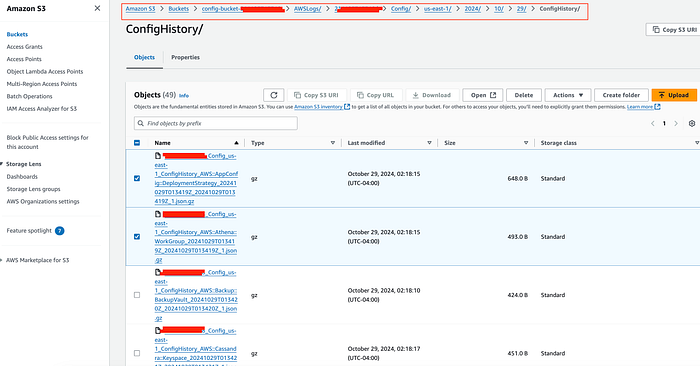
Config delivered files in S3
- Now, I tried to read those files and see what’s in them. E.g. I just took the first 2 files.
nikhilpawar@MacBookPro Downloads % cat xxxxxxxxxx_Config_us-east-1_ConfigHistory_AWS__AppConfig__DeploymentStrategy_20241029T013419Z_20241029T013419Z_1.json
{"fileVersion":"1.0","configurationItems":[{"relatedEvents":[],"relationships":[],"configuration":{"Id":"AppConfig.AllAtOnce","ReplicateTo":"NONE","GrowthType":"LINEAR","Description":"Quick","DeploymentDurationInMinutes":0,"GrowthFactor":100.0,"FinalBakeTimeInMinutes":10,"Name":"AppConfig.AllAtOnce","Tags":[]},"supplementaryConfiguration":{},"tags":{},"configurationItemVersion":"1.3","configurationItemCaptureTime":"2024-10-29T01:34:19.420Z","configurationStateId":1730165659420,"awsAccountId":"xxxxxxxxxx","configurationItemStatus":"ResourceDiscovered","resourceType":"AWS::AppConfig::DeploymentStrategy","resourceId":"AppConfig.AllAtOnce","resourceName":"AppConfig.AllAtOnce","ARN":"arn:aws:appconfig:us-east-1:xxxxxxxxxx:deploymentstrategy/AppConfig.AllAtOnce","awsRegion":"us-east-1","availabilityZone":"Regional","configurationStateMd5Hash":""},{"relatedEvents":[],"relationships":[],"configuration":{"Id":"AppConfig.Canary10Percent20Minutes","ReplicateTo":"NONE","GrowthType":"EXPONENTIAL","Description":"AWS Recommended","DeploymentDurationInMinutes":20,"GrowthFactor":10.0,"FinalBakeTimeInMinutes":10,"Name":"AppConfig.Canary10Percent20Minutes","Tags":[]},"supplementaryConfiguration":{},"tags":{},"configurationItemVersion":"1.3","configurationItemCaptureTime":"2024-10-29T01:34:19.546Z","configurationStateId":1730165659546,"awsAccountId":"xxxxxxxxxx","configurationItemStatus":"ResourceDiscovered","resourceType":"AWS::AppConfig::DeploymentStrategy","resourceId":"AppConfig.Canary10Percent20Minutes","resourceName":"AppConfig.Canary10Percent20Minutes","ARN":"arn:aws:appconfig:us-east-1:xxxxxxxxxx:deploymentstrategy/AppConfig.Canary10Percent20Minutes","awsRegion":"us-east-1","availabilityZone":"Regional","configurationStateMd5Hash":""},{"relatedEvents":[],"relationships":[],"configuration":{"Id":"AppConfig.Linear20PercentEvery6Minutes","ReplicateTo":"NONE","GrowthType":"LINEAR","Description":"AWS Recommended","DeploymentDurationInMinutes":30,"GrowthFactor":20.0,"FinalBakeTimeInMinutes":30,"Name":"AppConfig.Linear20PercentEvery6Minutes","Tags":[]},"supplementaryConfiguration":{},"tags":{},"configurationItemVersion":"1.3","configurationItemCaptureTime":"2024-10-29T01:34:19.625Z","configurationStateId":1730165659625,"awsAccountId":"xxxxxxxxxx","configurationItemStatus":"ResourceDiscovered","resourceType":"AWS::AppConfig::DeploymentStrategy","resourceId":"AppConfig.Linear20PercentEvery6Minutes","resourceName":"AppConfig.Linear20PercentEvery6Minutes","ARN":"arn:aws:appconfig:us-east-1:xxxxxxxxxx:deploymentstrategy/AppConfig.Linear20PercentEvery6Minutes","awsRegion":"us-east-1","availabilityZone":"Regional","configurationStateMd5Hash":""},{"relatedEvents":[],"relationships":[],"configuration":{"Id":"AppConfig.Linear50PercentEvery30Seconds","ReplicateTo":"NONE","GrowthType":"LINEAR","Description":"Test/Demo","DeploymentDurationInMinutes":1,"GrowthFactor":50.0,"FinalBakeTimeInMinutes":1,"Name":"AppConfig.Linear50PercentEvery30Seconds","Tags":[]},"supplementaryConfiguration":{},"tags":{},"configurationItemVersion":"1.3","configurationItemCaptureTime":"2024-10-29T01:34:19.475Z","configurationStateId":1730165659475,"awsAccountId":"xxxxxxxxxx","configurationItemStatus":"ResourceDiscovered","resourceType":"AWS::AppConfig::DeploymentStrategy","resourceId":"AppConfig.Linear50PercentEvery30Seconds","resourceName":"AppConfig.Linear50PercentEvery30Seconds","ARN":"arn:aws:appconfig:us-east-1:xxxxxxxxxx:deploymentstrategy/AppConfig.Linear50PercentEvery30Seconds","awsRegion":"us-east-1","availabilityZone":"Regional","configurationStateMd5Hash":""}]}%                                                  nikhilpawar@MacBookPro Downloads % cat xxxxxxxxxx_Config_us-east-1_ConfigHistory_AWS__AppConfig__DeploymentStrategy_20241029T013419Z_20241029T013419Z_1.json | jq
{
  "fileVersion": "1.0",
  "configurationItems": [\
    {\
      "relatedEvents": [],\
      "relationships": [],\
      "configuration": {\
        "Id": "AppConfig.AllAtOnce",\
        "ReplicateTo": "NONE",\
        "GrowthType": "LINEAR",\
        "Description": "Quick",\
        "DeploymentDurationInMinutes": 0,\
        "GrowthFactor": 100.0,\
        "FinalBakeTimeInMinutes": 10,\
        "Name": "AppConfig.AllAtOnce",\
        "Tags": []\
      },\
      "supplementaryConfiguration": {},\
      "tags": {},\
      "configurationItemVersion": "1.3",\
      "configurationItemCaptureTime": "2024-10-29T01:34:19.420Z",\
      "configurationStateId": 1730165659420,\
      "awsAccountId": "xxxxxxxxxx",\
      "configurationItemStatus": "ResourceDiscovered",\
      "resourceType": "AWS::AppConfig::DeploymentStrategy",\
      "resourceId": "AppConfig.AllAtOnce",\
      "resourceName": "AppConfig.AllAtOnce",\
      "ARN": "arn:aws:appconfig:us-east-1:xxxxxxxxxx:deploymentstrategy/AppConfig.AllAtOnce",\
      "awsRegion": "us-east-1",\
      "availabilityZone": "Regional",\
      "configurationStateMd5Hash": ""\
    },\
    {\
      "relatedEvents": [],\
      "relationships": [],\
      "configuration": {\
        "Id": "AppConfig.Canary10Percent20Minutes",\
        "ReplicateTo": "NONE",\
        "GrowthType": "EXPONENTIAL",\
        "Description": "AWS Recommended",\
        "DeploymentDurationInMinutes": 20,\
        "GrowthFactor": 10.0,\
        "FinalBakeTimeInMinutes": 10,\
        "Name": "AppConfig.Canary10Percent20Minutes",\
        "Tags": []\
      },\
      "supplementaryConfiguration": {},\
      "tags": {},\
      "configurationItemVersion": "1.3",\
      "configurationItemCaptureTime": "2024-10-29T01:34:19.546Z",\
      "configurationStateId": 1730165659546,\
      "awsAccountId": "xxxxxxxxxx",\
      "configurationItemStatus": "ResourceDiscovered",\
      "resourceType": "AWS::AppConfig::DeploymentStrategy",\
      "resourceId": "AppConfig.Canary10Percent20Minutes",\
      "resourceName": "AppConfig.Canary10Percent20Minutes",\
      "ARN": "arn:aws:appconfig:us-east-1:xxxxxxxxxx:deploymentstrategy/AppConfig.Canary10Percent20Minutes",\
      "awsRegion": "us-east-1",\
      "availabilityZone": "Regional",\
      "configurationStateMd5Hash": ""\
    },\
    {\
      "relatedEvents": [],\
      "relationships": [],\
      "configuration": {\
        "Id": "AppConfig.Linear50PercentEvery30Seconds",\
        "ReplicateTo": "NONE",\
        "GrowthType": "LINEAR",\
        "Description": "Test/Demo",\
        "DeploymentDurationInMinutes": 1,\
        "GrowthFactor": 50.0,\
        "FinalBakeTimeInMinutes": 1,\
        "Name": "AppConfig.Linear50PercentEvery30Seconds",\
        "Tags": []\
      },\
      "supplementaryConfiguration": {},\
      "tags": {},\
      "configurationItemVersion": "1.3",\
      "configurationItemCaptureTime": "2024-10-29T01:34:19.475Z",\
      "configurationStateId": 1730165659475,\
      "awsAccountId": "xxxxxxxxxx",\
      "configurationItemStatus": "ResourceDiscovered",\
      "resourceType": "AWS::AppConfig::DeploymentStrategy",\
      "resourceId": "AppConfig.Linear50PercentEvery30Seconds",\
      "resourceName": "AppConfig.Linear50PercentEvery30Seconds",\
      "ARN": "arn:aws:appconfig:us-east-1:xxxxxxxxxx:deploymentstrategy/AppConfig.Linear50PercentEvery30Seconds",\
      "awsRegion": "us-east-1",\
      "availabilityZone": "Regional",\
      "configurationStateMd5Hash": ""\
    }\
  ]
}
- Well, it will be hard to read those JSON files data manually or by scripting it. The best way will be to use AWS Athena. Another powerful service.
- Create Athena Table — When creating Athena tables for AWS Config data, you can customize your queries based on different time periods and data scopes. The table creation syntax varies depending on what you want to analyze:
- Single day snapshots
- Data spanning multiple days
- Specific month or year
- Complete historical Config data
NOTE — Replace ‘xxxxxxxxxx’ with your AWS account ID in the following queries. Also, I will recommend that, rather than scanning all data, you can only get data for the timeframe you need. ( Athena pricing)
1. Single day snapshot
1.1:- Create Athena Table: e.g. aws_config_table_single_day_2024_11_08
CREATE EXTERNAL TABLE aws_config_table_single_day_2024_11_08 (
  fileversion string,
  configSnapshotId string,
  configurationitems ARRAY<STRUCT<
    configurationItemVersion: STRING,
    configurationItemCaptureTime: STRING,
    configurationStateId: BIGINT,
    awsAccountId: STRING,
    configurationItemStatus: STRING,
    resourceType: STRING,
    resourceId: STRING,
    resourceName: STRING,
    ARN: STRING,
    awsRegion: STRING,
    availabilityZone: STRING,
    configurationStateMd5Hash: STRING,
    resourceCreationTime: STRING
  >>
)
ROW FORMAT SERDE 'org.apache.hive.hcatalog.data.JsonSerDe'
LOCATION 's3://config-bucket-xxxxxxxxxxxx/AWSLogs/xxxxxxxxxxxx/Config/us-east-1/2024/11/8';

1.1:- Athena Table — Single-Day Snapshot
1.2:- Count Total Records: (Optional, you can check the total records and that should match your CloudWatch metrics which we looked at initially.)
SELECT
  COUNT(1) AS record_count
FROM
  default.aws_config_table_single_day_2024_11_08
CROSS JOIN
  UNNEST(configurationitems) AS t(configurationItem)
WHERE
  configurationItem.resourceType IS NOT NULL
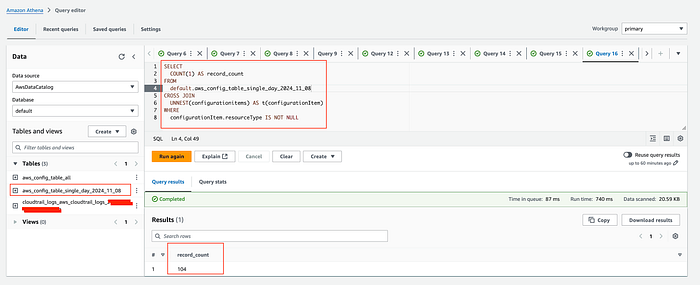
1.2:-Total records for day
1.3:- Get resource type and number of changes recorded: The following query can help you identify resource types generating the highest number of configuration changes, enabling you to pinpoint potential cost drivers in your AWS Config monitoring.
SELECT
  configurationItem.resourceType,
  COUNT(configurationItem.resourceId) AS NumberOfChanges
FROM
  default.aws_config_table_single_day_2024_11_08
CROSS JOIN
  UNNEST(configurationitems) AS t(configurationItem)
GROUP BY
  configurationItem.resourceType
ORDER BY
  NumberOfChanges DESC;
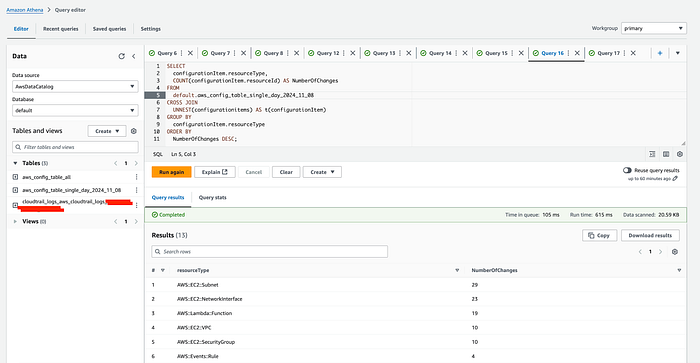
1.3:-Resource types and number of changes recorded
1.4:- Get resource IDs: To further analyze high-change resource types, you can drill down to specific resources. For example, the previous query revealed that AWS:EC2:Subnet has the highest number of configuration changes. The following query helps identify which specific subnet IDs are contributing to this change frequency.
SELECT
  configurationItem.resourceType,
  configurationItem.resourceId,
  COUNT(configurationItem.resourceId) AS NumberOfChanges
FROM
  default.aws_config_table_single_day_2024_11_08
CROSS JOIN
  UNNEST(configurationitems) AS t(configurationItem)
GROUP BY
  configurationItem.resourceType,
  configurationItem.resourceId
ORDER BY
  NumberOfChanges DESC

1.4:-Identified Resource Ids
This should give you a clear idea of what is happening. The same query patterns can be applied across different time ranges. Whether you need to analyze monthly trends, specific date ranges, or your entire Config history, simply modify the time parameters while maintaining the same analytical approach.
2. Specific Month
2.1:- Create Athena Table: e.g.aws_config_table_november_2024
CREATE EXTERNAL TABLE aws_config_table_november_2024 (
  fileversion string,
  configSnapshotId string,
  configurationitems ARRAY<STRUCT<
    configurationItemVersion: STRING,
    configurationItemCaptureTime: STRING,
    configurationStateId: BIGINT,
    awsAccountId: STRING,
    configurationItemStatus: STRING,
    resourceType: STRING,
    resourceId: STRING,
    resourceName: STRING,
    ARN: STRING,
    awsRegion: STRING,
    availabilityZone: STRING,
    configurationStateMd5Hash: STRING,
    resourceCreationTime: STRING
  >>
)
ROW FORMAT SERDE 'org.apache.hive.hcatalog.data.JsonSerDe'
LOCATION 's3://config-bucket-xxxxxxxxxxxx/AWSLogs/xxxxxxxxxxxx/Config/us-east-1/2024/10/';
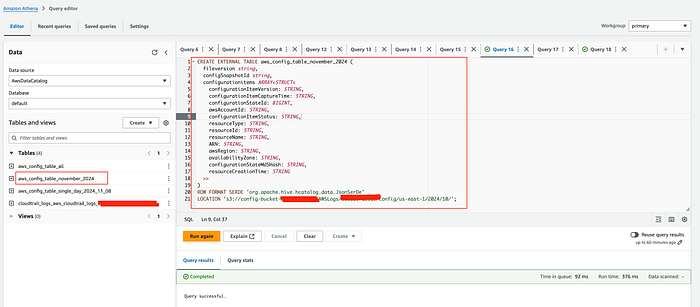
2.1:- Athena Table — a month data
2.2:- Count Total Records: Refer to step 1.2(Count Total Records) and update the table name.
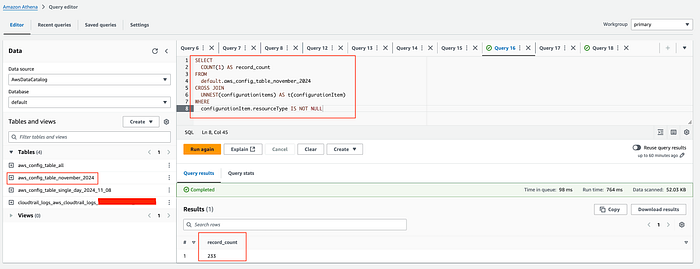
2.2:- Total Record for month
2.3:- Get resource type and number of changes recorded: Refer to step 1.3(Get resource type and number of changes recorded) and update the table name.
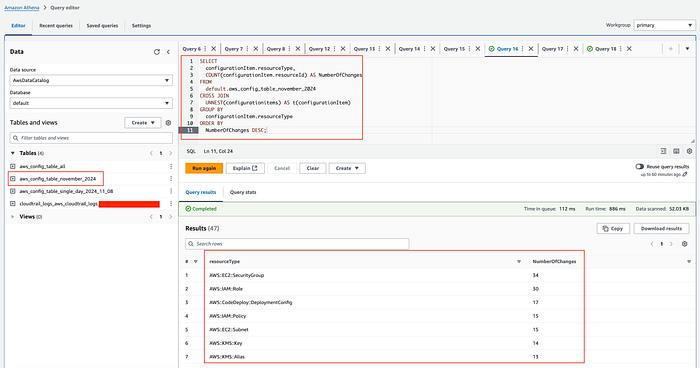
2.3:-Resource types and number of changes recorded
2.4:- Get resource IDs: Refer to step 1.4(Get resource IDs) and update the table name.
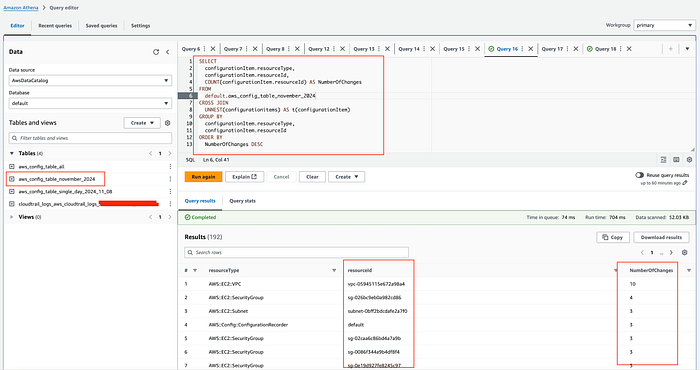
2.4:- Identified Resource Ids
3. All Config Data
3.1:- Create Athena Table: e.g. aws_config_table_all
CREATE EXTERNAL TABLE aws_config_table_all (
  fileversion string,
  configSnapshotId string,
  configurationitems ARRAY<STRUCT<
    configurationItemVersion: STRING,
    configurationItemCaptureTime: STRING,
    configurationStateId: BIGINT,
    awsAccountId: STRING,
    configurationItemStatus: STRING,
    resourceType: STRING,
    resourceId: STRING,
    resourceName: STRING,
    ARN: STRING,
    awsRegion: STRING,
    availabilityZone: STRING,
    configurationStateMd5Hash: STRING,
    resourceCreationTime: STRING
  >>
)
ROW FORMAT SERDE 'org.apache.hive.hcatalog.data.JsonSerDe'
LOCATION 's3://config-bucket-XXXXXXXXXXXX/AWSLogs/XXXXXXXXXXXX/Config/us-east-1/';
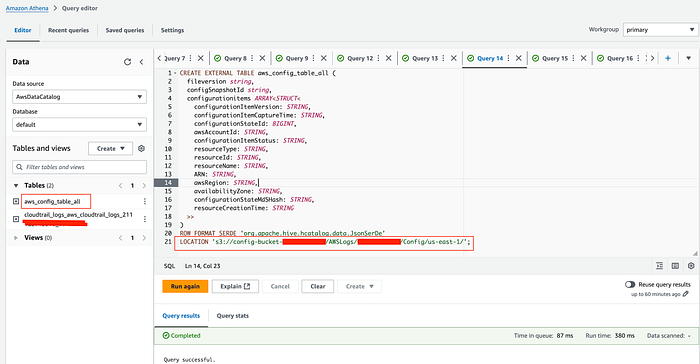
3.1:- Athena Table — all config data
3.2:- Total records: Refer to step 1.2(Count Total Records) and update the table name.
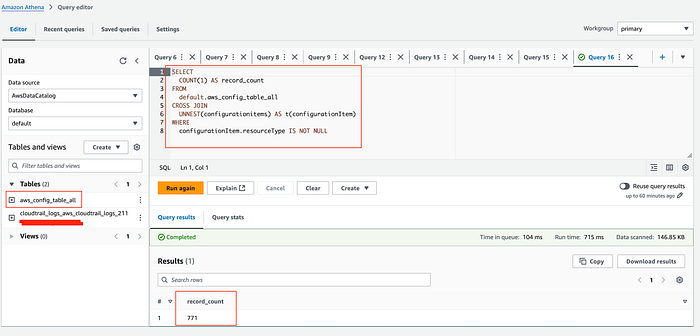
3.2:- Total Record
3.3:- Get resource type and number of changes recorded: Refer to step 1.3(Get resource type and number of changes recorded) and update the table name.
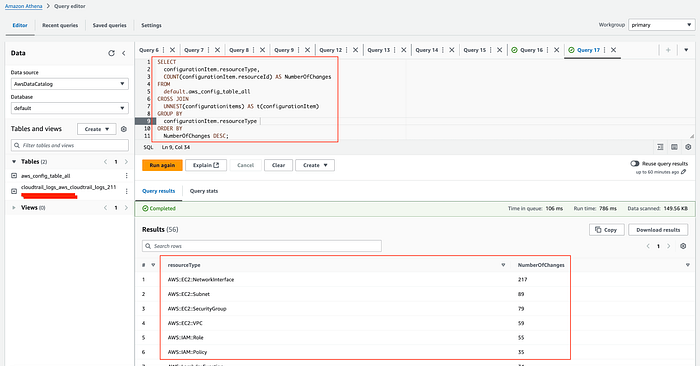
3.3:-Resource types and number of changes recorded
3.4:- Get resource IDs: Refer to step 1.4(Get resource IDs), update the table name.
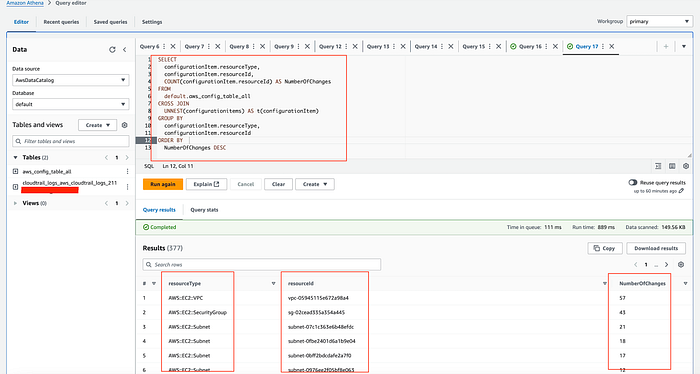
3.4:- Identified Resource Ids
4. Data spanning multiple days
4.1 Create Athena Table: So, in this scenario, we will partition the Athena table with partitions projection from 2024/11/7 to 2024/11/10. Customize this time period as needed.
CREATE EXTERNAL TABLE aws_config_table_period_2024_11_07to2024_11_10 (
  fileversion string,
  configSnapshotId string,
  configurationitems ARRAY<STRUCT<
    configurationItemVersion: STRING,
    configurationItemCaptureTime: STRING,
    configurationStateId: BIGINT,
    awsAccountId: STRING,
    configurationItemStatus: STRING,
    resourceType: STRING,
    resourceId: STRING,
    resourceName: STRING,
    ARN: STRING,
    awsRegion: STRING,
    availabilityZone: STRING,
    configurationStateMd5Hash: STRING,
    resourceCreationTime: STRING
  >>
)

PARTITIONED BY (`year` string,`month` string,`day` string)
ROW FORMAT SERDE 'org.apache.hive.hcatalog.data.JsonSerDe'
LOCATION 's3://config-bucket-xxxxxxxxxxxx/AWSLogs/xxxxxxxxxxxx/Config/us-east-1'
TBLPROPERTIES (
  'projection.enabled'='true',
  'projection.year.interval'='1',
  'projection.year.range'='2024,2024',
  'projection.year.type'='integer',
  'projection.month.interval'='1',
  'projection.month.range'='10,11',
  'projection.month.type'='integer',
  'projection.day.interval'='1',
  'projection.day.range'='7,10',
  'projection.day.type'='integer',
  'storage.location.template'='s3://config-bucket-xxxxxxxxxxxx/AWSLogs/xxxxxxxxxxxx/Config/us-east-1/${year}/${month}/${day}/ConfigHistory/')
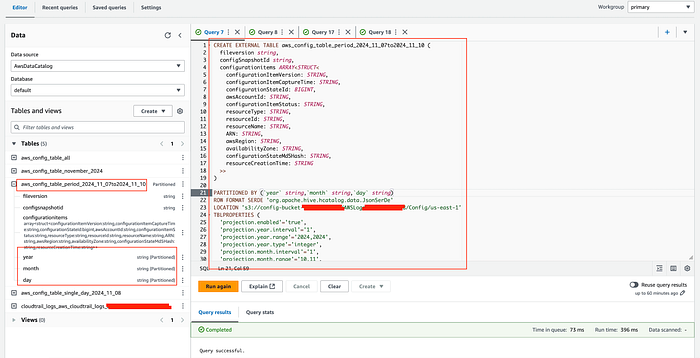
4.1:- Athena Table —selected timeframe
4.2:- Total records:
SELECT result.configurationitemcapturetime,
         count(result.configurationitemcapturetime) AS NumberOfChanges
FROM
    (SELECT regexp_replace(configurationItem.configurationItemCaptureTime,
         '(.+)(T.+)', '$1') AS configurationitemcapturetime
    FROM default.aws_config_table_period_2024_11_07to2024_11_10
    CROSS JOIN UNNEST(configurationitems) AS t(configurationItem)
    WHERE "$path" LIKE '%ConfigHistory%'
            AND configurationItem.configurationItemCaptureTime >= '2024-11-05T%'
            AND configurationItem.configurationItemCaptureTime <= '2024-11-12T%') result
GROUP BY  result.configurationitemcapturetime
ORDER BY  result.configurationitemcapturetime
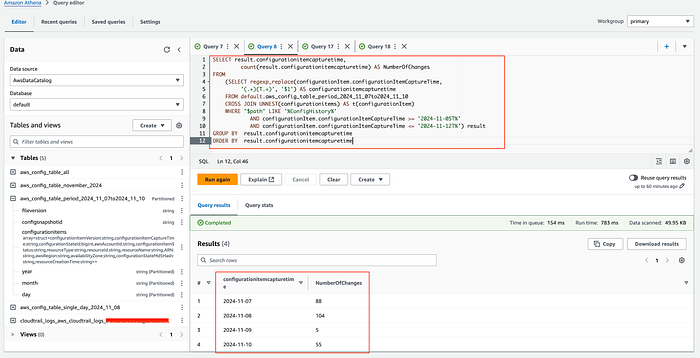
4.2:- Total Record
4.3:- Get resource type and number of changes recorded:
SELECT configurationItem.resourceType,
       configurationItem.resourceId,
       COUNT(configurationItem.resourceId) AS NumberOfChanges
FROM default.aws_config_table_period_2024_11_07to2024_11_10
CROSS JOIN UNNEST(configurationitems) AS t(configurationItem)
WHERE "$path" LIKE '%ConfigHistory%'
        AND configurationItem.configurationItemCaptureTime >= '2024-11-05T%'
        AND configurationItem.configurationItemCaptureTime <= '2024-11-12T%'
GROUP BY  configurationItem.resourceType, configurationItem.resourceId
ORDER BY  NumberOfChanges DESC

### or ###

SELECT configurationItem.resourceType,
       configurationItem.resourceId,
       CAST(COUNT(configurationItem.resourceId) AS INTEGER) AS NumberOfChanges
FROM default.aws_config_table_period_2024_11_07to2024_11_10
CROSS JOIN UNNEST(configurationitems) AS t(configurationItem)
WHERE "$path" LIKE '%ConfigHistory%'
      AND configurationItem.configurationItemCaptureTime >= '2024-11-05T%'
      AND configurationItem.configurationItemCaptureTime <= '2024-11-12T%'
GROUP BY configurationItem.resourceType, configurationItem.resourceId
ORDER BY NumberOfChanges DESC
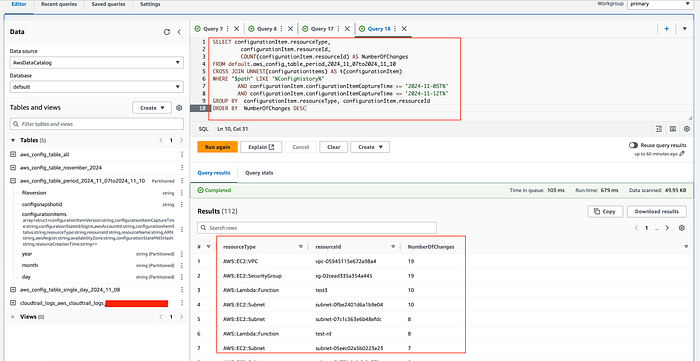
4.3:-Resource types and number of changes recorded
4.4:- Get resource IDs
SELECT configurationItem.resourceId,
       configurationItem.resourceType,
       COUNT(configurationItem.resourceId) AS NumberOfChanges
FROM default.aws_config_table_period_2024_11_07to2024_11_10
CROSS JOIN UNNEST(configurationitems) AS t(configurationItem)
WHERE "$path" LIKE '%ConfigHistory%'
      AND configurationItem.configurationItemCaptureTime >= '2024-11-05T%'
      AND configurationItem.configurationItemCaptureTime <= '2024-11-12T%'
GROUP BY
     configurationItem.resourceId,
     configurationItem.resourceType
ORDER BY NumberOfChanges DESC
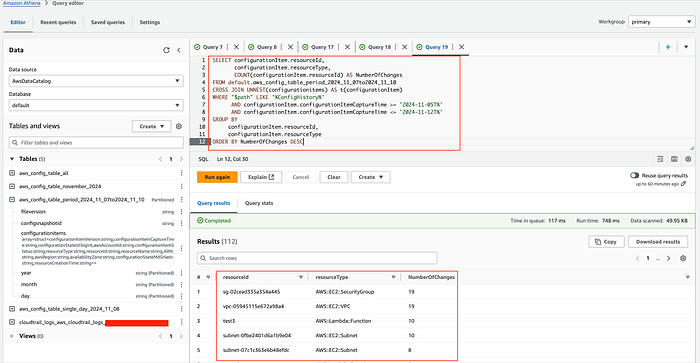
4.4:- Identified Resource Ids
- Ok, now you have identified the resource ID, and resource type with more recorded items for the duration you need.
Since June 2023, AWS Config supports recording exclusions by resource type. Now, you can reevaluate your settings for resource types and adjust accordingly or investigate unusual cost spikes on specific days.
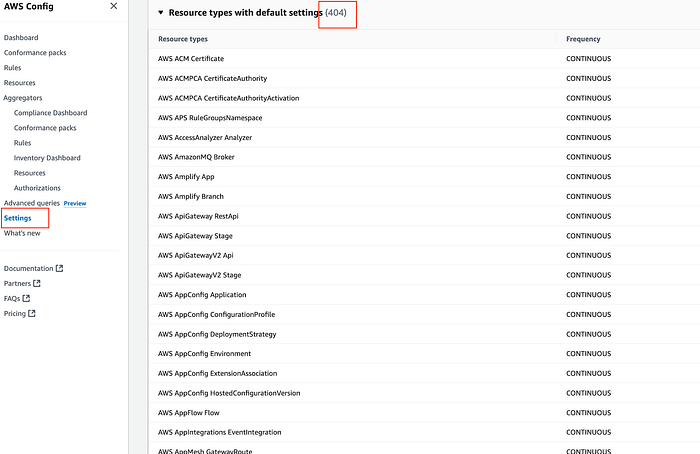
Resources recorded
Another thing I would like to point out is the Data retention period. You can adjust it to fit your needs.

Retention Period
In conclusion, AWS Config is a powerful service, but it can quickly become expensive, especially in dynamic environments. By using strategic approaches like analyzing configuration item recordings, using AWS Athena for detailed investigations, leveraging configuration recording exclusion, and carefully managing data retention periods, organizations can gain granular insights into their AWS Config costs while maintaining robust infrastructure visibility. The key is not to eliminate monitoring but to optimize how and what you’re tracking. By understanding your specific resource change patterns and selectively recording configurations, you can balance comprehensive monitoring with cost-effective management.
If you’re looking to maximize the potential of your AWS Config or are interested in our services, feel free to reach out. You can contact us here.