

Photo by Elnur from Shutterstock
Introduction
AI is undoubtedly transforming how applications are developed and how businesses operate today. As organizations race to leverage AI capabilities, Microsoft Azure has emerged as a powerful platform that democratizes access to advanced AI services. Through Azure AI Services (formerly Cognitive Services), application developers can now implement sophisticated AI features, such as natural language understanding or image recognition, without deep machine learning expertise or massive computational resources.
Numerous AI capabilities are available with Azure AI Services. This article will demonstrate one way to integrate AI into applications to seamlessly extract information, classify text, understand conversational language, answer questions, and more, using the Azure AI Language Service.
Prerequisites
- Azure account, which is available for free up to 30 days if you do not have one.
- Basic understanding of Azure and navigation in the Azure portal.
- To execute the sample Python code, a basic understanding of Python and pip is recommended, and access to Github is needed to download the sample code.
- Some knowledge of Docker and application containerization is beneficial, as well.
High-level steps
- Confirm permissions and access to Azure AI Services.
- Create a managed API endpoint for the Language Service.
- Test the API via the Python code samples.
- Optionally, test the API hosted locally in Docker.
- Clean up resources.
Step-by-step walkthrough
Step 1: Initial setup to confirm access to AI Services
Open the Azure Portal at https://portal.azure.com, navigate to Microsoft Entra ID (formerly Azure Active Directory), search for your user account and select it, and then select Azure role assignment. The simplest option for this exercise is to assign either Owner or Contributor at the Subscription or Resource Group level, to ensure proper access to the Azure resources to be created. In my case, I created a Resource Group and gave my user the Owner role on the Resource Group.
Azure role assignments are explained here and if you do not have a Resource Group yet, a full explanation of its usage is explained here.
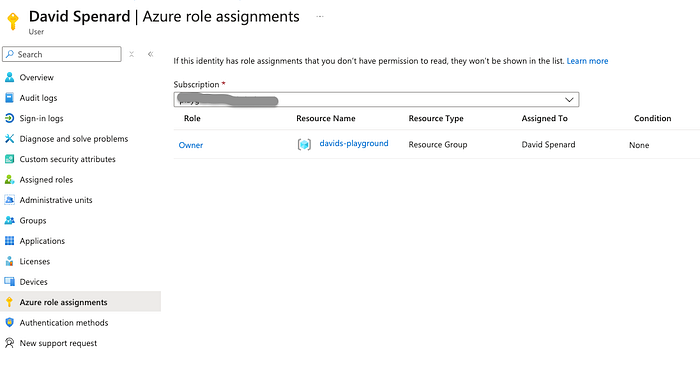
Azure role assignments for a specific user
In the Azure Portal, navigate to Subscriptions and select Resource Providers. Find Microsoft.CognitiveServices and select Register if this resource is not registered yet.
This process is explained here in detail on the Azure Resource Manager documentation site.
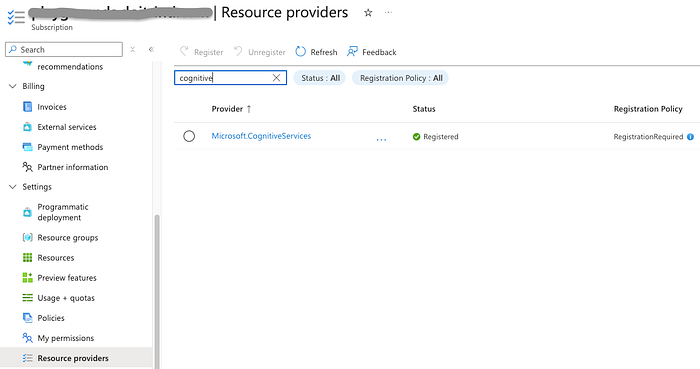
Resource Providers
Step 2: Create a managed API endpoint for the Language Service
Azure AI Services are managed services with an API exposed for easy consumption. There is an option called Azure AI service multi-service account, which provides access to multiple AI services through one endpoint, but it requires container deployment to expose the API. So for this example, the managed Language Service is being used as it is a dedicated resource for language-specific features only, and it’s easier to set up.
In the Azure Portal, navigate to Azure AI Services and select Language Service, then select Create Language.
Azure AI service for Language comes with several pre-built capabilities like sentiment analysis, key phrase extraction, and others, which are sufficient for this exercise. Select Continue to create your resource.
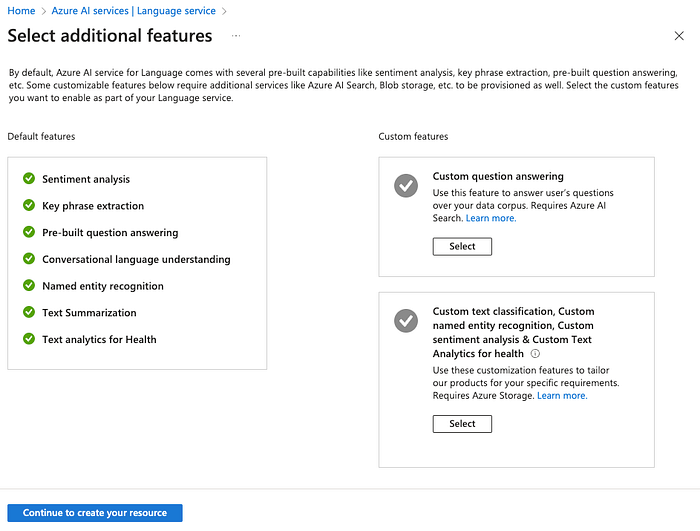
Create Language Service Resource
Navigate through the wizard pages and set the following fields:
- Subscription: Defaults to your current subscription.
- Resource Group: Use an existing group or create one for this exercise.
- Region: Defaults to East US.
- Name: Choose a unique name for your Language Service domain name.
- Pricing tier: Choose the free tier if shown.
- Check the box regarding Responsible AI use.
- Network: Choose all networks, unless you want to take the time to restrict access to a specific network, IP range, or private endpoint. For this example, I chose public access for ease of use, but it is not recommended for long-term purposes.
I did encounter some Azure Portal bugs where error messages did not coincide with reality, so if you encounter them be sure to confirm you followed step 1 above to confirm access to AI Services, before assuming it’s a false error message.


On the last page of the wizard, review the settings and select Create to create the resource.

Create Language Service confirmation screen
Deployment should take a few minutes, then select Go to resource to view its settings. Here you can explore more to understand the capabilities of the Language Service and its configuration. Select Keys and Endpoint to reveal the two pieces of information needed to access the API in step 3 below.
Note that two keys are available and this is for easy key rotation when needed, but either key will work for API access. Best practices for secrets management in Azure can be found here.
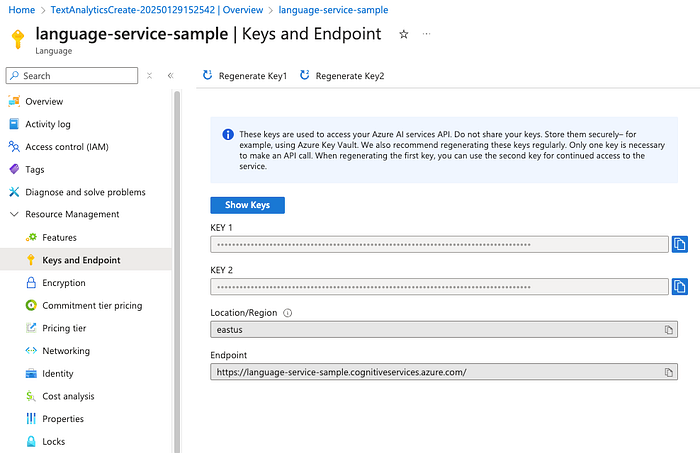
Key and endpoint for the Language Service
Step 3: Test the API via the Python code samples
Assuming you have Python and pip installed locally, and have access to Github, as explained in the Prerequisites section above, you can use the sample code in this repository, either by downloading a zip file or cloning the repository.
git clone https://github.com/doitintl/azure-ai-services-demo.git
Once the code is available locally on your machine, modify the .env file to specify your API key and endpoint from step 3 above. The text analytics version 3.1 was current at the writing of this article, so please refer to the Language REST API reference if there are any issues with that version.
COGNITIVE_SERVICES_ENDPOINT=<your endpoint>
COGNITIVE_SERVICES_KEY=<your api key>
SENTIMENT_ANALYSIS_PATH=/text/analytics/v3.1/sentiment?
KEY_PHRASE_EXTRACTION_PATH=/text/analytics/v3.1/keyPhrases
LANGUAGE_DETECTION_PATH=/text/analytics/v3.1/languages?
There is one dependency that needs to be installed before the code can be executed. If you encounter issues installing this library or executing any of the Python code, then a Python virtual environment can be used to run the samples from a clean slate. Virtual environments are explained here and only require a few steps to set up and use with Python.
pip install python-dotenv
There are three Python files available to test a few of the capabilities of the Language Service: sentiment analysis, key phrase extraction, and language detection. Use just one of these commands to execute the specific Python file.
python sentiment_analysis.py
python key_phrase_extraction.py
python language_detection.py
At the command line, enter some text for analysis, as shown below for key phrase extraction.
david@Mac azure-ai-services-demo % python key_phrase_extraction.py
Enter some text to extract its key phrases. Enter q to quit.

Language detection is one of the features offered by Azure AI Language,
a collection of machine learning and AI algorithms in the cloud for
developing intelligent applications that involve written language.
Language detection is able to detect more than 100 languages in their
primary script.

Request:
 {
  "documents": [\
    {\
      "id": 1,\
      "text": "Language detection is one of the features offered by\
Azure AI Language, a collection of machine learning and AI algorithms\
in the cloud for developing intelligent applications that involve written\
language. Language detection is able to detect more than 100 languages\
in their primary script."\
    }\
  ]
}

Response:
 {
  "documents": [\
    {\
      "id": "1",\
      "keyPhrases": [\
        "Azure AI Language",\
        "AI algorithms",\
        "Language detection",\
        "written language",\
        "machine learning",\
        "intelligent applications",\
        "primary script",\
        "features",\
        "collection",\
        "cloud",\
        "100 languages"\
      ],\
      "warnings": []\
    }\
  ],
  "errors": [],
  "modelVersion": "2022-10-01"
}

Key Phrases:
- Azure AI Language
- AI algorithms
- Language detection
- written language
- machine learning
- intelligent applications
- primary script
- features
- collection
- cloud
- 100 languages
To test the API using a CURL command, here’s an example of sentiment analysis. Just replace my-endpoint and my-key in the command.
curl -X POST "https://my-endpoint/text/analytics/v3.1/sentiment" \
-H "Content-Type: application/json" \
-H "Ocp-Apim-Subscription-Key: my-key" \
-d "{\"documents\":[{\"id\":\"1\",\"text\":\"The performance was amazing! The sound could have been clearer.\"},{\"id\":\"2\",\"text\":\"The food and service were unacceptable. While the host was nice, the waiter was rude and food was cold.\"}]}"
{
    "documents": [\
        {\
            "id": "1",\
            "sentiment": "mixed",\
            "confidenceScores": {\
                "positive": 0.5,\
                "neutral": 0.09,\
                "negative": 0.41\
            },\
            "sentences": [\
                {\
                    "sentiment": "positive",\
                    "confidenceScores": {\
                        "positive": 1.0,\
                        "neutral": 0.0,\
                        "negative": 0.0\
                    },\
                    "offset": 0,\
                    "length": 29,\
                    "text": "The performance was amazing! "\
                },\
                {\
                    "sentiment": "negative",\
                    "confidenceScores": {\
                        "positive": 0.0,\
                        "neutral": 0.17,\
                        "negative": 0.82\
                    },\
                    "offset": 29,\
                    "length": 34,\
                    "text": "The sound could have been clearer."\
                }\
            ],\
            "warnings": []\
        },\
        {\
            "id": "2",\
            "sentiment": "negative",\
            "confidenceScores": {\
                "positive": 0.0,\
                "neutral": 0.0,\
                "negative": 1.0\
            },\
            "sentences": [\
                {\
                    "sentiment": "negative",\
                    "confidenceScores": {\
                        "positive": 0.0,\
                        "neutral": 0.0,\
                        "negative": 1.0\
                    },\
                    "offset": 0,\
                    "length": 40,\
                    "text": "The food and service were unacceptable. "\
                },\
                {\
                    "sentiment": "negative",\
                    "confidenceScores": {\
                        "positive": 0.0,\
                        "neutral": 0.0,\
                        "negative": 1.0\
                    },\
                    "offset": 40,\
                    "length": 63,\
                    "text": "While the host was nice, the waiter was rude and food was cold."\
                }\
            ],\
            "warnings": []\
        }\
    ],
    "errors": [],
    "modelVersion": "2024-03-01"
}
Step 4: Host the API in Docker
As an optional exercise, if you are familiar with Docker and want to host the Language Service API in a Docker container, it is easy to set up. In this scenario, there are images available for specific features of Language Service, such as sentiment analysis.
Deploy the Docker container locally. Just replace my-endpoint and my-key in the command. Details on configuring and running the sentiment analysis container can be found here.
docker run --rm -it -p 5000:5000 --memory 4g --cpus 1 mcr.microsoft.com/azure-cognitive-services/textanalytics/sentiment:latest Eula=accept Billing=https://my-endpoint ApiKey=my-key
If you encounter issues with port 5000, then choose a different port. In the case of Mac OS the AirPlay Receiver might be running at port 5000, which can be turned off at System Settings > General > AirDrop & Handoff > AirPlay Receiver.
Once the image is pulled down and the container built, you can confirm it is running by browsing to http://localhost:5000/
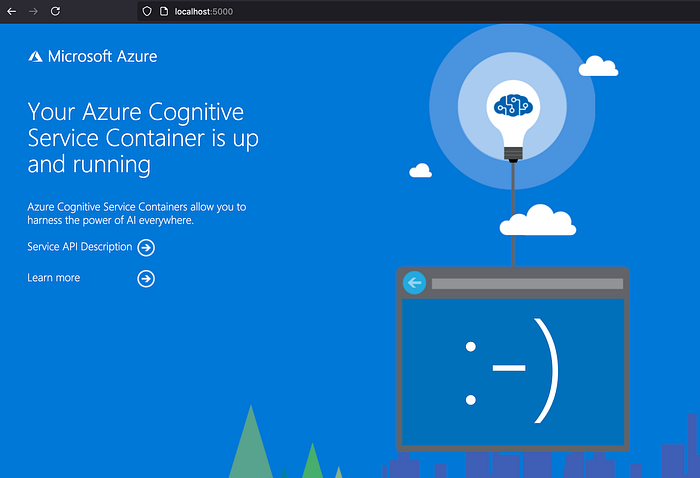
Local Docker container running
There is also a status page at http://localhost:5000/status and a full set of endpoint documentation at http://localhost:5000/swagger
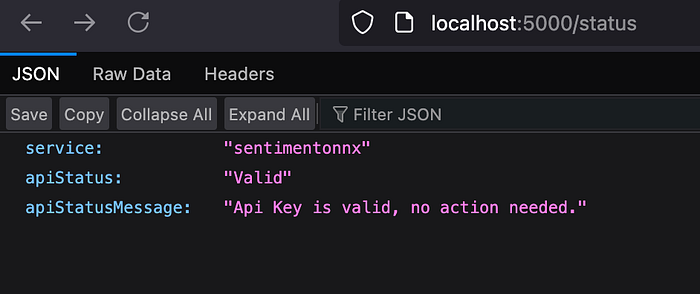
Local Docker container status page
Now test the container with a CURL command, similar to the command to test the managed service hosted in Azure AI Services, except the port is specified and the API key is not needed in the header.
curl -X POST "http://localhost:5000/text/analytics/v3.1/sentiment" -H "Content-Type: application/json" --data-ascii "{'documents':[{'id':1,'text':'The performance was amazing! The sound could have been clearer.'},{'id':2,'text':'The food and service were unacceptable. While the host was nice, the waiter was rude and food was cold.'}]}"
{
    "documents": [\
        {\
            "id": "1",\
            "sentiment": "positive",\
            "confidenceScores": {\
                "positive": 0.99,\
                "neutral": 0.0,\
                "negative": 0.0\
            },\
            "sentences": [\
                {\
                    "sentiment": "positive",\
                    "confidenceScores": {\
                        "positive": 0.99,\
                        "neutral": 0.0,\
                        "negative": 0.0\
                    },\
                    "offset": 0,\
                    "length": 29,\
                    "text": "The performance was amazing! "\
                },\
                {\
                    "sentiment": "neutral",\
                    "confidenceScores": {\
                        "positive": 0.19,\
                        "neutral": 0.47,\
                        "negative": 0.34\
                    },\
                    "offset": 29,\
                    "length": 34,\
                    "text": "The sound could have been clearer."\
                }\
            ],\
            "warnings": []\
        },\
        {\
            "id": "2",\
            "sentiment": "negative",\
            "confidenceScores": {\
                            "positive": 0.0,\
                "neutral": 0.01,\
                "negative": 0.98\
            },\
            "sentences": [\
                {\
                    "sentiment": "negative",\
                    "confidenceScores": {\
                        "positive": 0.0,\
                        "neutral": 0.01,\
                        "negative": 0.99\
                    },\
                    "offset": 0,\
                    "length": 40,\
                    "text": "The food and service were unacceptable. "\
                },\
                {\
                    "sentiment": "negative",\
                    "confidenceScores": {\
                        "positive": 0.0,\
                        "neutral": 0.02,\
                        "negative": 0.98\
                    },\
                    "offset": 40,\
                    "length": 63,\
                    "text": "While the host was nice, the waiter was rude and food was cold."\
                }\
            ],\
            "warnings": []\
        }\
    ],
    "errors": [],
    "modelVersion": "2022-11-01"
}
Deploying container to Azure
This is outside the scope and primary focus of this article, but as Docker hosting was demonstrated, it is worth mentioning that Azure has numerous options for building and deploying cloud-native and containerized applications. Depending on specific needs for scaling, cost, high availability, management preferences to not use the managed service for Azure AI, and other concerns, some options to consider are Azure Container Instances, Azure Container Apps, or Azure Kubernetes Service. These options and others are explained in more detail here.
Step 5: Cleanup Azure resources
Cleanup of the Azure resources used in this exercise is easy, as only the Language Service was created. If you created a Resource Group just for this exercise you can delete that as well, if you prefer, but it has no cost as it’s simply a way to group Azure resources.
Navigate to Azure AI Services, select Language Service, then check the box for the service you created, then select Delete and proceed with the deletion.
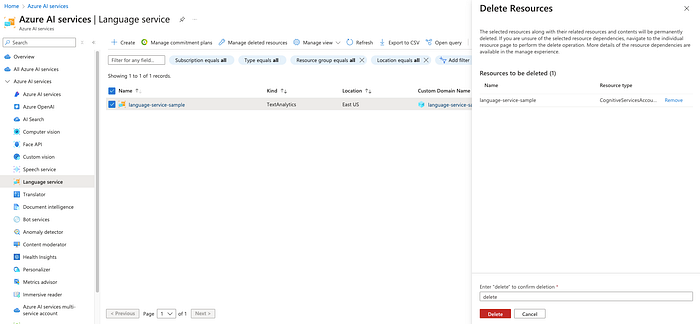
Language Service deletion
Azure AI Language Service empowers businesses to extract meaningful insights from text using sentiment analysis, key phrase extraction, and language detection. We demonstrated how easy it is to integrate these capabilities into applications with a managed AI Azure Services endpoint, or through self-hosting a container running in Docker or anywhere a containerized application can be deployed.
Key Takeaways
Why Choose Azure AI Language Service?
- Ease of Use: With pre-built models and simple APIs, businesses can quickly integrate advanced Natural Language Processing capabilities into their applications without needing deep expertise in machine learning.
- Seamless Integration: Azure AI Language Service integrates seamlessly with other Azure tools, such as Azure Machine Learning, Power BI, and Azure Synapse Analytics, enabling end-to-end data analysis and visualization.
- Cost-Effectiveness: Pay-as-you-go pricing and scalable infrastructure ensure that businesses only pay for what they use, making it accessible for organizations of all sizes.
- Flexibility and Scalability: Whether you're using managed endpoints for quick integration or running services in containers for greater control, Azure AI Language Service offers the flexibility to meet diverse business needs. The scalability of these services ensures that they can handle workloads of any size, from small startups to large enterprises.
- Enterprise-Grade Security: Azure’s robust security and compliance features ensure that your data is protected at every step.
Example Use Cases
- Sentiment Analysis: By understanding the sentiment behind customer feedback, reviews, or social media posts, businesses can identify areas for improvement, measure customer satisfaction, and tailor their strategies to enhance customer experiences.
- Key Phrase Extraction: Extracting key phrases from documents, emails, or support tickets helps businesses quickly identify the main topics, trends, and pain points. This enables faster response times, better resource allocation, and more informed decision-making.
- Language Detection: Automatically detecting the language of text allows businesses to streamline multilingual workflows, improve communication with global audiences, and ensure that content is appropriately localized.
Get Started
From cost optimization to infrastructure automation, and security hardening to cloud architecture design, DoiT International offers extensive expertise across multiple cloud domains. To explore how DoiT can help you implement AI and modernize other aspects of your cloud infrastructure, please contact us here to learn about our cloud engineering solutions.