

In today’s fast-paced media landscape, reliably and securely transporting high-quality video content across networks has become essential. Whether you’re a broadcaster delivering live events to global audiences, a content creator distributing premium video to streaming platforms, or an enterprise managing internal video communications, the challenges of maintaining video quality while ensuring security and reliability can be daunting.
This is where AWS Elemental MediaConnect steps in as a game-changing solution. As a cloud-based service, it transforms how we think about video transport by providing a high-quality, scalable, and secure way to move video feeds across global networks. Designed to simplify streaming workflows, AWS Elemental MediaConnect eliminates the complexity and cost of traditional infrastructure.
Built for performance and resilience, MediaConnect supports industry-standard secure protocols like Zixi, SRT, and RIST, ensuring content arrives intact with the highest quality standards. Features such as flexible source ingest, redundant outputs, and tight integration with AWS Media Services (like MediaLive and MediaPackage) empower teams to deliver flawless, low-latency streams — so you can focus on your content, not your pipeline.
AWS Elemental MediaConnect supports a variety of high-quality video distribution scenarios, including:
- On-premises to AWS: Securely transport video from contribution encoders (or other on-prem sources) into AWS using reliable protocols like Zixi, SRT, or RIST.
- AWS to on-premises: Distribute processed video from AWS back to on-premises locations for playback, monitoring, or further processing.
- Cloud-to-cloud syndication: Share content across AWS regions or with other cloud platforms for redundancy or multi-CDN strategies.
- Global secure delivery: Distribute content to end-users or partners worldwide with built-in encryption and access controls.
By using MediaConnect’s entitlement function, customers can split the distribution cost with subscribers/customers, and have the ability to enable/disable the entitlement with the click of a button.
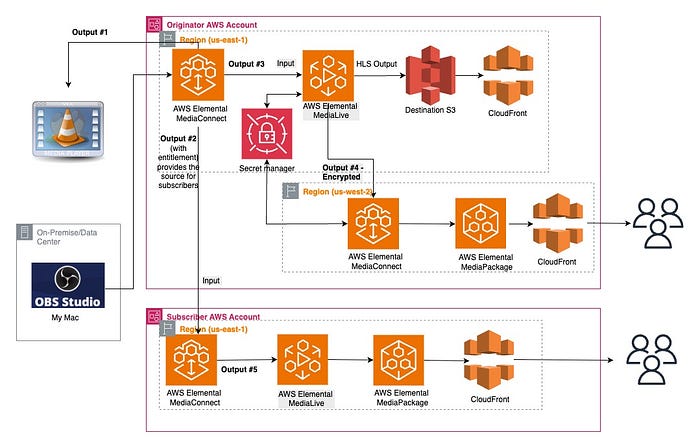
Architectural Diagram
Setting Up MediaConnect (Ingest)
Setup a standard cloud contribution workflow in MediaConnect
- Create flow in originator account:- e.g. source-demoflow-in-originator-us-east-1. Ihave added a few CloudFormation templates for reference, but I will be demoing how to create different media pipelines and stitch them together via the console for better understanding.
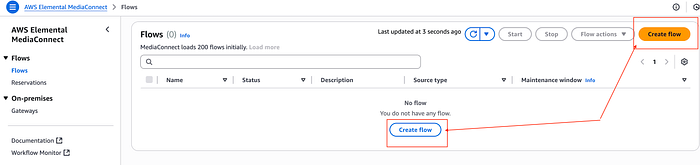
Create flow
- Enter name, leave the Availability Zone with the default value, Source type → Standard source, choose Protocol (e.g., SRT listener)
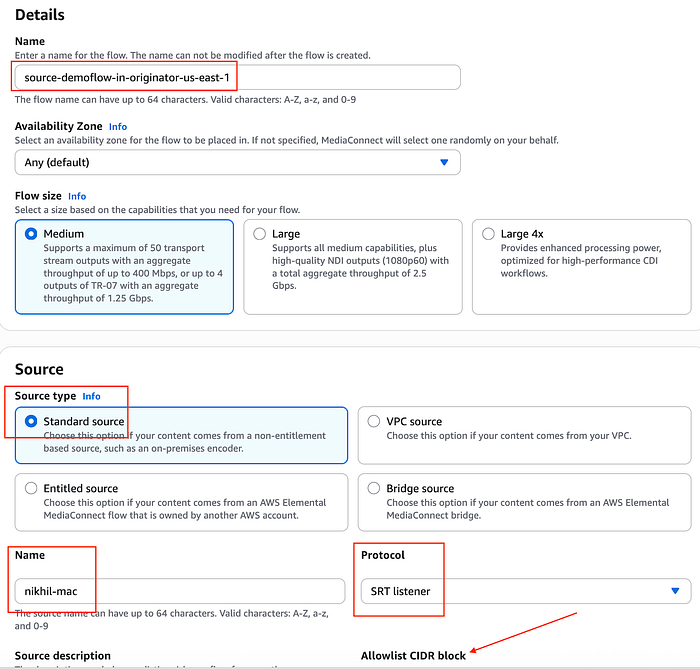
Mediaconnect create flow
Add, Allowlist CIDR block to protect your flow from potential misuse. I have entered my public IP address, followed by /32 , along with the port number, e.g., 5000. (Valid range 1024 to 65535 inclusive, except 2077 and 2088. Valid characters: 0–9).
NOTE — If your stream is encrypted, then you can choose the decryption option.
You can store the decryption key in AWS Secret Manager and AWS MediaConnect can access it but MediaConnect role needs permissions to read that secret.
- Start flow:-
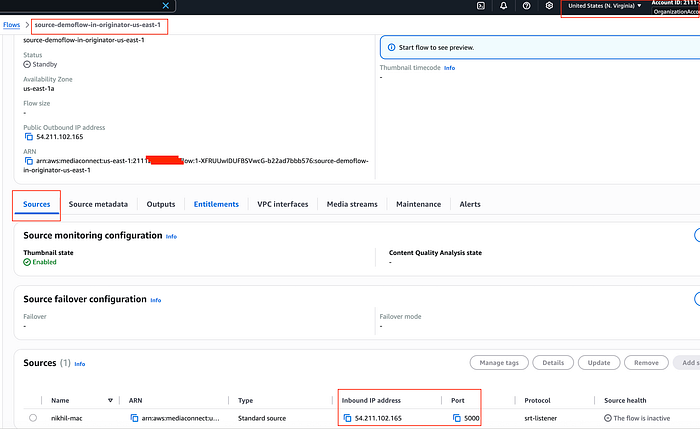
source-demoflow-in-originator-us-east-1
- Start stream:- I am using OBS Studio to send an SRT stream to the MediaConnect workflow. Open the OBS software and prepare your stream. Select OBS Settings, and select Stream. Then for Server, enter
srt://<Inbound IP Address>:<Port>. Replace Inbound IP Address with your flow's inbound IP address, and replace Port with your flow's port number. Leave Stream Key blank. Click OK to close the Settings dialog.
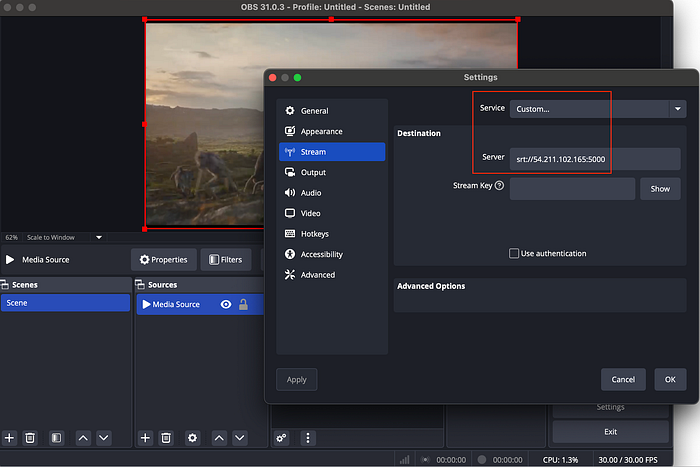
Broadcasting via OBS studio
You can start streaming in OBS toingest on the MediaConnect flow. Now, you should see that your source shows Connected status under Source health after a few moments, and you can see the thumbnail of the stream video. Your stream has successfully reached MediaConnect for distribution.
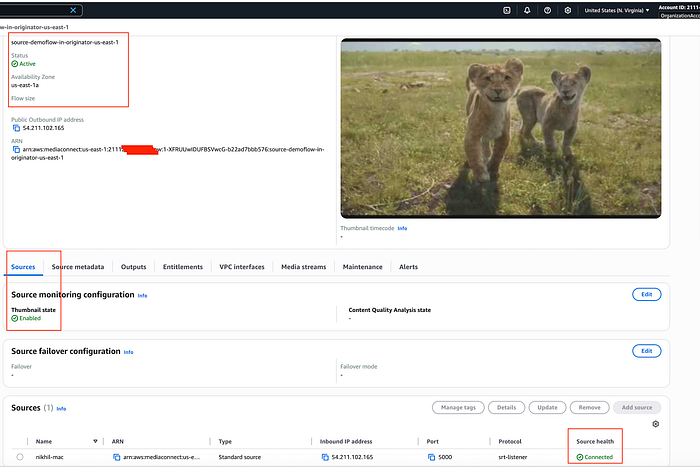
Stream at distribution source in originator account
Creating Outputs
Setup a standard cloud distribution workflow from AWS Originator Account
- Output #1:- e.g. SRT protocol
Now, we will create an output with SRT protocol in flow from our previously configured cloud ingest flow ( i.e source-demoflow-in-originator-us-east-1). We will then receive the video stream and play it out on a local laptop using VLC player.
- Add output in the output section of MediaConnect flow.( e.g. output-1-srt-listner-from-source-demoflow-in-originator-us-east-1)
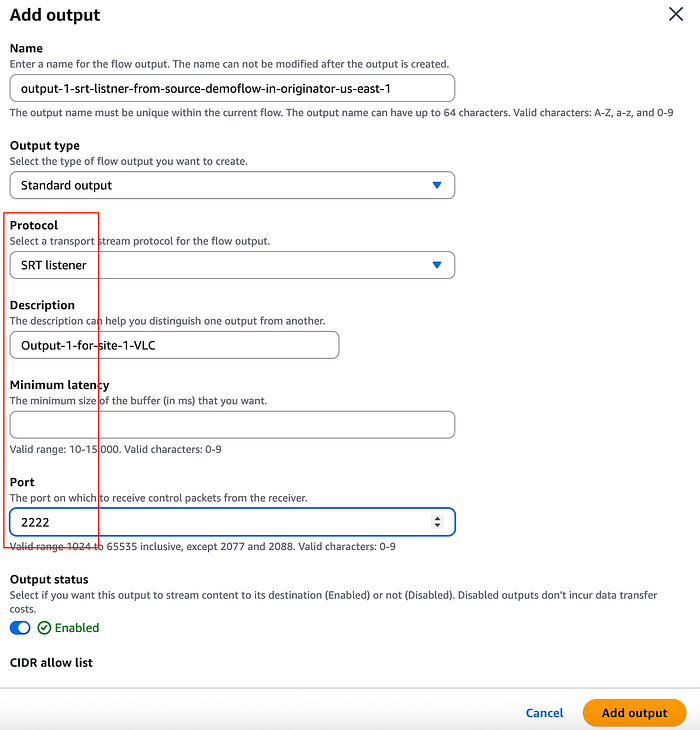
Output #1 — SRT protocol
- Start streaming from OBS and confirm in VLC that the stream is coming through.
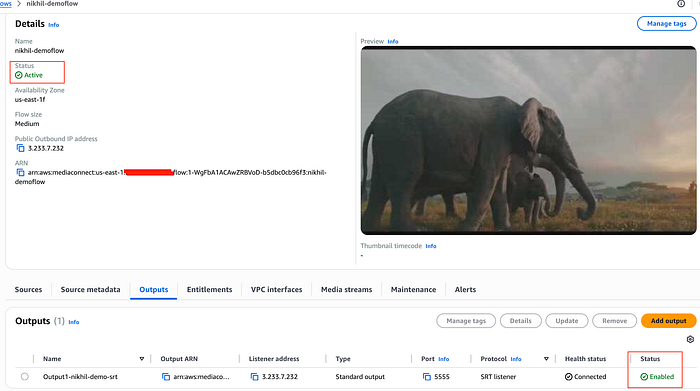
Output — Status — Connected
- With the MediaConnect output configured, open the VLC application network settings, and enter
srt://<Inbound IP Address>:Portin URL. Replace Inbound IP Address and Port with your flow's inbound IP address, then click Open.
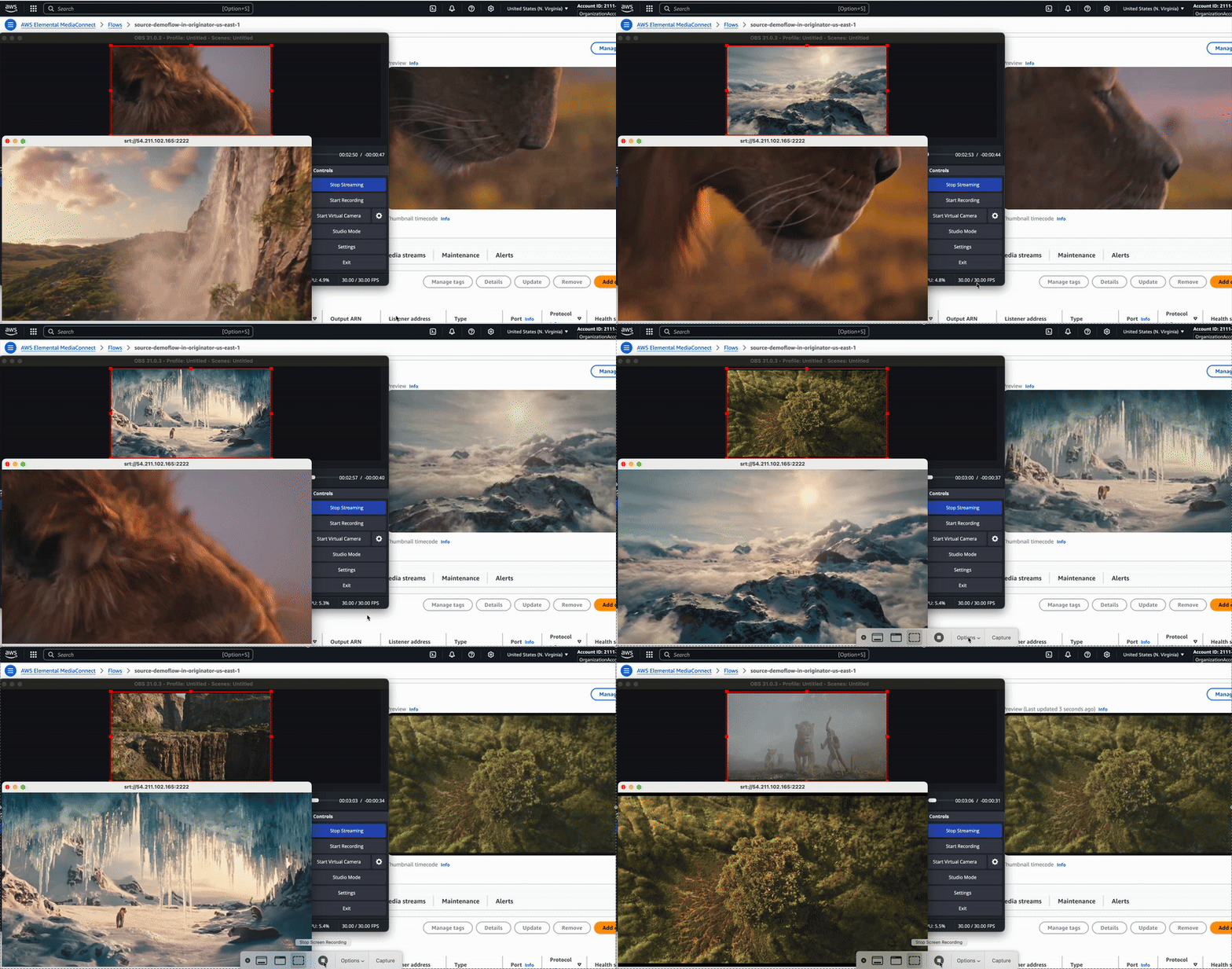
VLC playing the video stream over SRT protocol, connected via the MediaConnect output flow
Note:- (Optional) At the moment you cannt add Tags to MediaConnect Flow via CloudFomration template, to add tags i have am using lambda function but you can use console or cli.
AWSTemplateFormatVersion: '2010-09-09'
Description: Create an AWS MediaConnect flow with an SRT listener source

Resources:
  MediaConnectFlow:
    Type: AWS::MediaConnect::Flow
    Properties:
      AvailabilityZone: us-east-1a
      Name: source-demoflow-in-originator-us-east-1
      Source:
        Name: nikhil-mac
        Description: nikhil-mac-machine
        Protocol: srt-listener
        IngestPort: 5000
        WhitelistCidr: 0.0.0.0/0  # Replace with a specific IP range for security
      SourceMonitoringConfig:
        ThumbnailState: ENABLED

  MediaConnectFlowOutput:
    Type: AWS::MediaConnect::FlowOutput
    Properties:
      FlowArn: !Ref MediaConnectFlow
      Name: output-1-srt-listner-from-source-demoflow-in-originator-us-east-1
      Description: Output-1-for-site-1-VLC
      Protocol: srt-listener
      Port: 2222
      MinLatency: 2000
      CidrAllowList:
        - 0.0.0.0/0

  TaggingLambdaRole:
    Type: AWS::IAM::Role
    Properties:
      AssumeRolePolicyDocument:
        Version: '2012-10-17'
        Statement:
          - Effect: Allow
            Principal:
              Service: lambda.amazonaws.com
            Action: sts:AssumeRole
      ManagedPolicyArns:
        - arn:aws:iam::aws:policy/service-role/AWSLambdaBasicExecutionRole
      Policies:
        - PolicyName: MediaConnectTaggingPolicy
          PolicyDocument:
            Version: '2012-10-17'
            Statement:
              - Effect: Allow
                Action:
                  - mediaconnect:TagResource
                Resource: !Sub 'arn:aws:mediaconnect:${AWS::Region}:${AWS::AccountId}:flow:*'

  TaggingLambda:
    Type: AWS::Lambda::Function
    Properties:
      Runtime: python3.9
      Handler: index.handler
      Role: !GetAtt TaggingLambdaRole.Arn
      Timeout: 30
      Code:
        ZipFile: |
          import boto3
          import cfnresponse

          def handler(event, context):
              if event['RequestType'] in ['Create', 'Update']:
                  try:
                      client = boto3.client('mediaconnect')
                      flow_arn = event['ResourceProperties']['FlowArn']
                      tags = [\
                          {'Key': 'name', 'Value': 'source-demoflow-in-originator-us-east-1'},\
                          {'Key': 'account', 'Value': '2111XXXXXXXX'},\
                          {'Key': 'created_by', 'Value': 'cloudformation'},\
                          {'Key': 'type', 'Value': 'originator'}\
                      ]

                      tag_dict = {}
                      for tag in tags:
                          tag_dict[tag['Key']] = tag['Value']

                      client.tag_resource(
                          ResourceArn=flow_arn,
                          Tags=tag_dict
                      )

                      cfnresponse.send(event, context, cfnresponse.SUCCESS, {})
                  except Exception as e:
                      print(f"Error tagging MediaConnect Flow: {str(e)}")
                      cfnresponse.send(event, context, cfnresponse.FAILED, {})
              else:
                  cfnresponse.send(event, context, cfnresponse.SUCCESS, {})

  MediaConnectFlowTags:
    Type: Custom::MediaConnectFlowTags
    DependsOn: MediaConnectFlow
    Properties:
      ServiceToken: !GetAtt TaggingLambda.Arn
      FlowArn: !Ref MediaConnectFlow

Outputs:
  FlowArn:
    Description: ARN of the MediaConnect Flow
    Value: !Ref MediaConnectFlow

  FlowOutputArn:
    Description: ARN of the MediaConnect Flow Output
    Value: !Ref MediaConnectFlowOutput
- Output #2:- Grant entitlement to another account— Content originators can grant entitlements to share their content with other AWS accounts ( subscriber accounts). Subscribers can then set up their own AWS Elemental MediaConnect flows using the originator’s flow as their source.
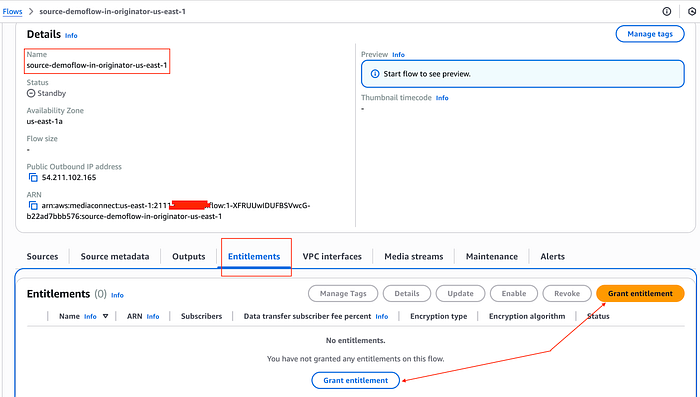
Grant entitlement 1.1
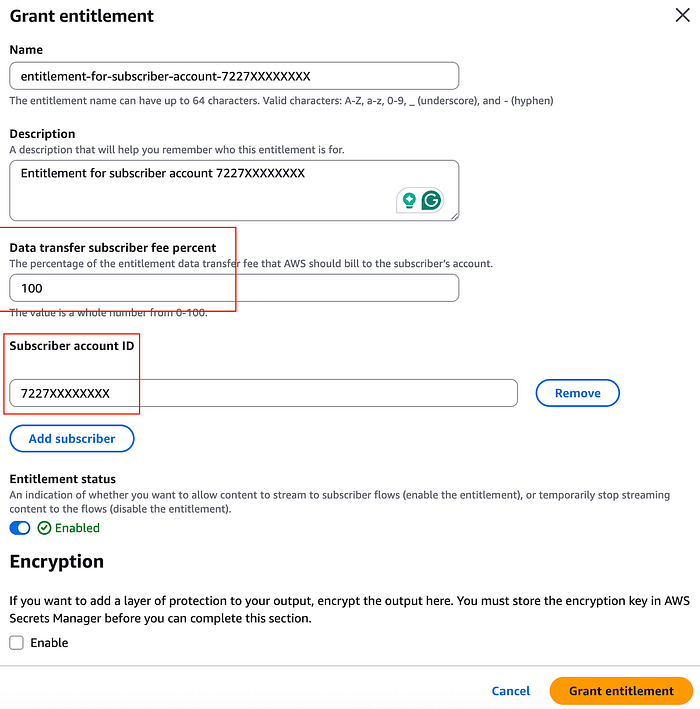
Grant entitlement 1.2
Note — You can add multiple accounts in single entitlement with add subscriber
  MediaConnectFlowEntitlement:
    Type: AWS::MediaConnect::FlowEntitlement
    Properties:
      FlowArn: !Ref MediaConnectFlow
      Name: entitlement-for-subscriber-account-7227XXXXXXXX
      Description: Entitlement for subscriber account
      Subscribers:
        - "7227XXXXXXXX"
      DataTransferSubscriberFeePercent: 100
      EntitlementStatus: ENABLED
Set up a standard cloud distribution workflow from the AWS Subscriber Account
- Create a MediaConnect flow in the subscriber account where you trying to send the stream and the entitlement ARN should be available while creating.
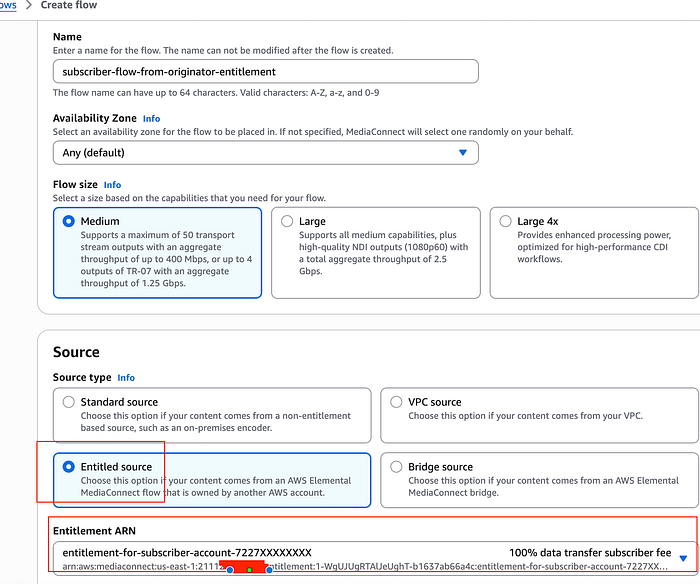
Subcriber MediaConnect flow from Entitlement
#Sample Cloudformation template with Entilement
AWSTemplateFormatVersion: '2010-09-09'
Description: Subscriber MediaConnect flow using an entitlement from another account

Resources:
  SubscriberMediaConnectFlow:
    Type: AWS::MediaConnect::Flow
    Properties:
      AvailabilityZone: us-east-1a
      Name: subscriber-flow-from-originator-entitlement
      Source:
        Name: entitlement-source
        Description: Source from entitlement
        EntitlementArn: arn:aws:mediaconnect:us-east-1:2111XXXXXXXX:entitlement:1-WgUJUgRTAlJeUghT-b1637ab66a4c:entitlement-for-subscriber-account-7227XXXXXXXX
      SourceMonitoringConfig:
        ThumbnailState: ENABLED
- Start both flows and start streaming.
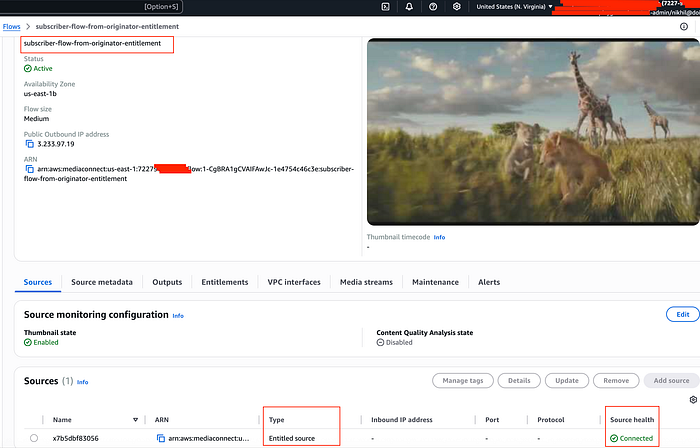
Stream coming in Subscriber account with entitlement
Connecting MediaConnect to MediaLive
- Output #3:- MediaConnect Flow (originator account) to AWS Elemental MediaLive Channel (originator account in same region)
- AWS Elemental MediaLive Channel:- First, create a MediaLive Channel input.
- Start by accessing the MediaLive service console. From there:
- Go to Inputs and click Create input.
- Under Input details, give your input a descriptive name.
- For the Input type, select MediaConnect.
- In the MediaConnect flows section, set the Input class to SINGLE_INPUT. You’ll then need to choose your specific Flow ARN from the provided dropdown list.
- For Role ARN, select Use existing role and choose your MediaLiveAccessRole from the available options.
- Once all details are entered, click Create to generate the input.
If you would like to find more about Role, Inputs, AWS Elemental MediaLive, check out my Medialive blog here.
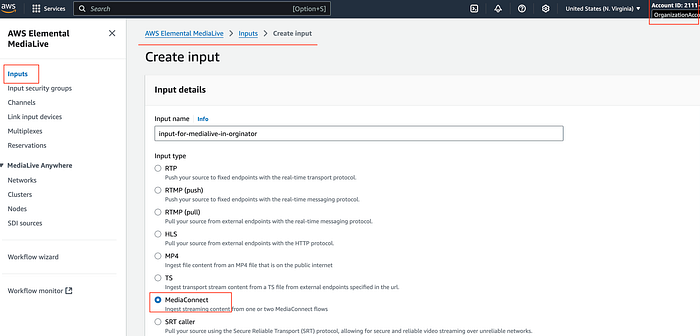
Medialive Input 1.1
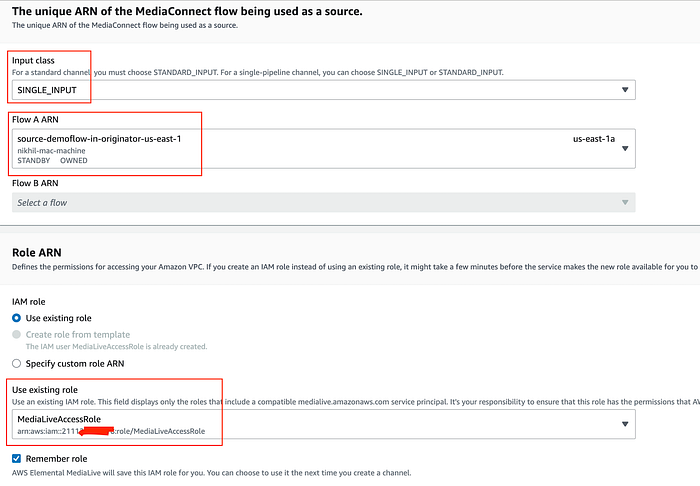
Medialive Input 1.2
- Create Medialive Channel— In AWS Elemental MediaLive menu → Channels → Create Channel. Enter the General info, Channel name, IAM role.
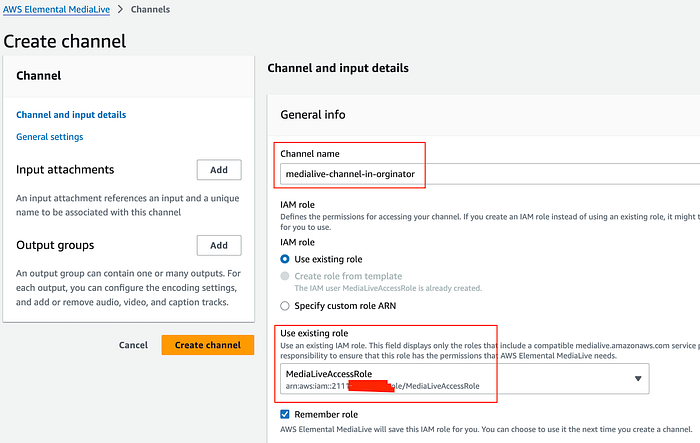
Medialive Channel in originator
- In the Channel template section, choose Live event HLS. Channel class → Single Pipeline.
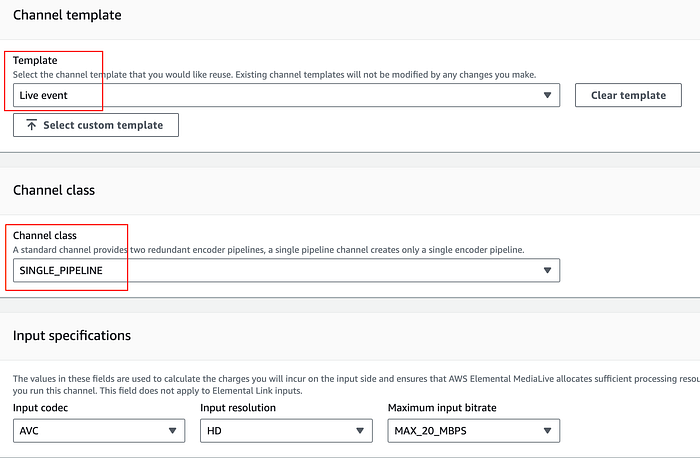
Medialive Channel in originator settings
- Under Input attachments → click Add. In Attach input, for Input, choose your input from the dropdown list and confirm.
- MediaLive Channel needs output groups — These are multiple options. For demo purposes, I will be using HLS with S3 as a destination. e.g. nikhil-medialive-destination. In HLS group destination A, for URL, enter S3 URL in the following format. Use your S3 bucket name which you created — s3://nikhil-medialive-destination/live/index
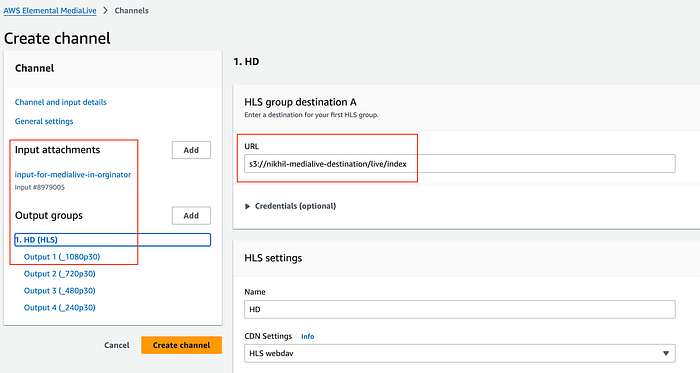
Medialive Channel output settings
- Create a Medialive channel and start your stream from OBS. You should be able to see stream is reaching Medialive channel, and files are generated in your S3 bucket. Optionally, you can add CloudFront distribution on HLS output and play your video stream with CloudFront URL, e.g. https://
/live/index.m3u8.
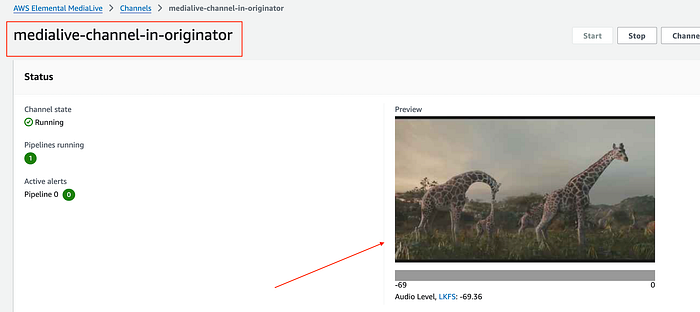
Mediaconnect to Medialive
Cross-Region MediaConnect
- Output #4:- MediaLive (in originator — us-east-1) to MediaConnect (in originator — us-west-2)
- First, create another MediaConnect flow like before in a different region ( e.g., demoflow-in-originator-us-west-2)
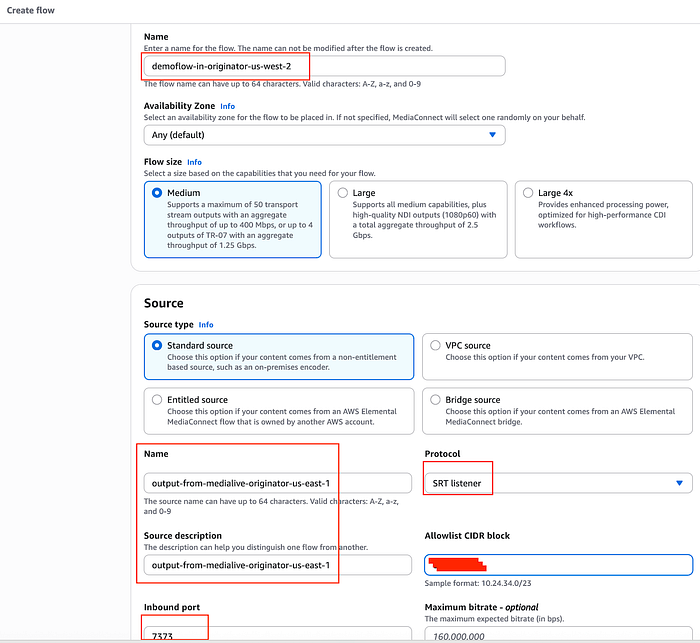
MediaConnect Flow
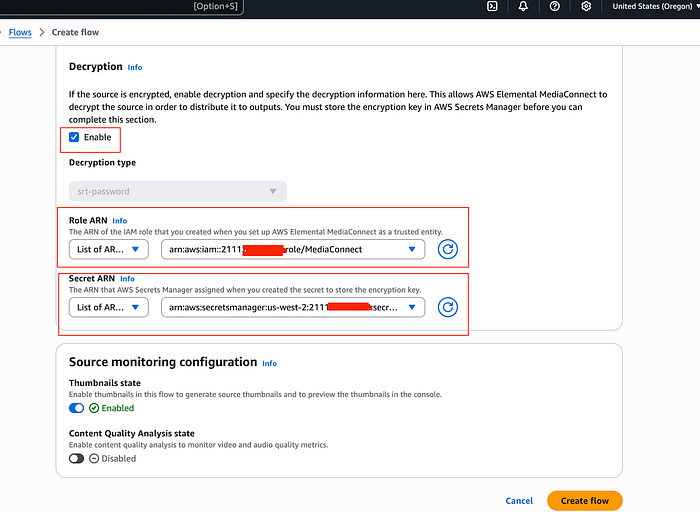
- Now, if you select decryption, that means content coming from MediaLive Channel (us-east-1) will be encrypted. (Note- I will be doing so to show the encryption part). The MediaConnect flow role and the MediaLive role both will need access to the encryption/decryption key. Encryption/decryption key can be stored in AWS Secret Manager (in us-east-1) and replicated in the destination region (Oregon — us-west-2) because AWS secrets are regional resources and MediaConnect won't see it unless replicated.
- My example policy for AWS secret
{
  "Version" : "2012-10-17",
  "Statement" : [ {\
    "Sid" : "AllowMediaConnectGetSecretValue",\
    "Effect" : "Allow",\
    "Principal" : {\
      "Service" : "mediaconnect.amazonaws.com"\
    },\
    "Action" : "secretsmanager:GetSecretValue",\
    "Resource" : [\
         "arn:aws:secretsmanager:us-east-1:2111XXXXXXXX:secret:medialive-secret-us-east-1-jedikQ",\
         "arn:aws:secretsmanager:us-west-2:2111XXXXXXXX:secret:medialive-secret-us-east-1-jedikQ" ],\
    "Condition" : {\
      "StringEquals" : {\
        "aws:SourceAccount" : "2111XXXXXXXX"\
      }\
    }\
  }, {\
    "Sid" : "AllowMediaConnectListSecrets",\
    "Effect" : "Allow",\
    "Principal" : {\
      "Service" : "mediaconnect.amazonaws.com"\
    },\
    "Action" : "secretsmanager:ListSecrets",\
    "Resource" : "*",\
    "Condition" : {\
      "StringEquals" : {\
        "aws:SourceAccount" : "2111XXXXXXXX"\
      }\
    }\
  }, {\
    "Sid" : "AllowMediaLiveAccessRoleGetSecretValue",\
    "Effect" : "Allow",\
    "Principal" : {\
      "AWS" : "arn:aws:iam::2111XXXXXXXX:role/MediaLiveAccessRole"\
    },\
    "Action" : "secretsmanager:GetSecretValue",\
    "Resource" : [ "arn:aws:secretsmanager:us-east-1:211125713318:secret:medialive-secret-us-east-1-jedikQ", "arn:aws:secretsmanager:us-west-2:211125713318:secret:medialive-secret-us-east-1-jedikQ" ],\
    "Condition" : {\
      "StringEquals" : {\
        "aws:SourceAccount" : "2111XXXXXXXX"\
      }\
    }\
  } ]
}
- Now, configure MediaConnect (us-west-2) output in MediaLive Channel(us-east-1) by editing the channel to finish the media pipeline.
- Edit channel → Output group(add) → SRT → Confirm
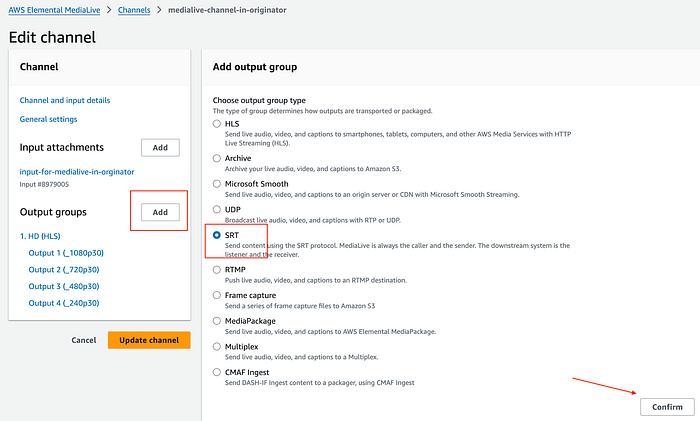
Medialive output group — SRT
- Give a name ( e.g. — media-connect-srt-oregon) → Settings
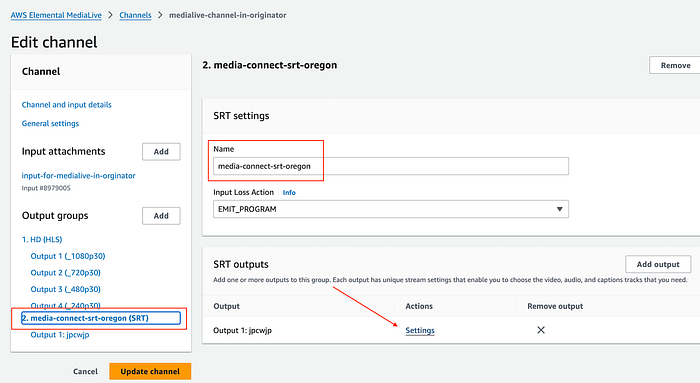
Output SRT Group settings
- Add srt URL as your MediaConnect endpoint (us-east-2) with port in the format —
srt://<Inbound IP Address>:<Port>and select the secret.
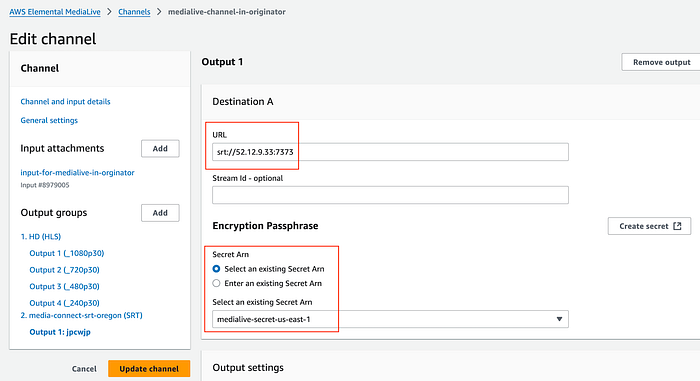
SRT endpoint
Verifying Your Workflows
Once your inputs are configured, the next crucial step is to start all workflows and your MediaLive channel. This ensures that all outputs are successfully reaching their intended destinations and that every pipeline is functioning correctly. As shown below, the pipeline successfully delivers content to all configured endpoints.
Let’s break down the typical content flow:
Originator Side (AWS Account 2111XXXXXXXX):
- OBS (MAC) sends the initial stream.
- This stream is routed to the nikhil-demoflow (us-east-1) MediaConnect flow.
- From there, it gets delivered to VLC (srt://3.233.7.232:5555) for local verification.
- The stream also feeds into the Elemental MediaLive Channel — nikhil-obs-channel (us-east-1).
- The stream also feeds into MediaConnect Flow — stream-from-account-2111XXXXXXXX-flow (us-east-1) in the subscriber account (AWS Account 7227XXXXXXXX).
- In the originator account, stream from MediaConnect Flow nikhil-demoflow (us-east-1) to nikhil-demoflow-oregon (us-west-2).
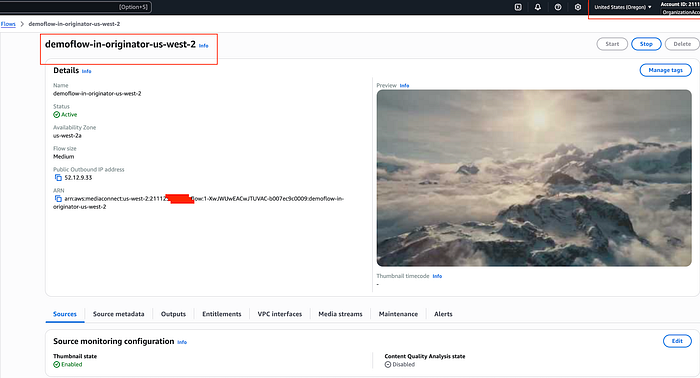
MediaConnect Flow — us-west-2
Subscriber Workflow
Output #5:- Pipeline from Subscriber account MediaConnect endpoint to AWS Elemental MediaLive Channel
For this, I will be quickly deploying the MediaLive Channel in the subscriber account using the Workflow Wizard. Please check out my blog for more details on the Workflow Wizard.
Now, rather than Entitlement (for account), I will be creating output in MediaConnect Flow, which will be used as input for the MediaLive channel, which is the subscriber account.
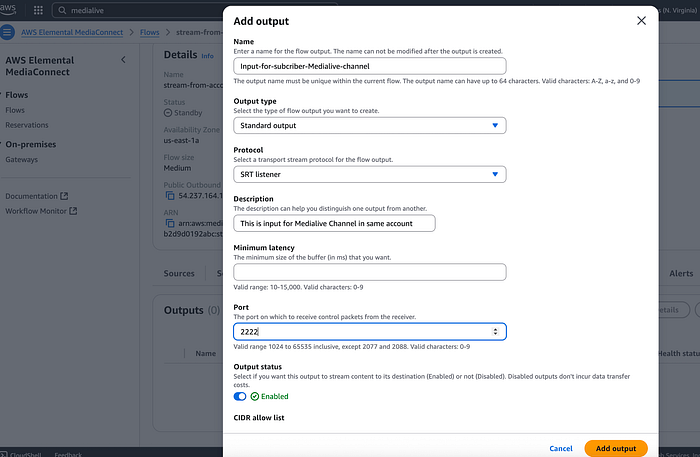
Subscriber Flow -output
- Create an input (type -mediaconnect) as before and deploy the MediaLive channel.

Subscriber Workflow -Medialive Channel
- Finally, start all MediaConnect workflows and MediaLive Channels and start streaming.
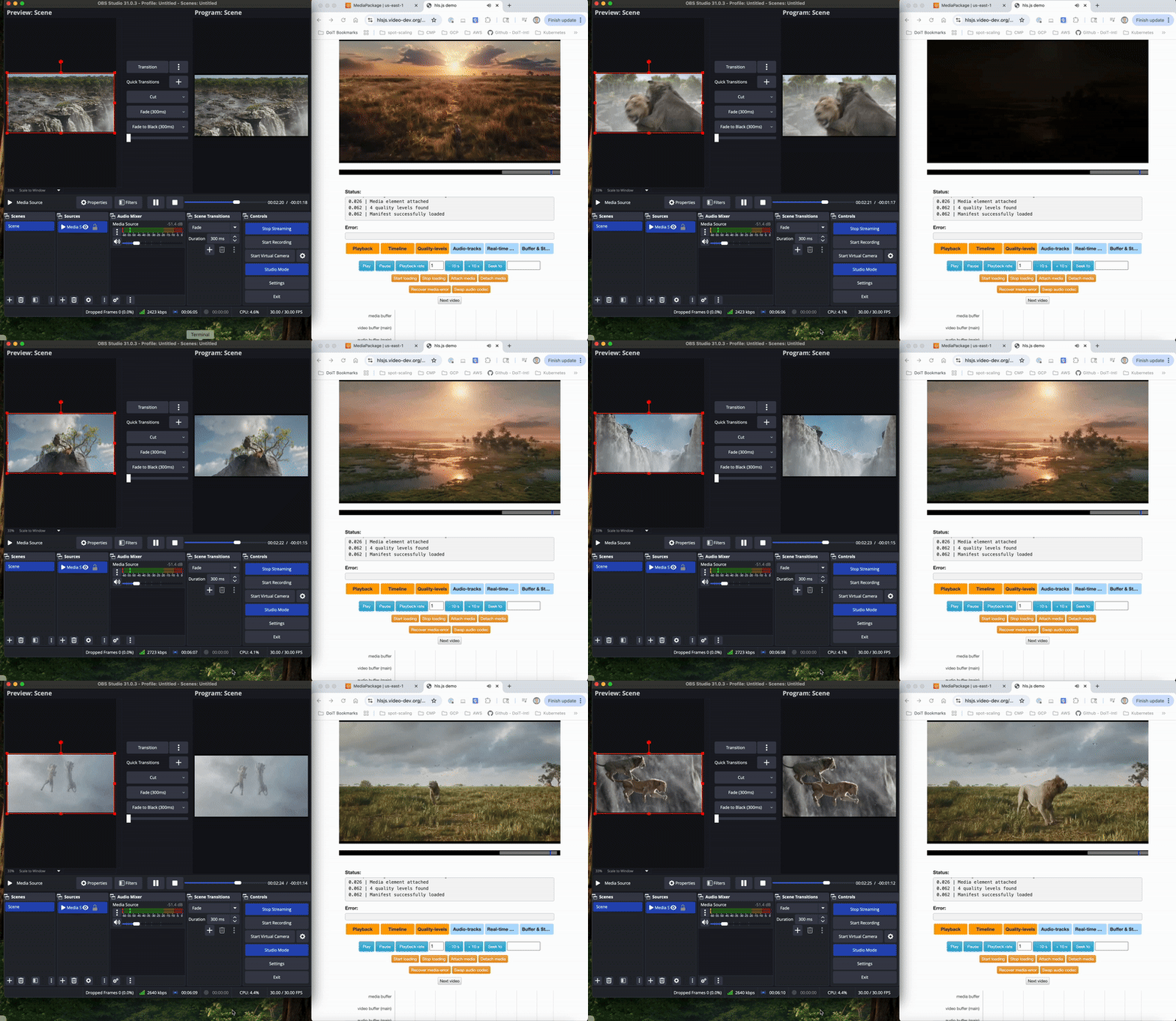
MediaPackage Preview
From ingest to delivery, AWS Elemental MediaConnect forms the backbone of scalable, high-performance video workflows. By integrating MediaLive for real-time processing, MediaPackage for just-in-time packaging, and CloudFront for global distribution — alongside AWS Secrets Manager to securely store and manage encryption keys — broadcasters can protect content while delivering it seamlessly to public or private endpoints. As live video demands evolve, this architecture highlights how AWS Media Services abstracts away infrastructure complexity, letting teams focus on innovation rather than operational overhead.
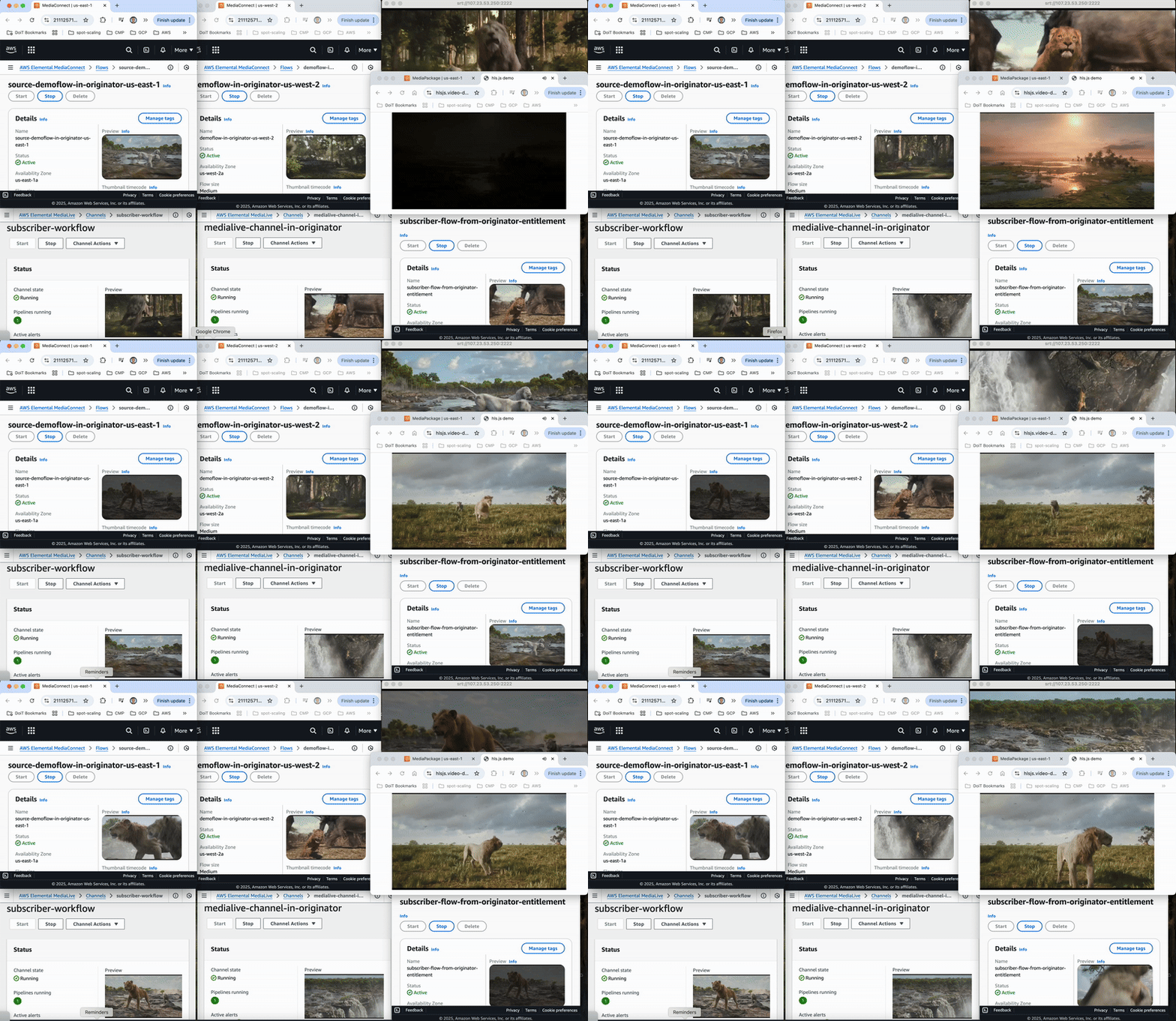
Final Pipeline Visualization
Cleanup
Delete all deployed resources,
MediaLive Channels— subscriber-workflow, medialive-channel-in-originator
MediaConnect flows— source-demoflow-in-originator-us-east-1, subscriber-flow-from-originator-entitlement,demoflow-in-originator-us-west-2
Secret Manager Secret— medialive-secret (remove secret replication and delete from us-east-1 in originator account)
Medialive Input— input-for-medialive-originator (s eparately created)
Whether you’re building a streaming platform or exploring AWS’s media capabilities, I hope this walkthrough helped simplify the MediaConnect Pipelines and different integrations setup. From cloud architecture design to infrastructure automation, DoiT International offers comprehensive expertise to help modernize your cloud infrastructure. Contact us here to learn about our cloud engineering solutions.