

Making sense of networks and equipment through IP Address Management (IPAM)
Recently I’ve noticed an increase in customers reporting challenges with their networking, namely peering, due to IP address range collisions. This is an obvious indication of a need to plan for and manage IP addresses throughout the organization.
Although you can keep track of your IPs in a shared spreadsheet, there are also software tools available. This post demonstrates how to run a popular open source IP address management (IPAM) tool called Netbox in a cloud-native way on Google Cloud Platform (GCP).
Traditional Stack
Historically Netbox is run on one or more virtual machines, fronted by a web server. There is a community-managed Docker image, but the only instructions are to run it using docker compose. This architecture resembles many applications companies build or run, however, so it’s a great candidate to also illustrate how to migrate to public cloud.
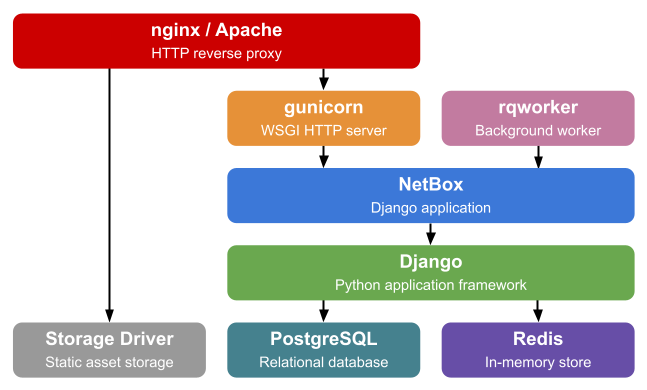
Source: Netbox — standard Netbox installation
Cloud-native Design
I decided to figure out how the Docker image works, its dependencies and configuration parameters, and deploy it instead to GCP using only managed services. This example can serve as an illustration of how you may either “move and improve” or “rip and replace” applications as you migrate to public cloud.
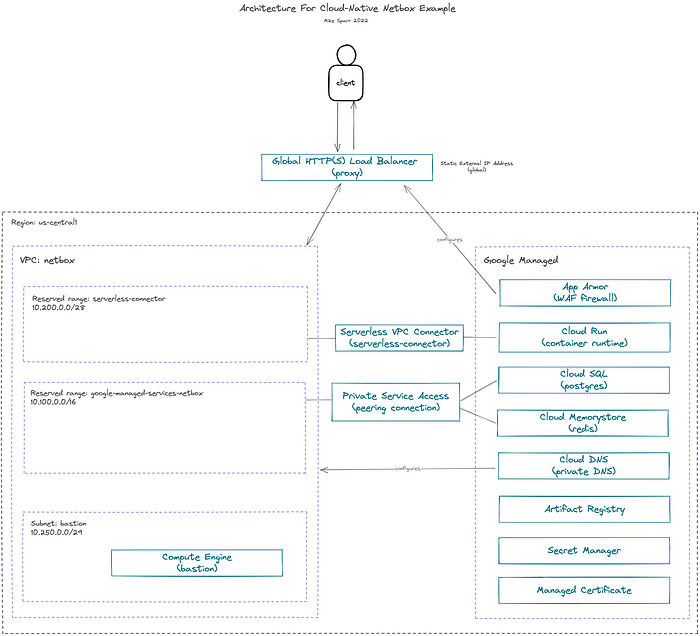
Revised Netbox installation on GCP using managed services
Application components
- Netbox application (Python app using Django framework)
- PostgreSQL database (Cloud SQL)
- Redis (Cloud Memorystore)
Design decisions
- Managed database and cache (Cloud SQL, Cloud Memorystore)
- Private-only IPs for databases and cache (Private Service Access)
- Private DNS for database hostnames (Cloud DNS)
- Secrets stored in secret manager (Secret Manager)
- Serverless container runtime (Cloud Run, Artifact Registry)
- Global load balancer with TLS (HTTP(S) Load Balancing, Managed Certificate)
- WAF firewall (Cloud Armor)
Something I witness many orgs struggle with is connecting managed services, and serverless apps, over private IP addresses. This example illustrates how you reserve private ranges in your VPC network, and then assign them to the managed services, creating a connectivity bridge.
Cloud DNS is used to establish private hostnames for the apps to connect to databases. This offers more flexibility in the future if you ever change out databases, or need to failover, because you can simply update your DNS records and apps still point to the same domain. In theory, I could have leveraged DNS forwarding and connected it all to my public domain, but internally it’s not required so I used example.com.
We didn’t need the bastion (or jump host) VM, but I spun one up to test connections while building everything out. Normally a bastion would be deployed in a managed instance group (MIG) size 1, and without external IP addresses.
Secure, Load-balanced Web Application
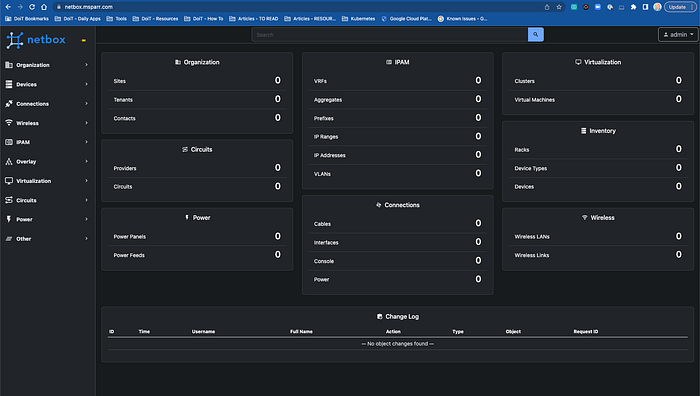
Hosted Netbox application served by Global Load Balancer fronting Cloud Run service
To best illustrate how everything fits together, I used a personal domain and registered an ‘A record’ for the static IP address I assigned to the Global Load Balancer and a managed certificate was automatically provisioned.

For added security, I applied a Cloud Armor (WAF firewall) policy to the load balancer, and restricted IP ranges (see below).
Implementation Code
The code below illustrates the step-by-step commands I used to set everything up, including networking, environment variables and secrets, databases, artifact registry and Docker images, Cloud Run, load balancing, and WAF firewall.
Additional Complexity And Considerations
One of the reasons I chose the Netbox application to illustrate how to modernize and deploy applications in a cloud-native way is its technical complexity. The application includes file system, sessions, workers, and even daily cron cleanup processing.
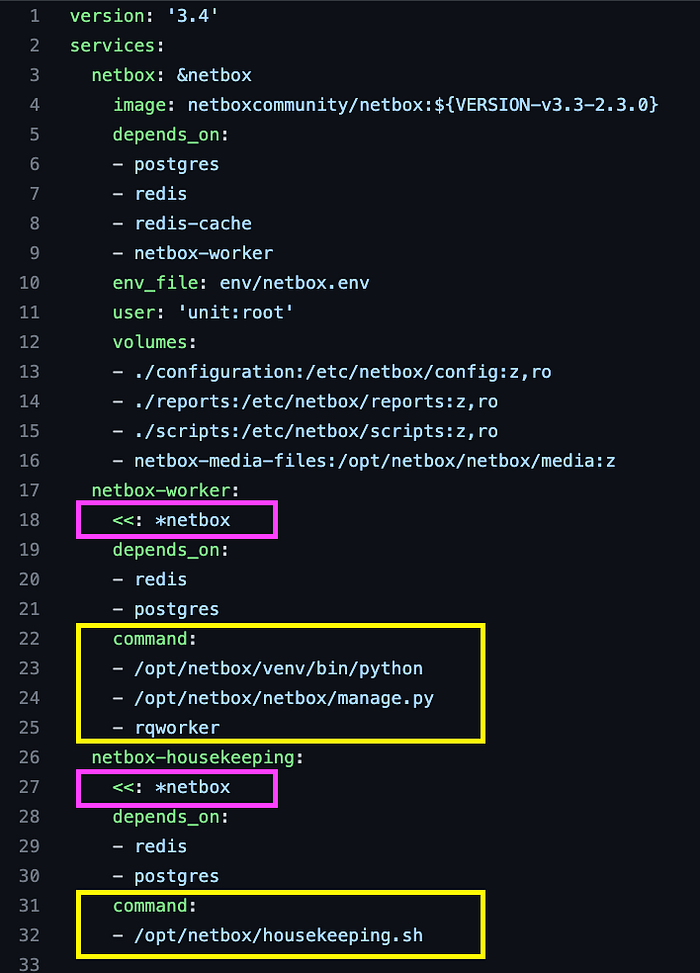
Docker Compose snippet for Netbox application (note netbox-worker and netbox-housekeeping)
The docker-compose.yaml file snippet above illustrates a feature of YAML called anchors, that is not specific to docker-compose.
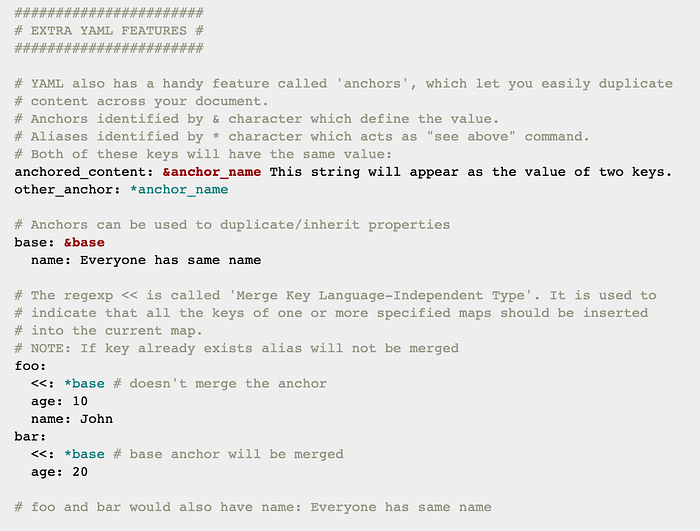
YAML feature (anchors) and merge keys example
You can duplicate configurations in a succinct way, and then override commands to run different scripts at runtime.
Recreating workers on Cloud Run
To recreate this type of functionality on Cloud Run, there are flags -- cmd and - -args that you can add. I would simply duplicate the commands used to deploy the main application and change the name, then override the CMD to execute a different entrypoint script like below:
gcloud run deploy $WORKER_NAME \
    --platform managed \
    --allow-unauthenticated \
    --vpc-connector $CONNECTOR_NAME \
    --ingress=internal-and-cloud-load-balancing \
    --region $GCP_REGION \
    --image $IMAGE_PATH \
    --set-env-vars "ALLOWED_HOSTS=$ALLOWED_HOSTS" \

    ...

    --cmd "/opt/netbox/venv/bin/python" \
    --args "/opt/netbox/netbox/manage.py" \
    --args "rqworker"
Daily housekeeping job using Cloud Run and Cloud Scheduler
The daily housekeeping job can be run by creating a duplicate service on Cloud Run, and then scheduling that daily job to invoke the service using Cloud Scheduler
gcloud run deploy $HOUSEKEEPING_NAME \
    --platform managed \
    --allow-unauthenticated \
    --vpc-connector $CONNECTOR_NAME \
    --ingress=internal-and-cloud-load-balancing \
    --region $GCP_REGION \
    --image $IMAGE_PATH \
    --set-env-vars "ALLOWED_HOSTS=$ALLOWED_HOSTS" \

    ...

    --cmd "/opt/netbox/housekeeping.sh"
After deploying the housekeeping service, we would enable the Cloud Scheduler API:
gcloud services enable cloudscheduler.googleapis.com
We then create a service account, grant it invoker permissions, and create the scheduled job:
# fetch the service URL
export SVC_URL=$(gcloud run services describe $HOUSEKEEPING_NAME \
  --platform managed --region $GCP_REGION --format="value(status.url)")

#########################################################
# create cloud scheduler job
#########################################################
export SA_NAME="cloud-scheduler-runner"
export SA_EMAIL="${SA_NAME}@${PROJECT_ID}.iam.gserviceaccount.com"

# create service account
gcloud iam service-accounts create $SA_NAME \
    --display-name "${SA_NAME}"

# add sa binding to cloud run app
gcloud run services add-iam-policy-binding $HOUSEKEEPING_NAME \
    --platform managed \
    --region $GCP_REGION \
    --member=serviceAccount:$SA_EMAIL \
    --role=roles/run.invoker

# create the job to invoke service every day at 2:30 AM
gcloud scheduler jobs create http housekeeping-job --schedule "30 2 * * *" \
    --http-method=GET \
    --uri=$SVC_URL \
    --oidc-service-account-email=$SA_EMAIL \
    --oidc-token-audience=$SVC_URL
File systems
My goal was to prove you can split out a complex application like Netbox and deploy to the cloud using Cloud Run and other managed services. This may not be the best solution for this particular app, but it is possible.
If you need to leverage the file system, currently the serverless platforms are limited, and you may instead want to run on Kubernetes Engine, or even just a Compute Engine VM. You can run a VM as a container which is very slick, and then attach disks/volumes as necessary.
One trick to give you a simple “file system” in Cloud Run, however, is to leverage Secret Manager like I did in the example code, and snippet below.
# create secret for all vars
gcloud secrets create $SECRET_ID --replication-policy="automatic"
gcloud secrets versions add $SECRET_ID --data-file=${PWD}/$SECRET_FILE

# mount file path in cloud run
gcloud run deploy $SERVICE --image $IMAGE_URL \
    --update-secrets="/env/netbox.env"=$SECRET_ID:$SECRET_VERSION
Best practice: separate service accounts
Although the examples I shared illustrated a separate service account for the Cloud Scheduler add-on, the best practice would be to create separate service accounts for each service, and the bastion (VM), and assign only the minimum IAM roles each needs. This adheres to the principle of least privilege.
For the Cloud Run service, we should create a separate “netbox-runner” service account, and then grant it only necessary roles such as:
I hope this example illustrates how you can modernize existing applications, and leverage managed services on the public cloud. If you are just looking to get Netbox up and running, then the code snippets above should do the trick, but you also might consider running on VM or K8S.
You could also convert the working example to Terraform using 3rd-party solutions like Terraformer, or even GCP’s own bulk export tools, that can reverse-engineer your existing infra and generate Terraform code.
If your organization is facing similar challenges with IP collisions as you configure your networks, then perhaps it’s time for you to practice IPAM either with a shared spreadsheet, or a popular tool like Netbox.