

Recently, I faced an unexpected challenge when working with AWS EC2 Windows.
I created an encrypted Amazon Machine Image (AMI) of my Windows EC2 instance. I hit a roadblock when I couldn’t retrieve the Administrator password for the instance launched from the encrypted AMI.
This was a surprise, as it deviated from my usual experience with non-encrypted AMIs. I was able to fix this issue by resetting the password from a recovery EC2 instance.
In this blog post, I’ll walk you through the steps I took to overcome this challenge.
Creating Encrypted Instance
Recently, I found myself needing to secure my Windows instance I was working with on AWS. The solution? Creating an encrypted Amazon Machine Image (AMI) of the instance.
First I made an AMI of my Windows instance. To encrypt the AMI I copied it and applied the encryption setting.


From the encrypted AMI I launched a new Windows Instance.

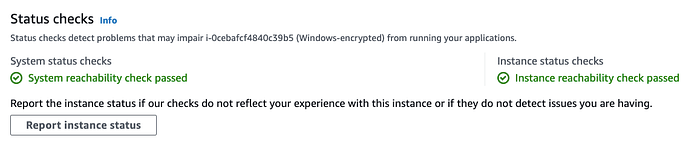
I waited for the instance to be in a running state and pass both status checks before connecting to it.
Connecting to EC2 Windows
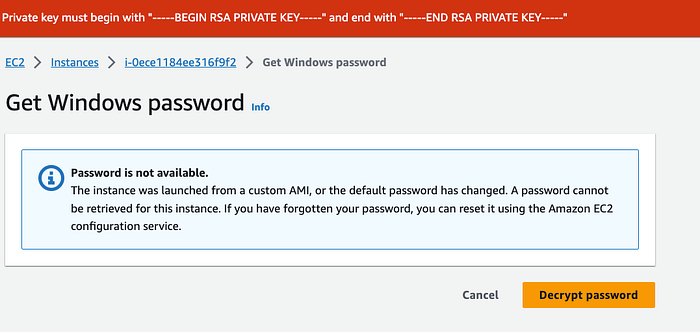
When trying to get the Windows Administrator password I was unable to. From the error message this was due to the custom AMI.
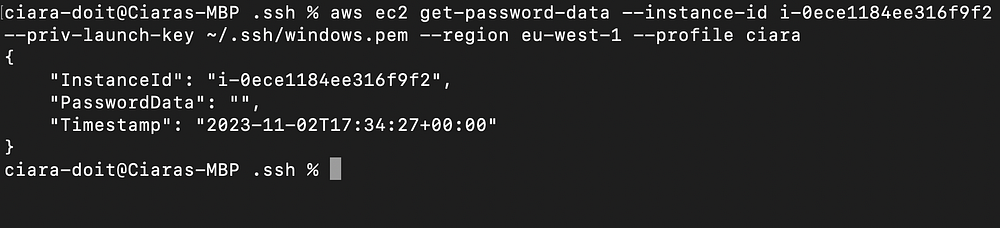
Using the EC2 get-password-data command I tried to retrieve the encrypted password data. I found the PasswordData field was empty. AWS documentation mentions that password generation and encryption may take a few minutes. If you try to retrieve the password before it’s available, the output returns an empty string
aws ec2 get-password-data --instance-id i-0ece1184ee316f9f2
--priv-launch-key ~/.ssh/windows.pem --region eu-west-1 --profile ciara
{
    "InstanceId": "i-0ece1184ee316f9f2",
    "PasswordData": "",
    "Timestamp": "2023-11-02T17:34:27+00:00"
}
However after waiting for some time it was clear the instance did not contain the Administrator password
Why is there no Password?
Launching a Windows instance generates a unique password for the Administrator account. This password is encrypted using the key pair specified at instance launch. You must provide the corresponding key pair file to decrypt it.
When you create an AMI from an instance, the data on the instance’s EBS volumes is saved into new EBS snapshots. But, the Administrator account’s password is not included in these snapshots. This is a security measure to ensure instances contain unique passwords.
TheEC2Configservice or EC2Launch scripts (applicable to Windows Server 2016 and later) generate the Windows password during boot. This occurs only during the first launch of an instance.
If the password isn’t generated for rebundled AMIs, it can’t be retrieved. This situation can arise if EC2SetPassword isn’t activated before bundling the AMI.
Hence I wasn’t able to get the Administrator password for my encrypted instance.
As per the AWS documentation
If password generation is disabled and you don’t remember the password for the original instance, you can reset the password for this instance.
Reset Password
To reset the password we must detach the root volume from the Windows instance. Then attach it to a temporary instance as a secondary volume.
For the instance needing the password reset I will refer to it as the Broken Instance. And Recovery Instance for the temporary instance.
Note both of these instances must live within the same Availability Zone.
- Select the Broken Instance and choose Actions, Instance state, Stop instance. After the status of the instance changes to Stopped, continue with the next step.
- Make note of the Broken Instance device mapping of the root volume (/dev/sda1)
- Detach the root volume from the broken instance. Choose Actions, Detach Volume. After the volume status changes to available, continue with the next step.
- Launch a temporary instance in the same AZ as the broken instance.
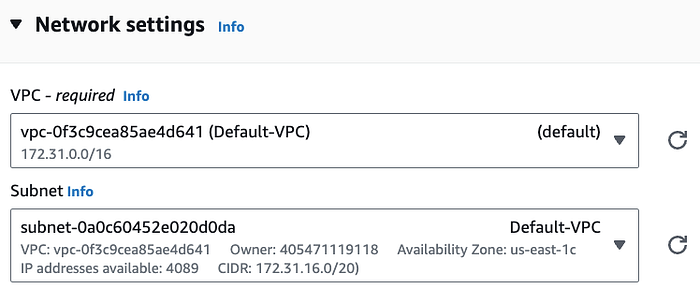
- On the Launch an instance page, under Network settings select the Subnet that your broken instance resides in.
- Under Configure storage select Advanced .

- Under Encrypted field change ‘Not encrypted’ to ‘Encrypted
- Select the KMS key you want to encrypt the volume with.
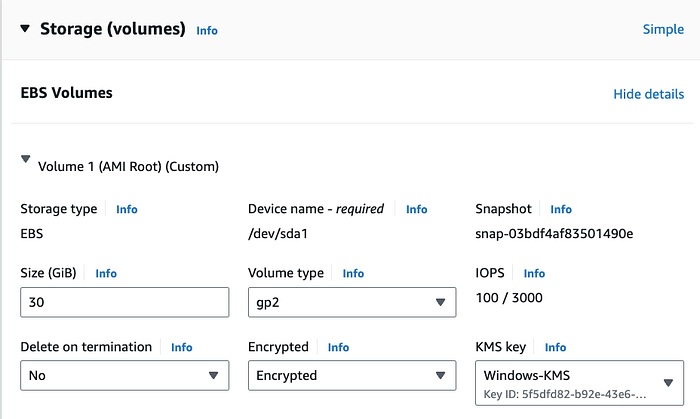
- Under Advanced attach an IAM instance profile. Make sure the instance profile has the necessary KMS permissions details.
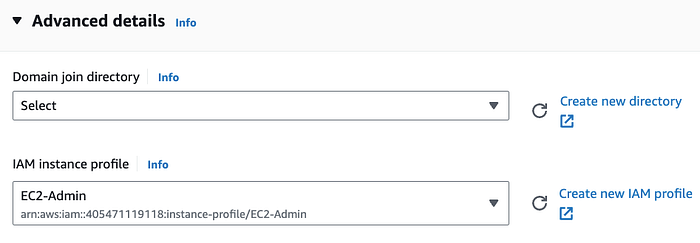
The instance profile contains IAM role. The instances uses the roles permissions to interact with the attached encrypted volumes.
5. Wait for the Recovery Instance to be in a running state with both status checks passing.

6. In the navigation pane, choose Volumes, select the volume that you detached from the Broken Instance, and then choose Actions, Attach Volume.

- In the Attach Volume dialog box, for Instances, select the Recovery Instance from the list.
- For Device, type
xvdf(if it isn't already there), and choose Attach.
**Reset the Administrator password**
Connect to the Recovery Instance using RDP.
Open a browser window and download the EC2Rescue for Windows Server tool from the following link:
https://s3.amazonaws.com/ec2rescue/windows/EC2Rescue\_latest.zip
Extract the contents, and run EC2Rescue.exe.
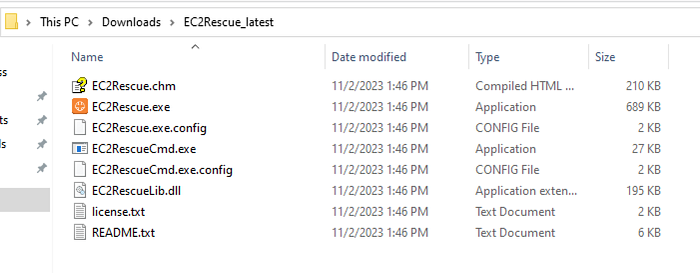
- Read the license agreement and accept the terms by clicking I Agree button.
On the Welecome to EC2Rescue select Next.
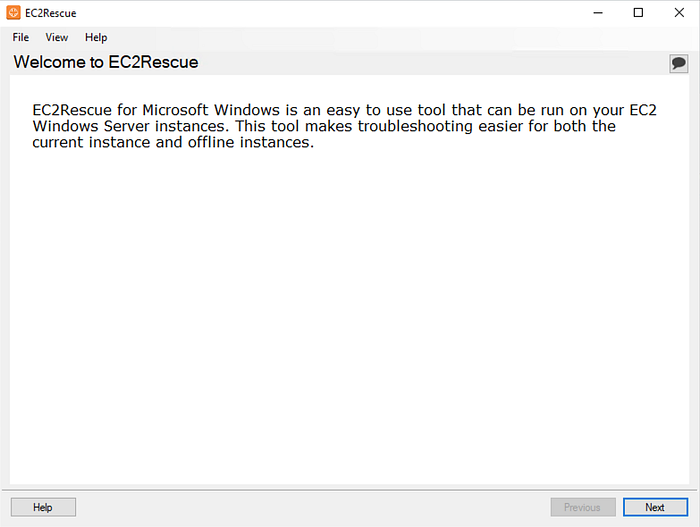
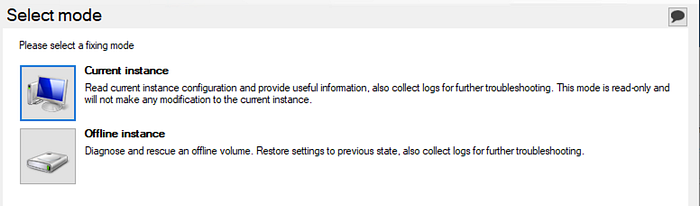
On the Select mode screen, choose Offline instance.
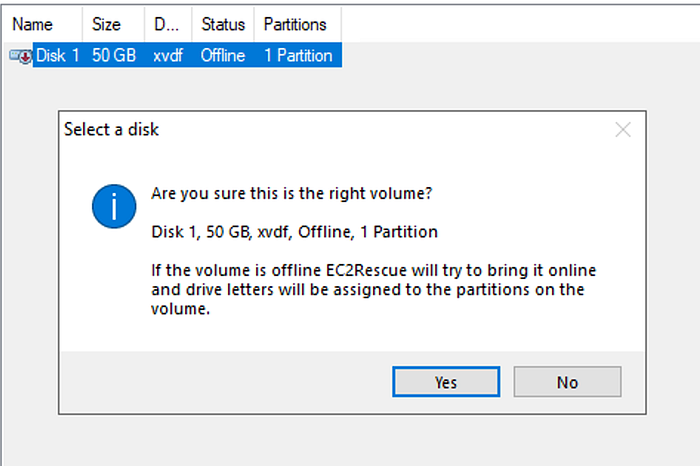
On the Select a disk screen, select the xvdf device and choose Next

If you receive the error ‘The media is write protected’ you will need to disable this on the disk.
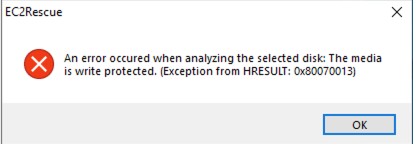
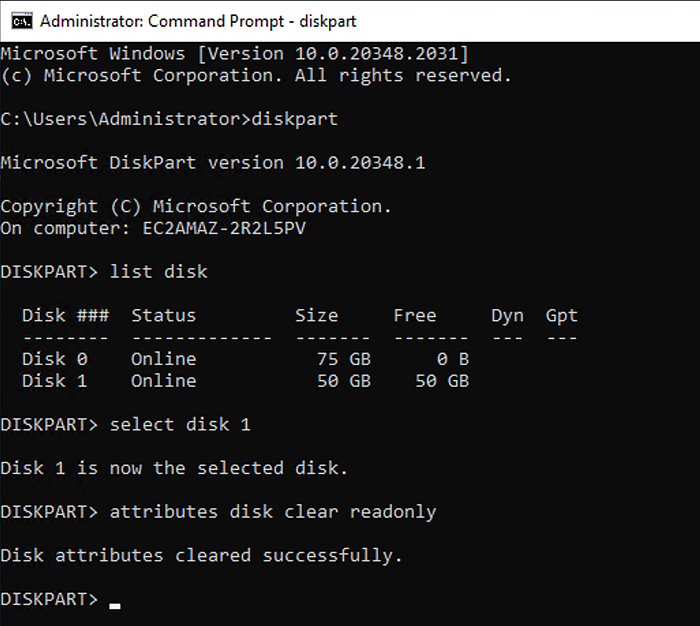
This error means Windows is preventing modifications to the disk. Use Diskpart utility ito clear the read-only attribute of the disk. Here’s how:
- Open Command Prompt as an administrator.
- Type
diskpartand press Enter. - Type
list diskand press Enter. This will display a list of all the disks on your system. - Type
select disk X(replace X with the number of the problem disk) and press Enter. - Type
attributes disk clear readonlyand press Enter. This should clear the read-only attribute of the disk.
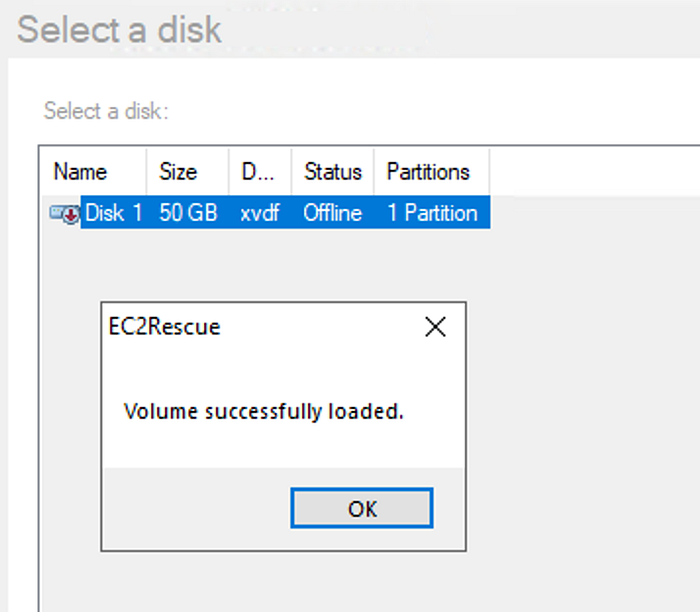
After the volume has loaded, choose OK.
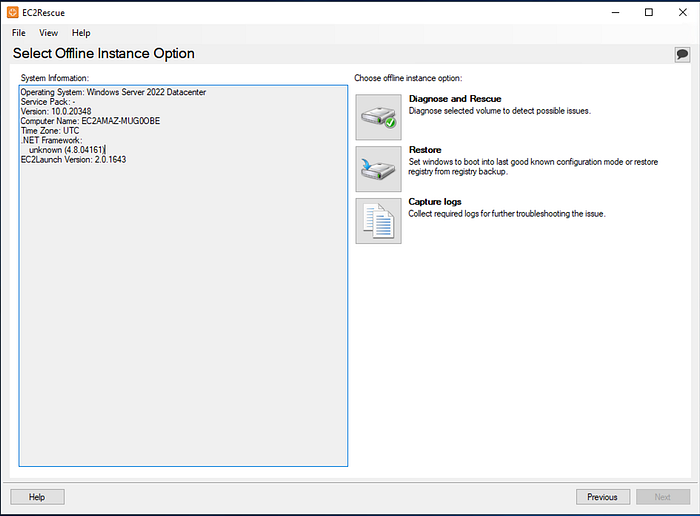
On the Select Offline Instance Option screen, choose Diagnose and Rescue. On the Summary screen, review the information and choose Next.
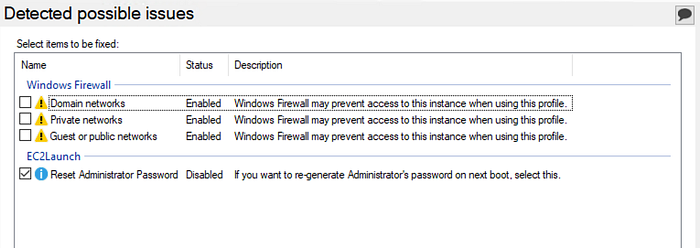
On the Detected possible issues screen, select Reset Administrator Password and choose Next.
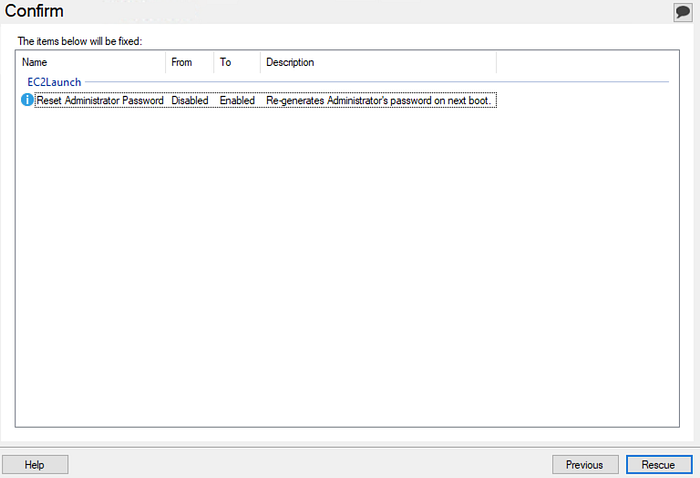
On the Confirm screen, choose Rescue, OK.
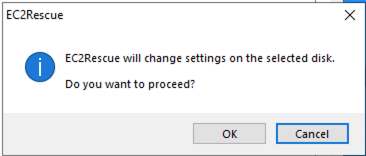
On the Done screen, choose Finish.
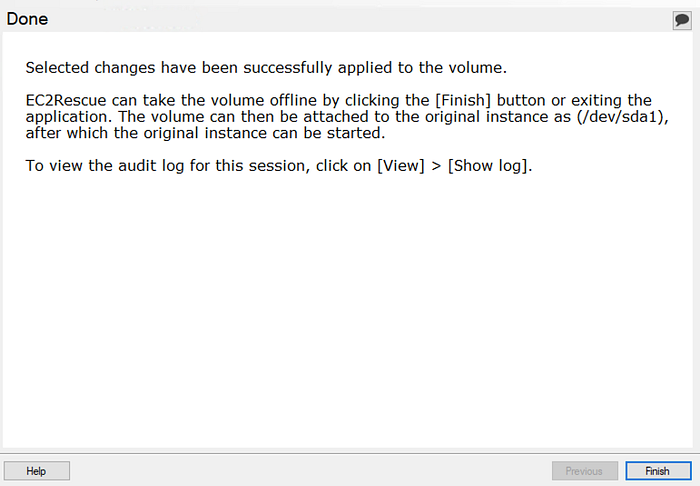
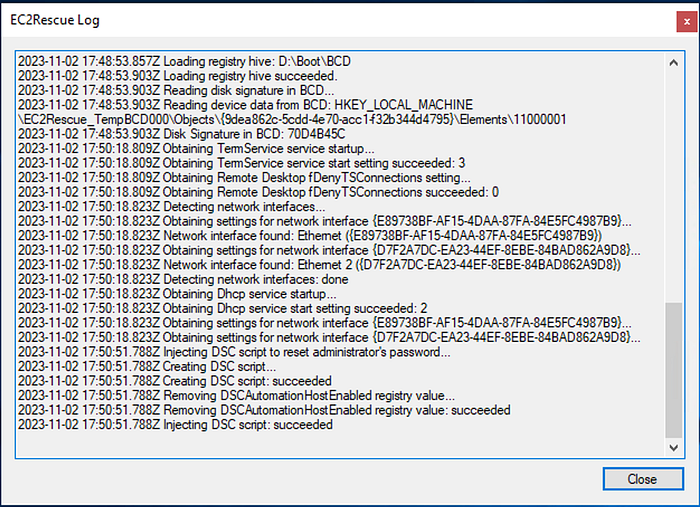
Review the EC2 Rescue Log to make sure no error or warning messages occurred.
Close the ECRescue for Windows Server tool, disconnect from the temporary instance, and then return to the Amazon EC2 console.
Restart the Instance
Detach the secondary (xvdf) volume from the Recovery Instance. Reattach the volume as root volume (/dev/sda1) to the original instance.
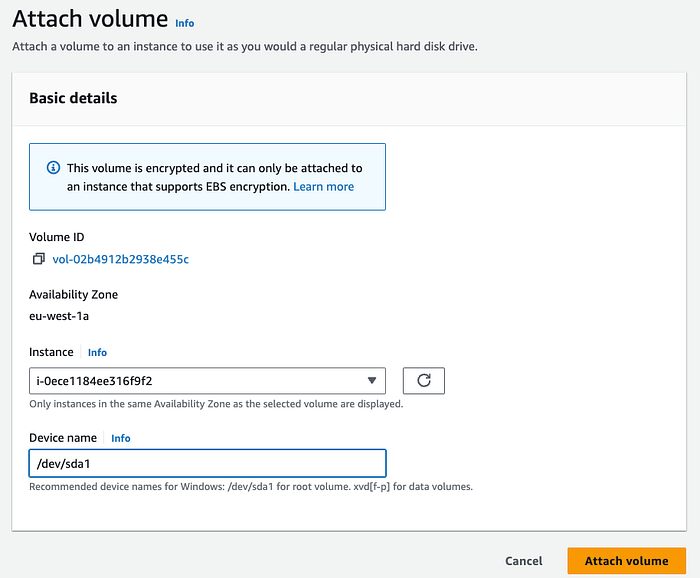
Confirm the instance is running and passing status checks before connecting to it.

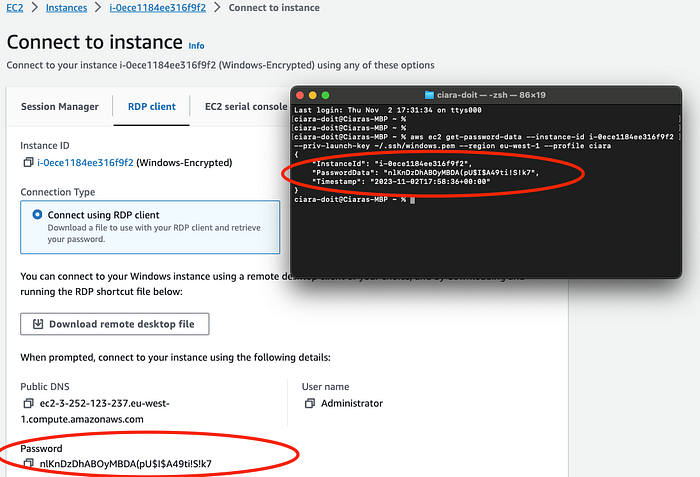
I was then able to get the administrator password and RDP to the encrypted instance. The same password is retrieved from EC2 get-password-data command.
Make sure to terminate the Recovery Instance and clean up any other instances you no longer need.