
There may come a time where you’ll need to access the environment variables, secrets such as username or password, and/or configuration properties within Jupyter notebook while developing the code for machine learning models.
In Kubernetes we store secrets and configuration properties in the “etcd” database, but how do we access them in Kubeflow Notebook Servers?
This step-by-step guide will provide a method to access environment variables, secrets, and configuration properties in notebooks.

Configure PodDefaults for Kubeflow Notebook Servers
Assumptions: Reader has basic knowledge of Kuberenetes + Kubeflow and the reader has already installed Kubeflow.
Kubeflow is designed to help you experiment and deploy machine learning pipelines within Kubernetes Engine. Kubeflow installation creates nine namespaces as follows:
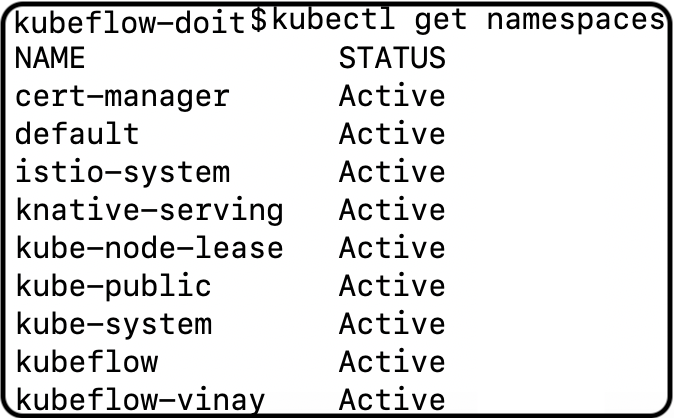
The installation of Notebook Server, one of Kubeflow’s components, is by default executed in “kubeflow-

Here are the steps you need to take:
- Create secrets for DB_USER and DB_PASSWORD environment variables in kubeflow-
namespace.

2. Create a file “db-root-secret.yaml” with the following contents:
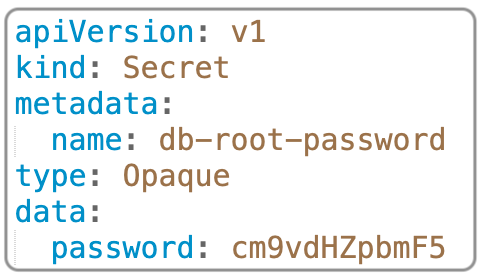
Then execute the following command in kubeflow-
kubectl apply -n kubeflow-vinay -f db-root-secret.yaml
3. Create a configMap containing database configuration in a file named. “max_allowed_packet.cnf”; key for the map is “db-config” and namespace is kubeflow-
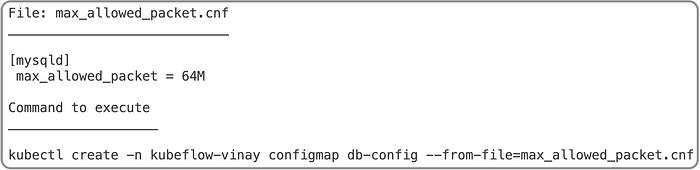
Upon successful completion of the above three steps, we should see the following in Kubernetes configuration.
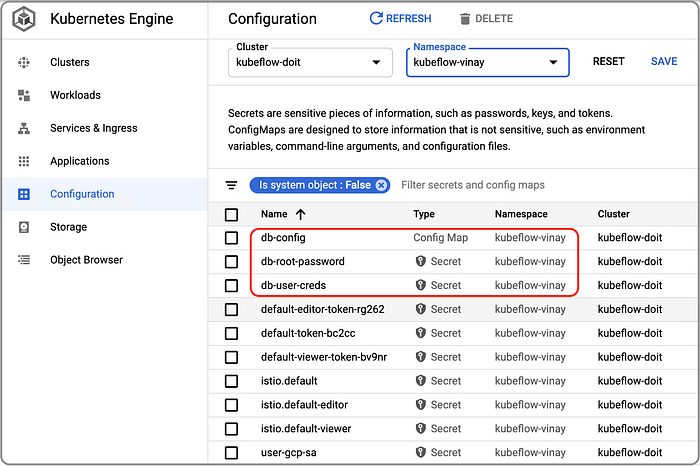
4. Create a file named “add-db-info-poddefaults.yaml” with the following contents:

Then execute the kubectl apply command as:
kubectl apply -f kubeflow-poddefaults.yaml
Review the Kubernetes objects for “add-database-info” pod default:
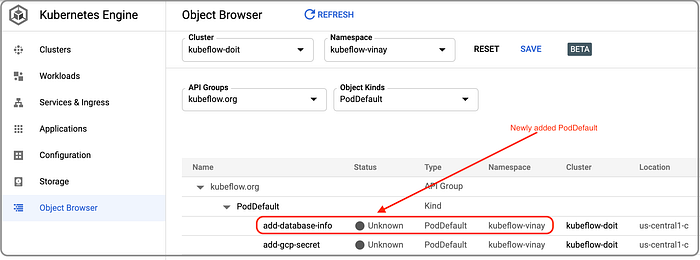
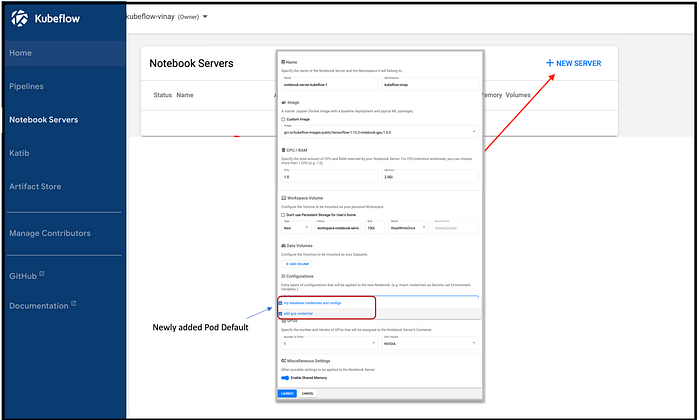
5. Create a new Notebook server in Kubeflow. We can observe that the newly-added pod default is listed in the configuration drop down.
6. Finally, connect to your newly-created Notebook Server and execute the sample code for verification.
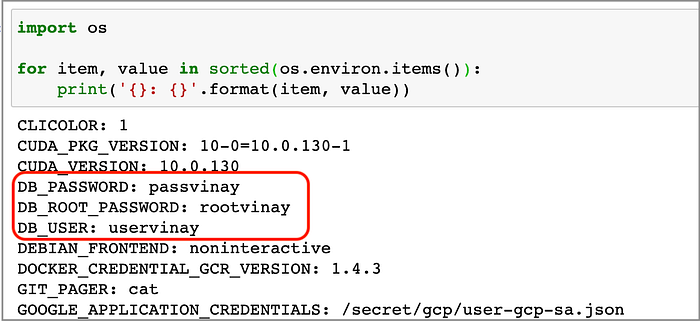
Environment variables

The configuration file on a mounted path
References:
Download text version of commands and files in the blog post from https://bit.ly/3k8B08d