

Within DoiT, you will encounter individuals from various backgrounds committed to enhancing your daily work. If you have ever had to log into your EC2 instances via a VPN, you know how tedious this process can be. Automating the management of these instances without connecting to them would be beneficial. It would be even more advantageous to manage these automations from a single interface rather than storing them on each instance or in a golden image.
In my previous experience, I encountered similar challenges when I began managing our fleet of AWS Active Directory servers while needing to swiftly onboard new employees. It was then that I came across System Manager.
What is Systems Manager?
Systems Manager is the response from AWS to manage your infrastructure smartly. The agent installed on the computer receives commands from the AWS accounts and sends back information, which can help you do multiple things:
- Runs Windows and Linux commands. Every agent adds a local user named ssm-user that can be used to run commands against the instance in bash, PowerShell and CMD. You can use IAM to control the rules and permissions instead of SSH Keys and network rules.
- Inventory and patch management. Inventory your installed applications and patches and set up a patch policy for your instances based on your patching preferences and schedule.
- Runbooks and Automation. You can create Systems Manager documents that contain a series of steps to apply on an instance. You can also create Systems Manager Automation that interacts with your AWS infrastructure using an IAM role and AWS APIs like EC2 or Step Functions.
- Maintenance Windows allows you to schedule and control the execution of runbooks based on specific time, availability, and success requirements.
Today, I will guide you through enabling this service and connecting to your instances interactively through SSM using the Session Manager.
System Manager setup
To use SSM, you have to meet the following requirements :
- The machine needs to have the agent installed
- An IAM role with minimal permissions to System Manager (called AmazonSSMManagedInstanceCore) needs to be attached
- The machine needs to be able to reach the outside internet on port 443 or 3 VPC endpoints
When you run an AWS-provided image, the System Manager agent is installed by default on your instance. If it’s not the case, you might need to run one of the following commands :
#If you are on a Red Hat-based system
sudo yum install amazon-ssm-agent
#If you are on a Debian-based system
sudo apt-get install amazon-ssm-agent
#When installed, run the service
sudo systemctl start amazon-ssm-agent
The second point requires attaching or updating the instance role used on your machine. You have to give a set of managed permissions called AmazonSSMManagedInstanceCore that enable the resource to interact directly with the AWS Service with a limited set of permissions. This helps you avoid storing credentials in your instance and risking losing them.
If you never had a role to start, you can also take advantage of the Default Host Management Configuration :
- Go to the AWS System Manager console and pick Fleet Manager on the left. Ensure you are in the right region where most of your EC2 instances are located.
- In Account Management and Configure Default Host Management Configuration, turn on Enable Default Host Management Configuration.
- You will be prompted to choose an IAM role; you can use the recommended option to create a new default Instance Management role.

When creating the default host management IAM role, you can choose to create a new role or use an existing one
- Complete the setup by clicking on Configure.
All instances within the region should be able to access the System Manager Endpoint using the default role you’ve created.
For the last point, there is a chance that most of your networks’ setups allow you to reach the Internet using port 443. If that’s not the case, here’s the rundown on the networking requirements.
SSM Agent needs at least to be able to contact these addresses on port 443 :
ssm.==region==.amazonaws.com
ssmmessages.==region==.amazonaws.com
ec2messages.==region==.amazonaws.com
If you don’t allow outside access, you can create Amazon VPC Endpoints to enable access. However, you will have to set them up in every region where you will use them, and you still need to be careful with your networking setup to allow most instances to reach back to the service. I recommend enabling these endpoints to be located on a service VPC.
Using Session Manager
If you have the right credentials and access to IAM, you can now log on to these instances directly from anywhere.
If you are running a Windows instance and want to use the GUI, you can go to the Fleet Manager, select your instance, and click Connect with Remote Desktop.
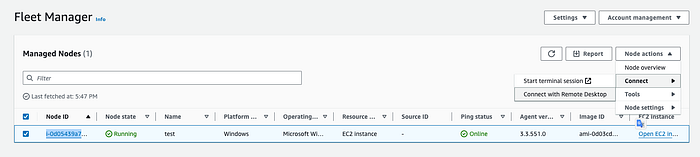
The interface of the fleet manager, where you can view and connect to your remote instances
Because Windows requires a password for the administration account, you must have the credentials or the instance set up with a Key Pair. AWS uses it to derive a password for the administrator account.
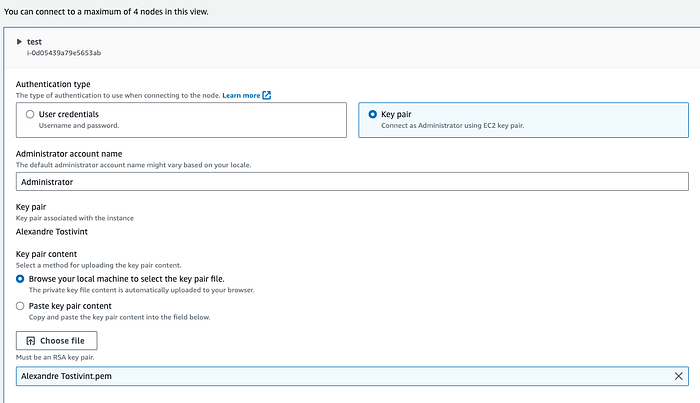
Interface for connecting to instances remotely using Remote Desktop
After clicking the connect button, System Manager will handle the connection by creating your secure tunnel from your computer to the instance you want to manage, and you will be able to resume your administration duties anywhere in the world.
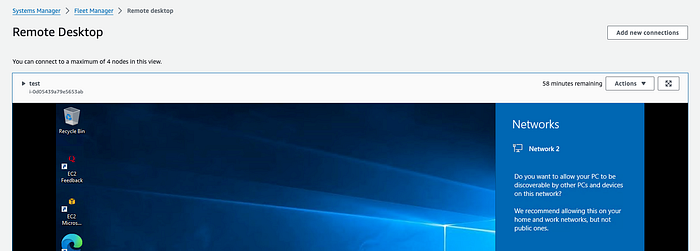
Interface for a remote connection to a Windows Remote Desktop
Logging using the command line into Windows and Linux instances is even easier, as you need to click on Start Commandline session to bring up a terminal with Administration access on the machines enrolled with SSM.
Every agent sets up a local user called ssm-user that you can personalize whether you would like it to have access to administrator-level permission on the instance or not. This same user will be running the runbooks called Documents, which you can set up on System Manager.
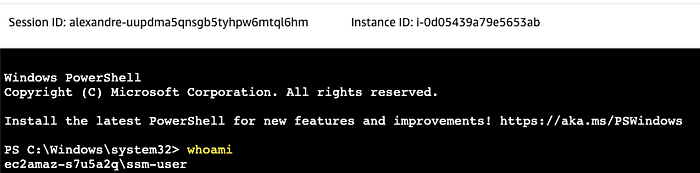
Interface for a remote connection with a Windows command-line terminal
Hopefully, this article will benefit you. There are various methods to enhance and personalize your AWS Systems Manager experience, and this article provides one way to quickly enjoy the features of this service.
Feel free to contact me through our DoiT Support if you need help administering instances on AWS or by using the comments in this article.
Reach out to us at DoiT. Staffed exclusively with senior engineering talent, we specialize in providing advanced cloud consulting architectural design, debugging advice, and consulting services .