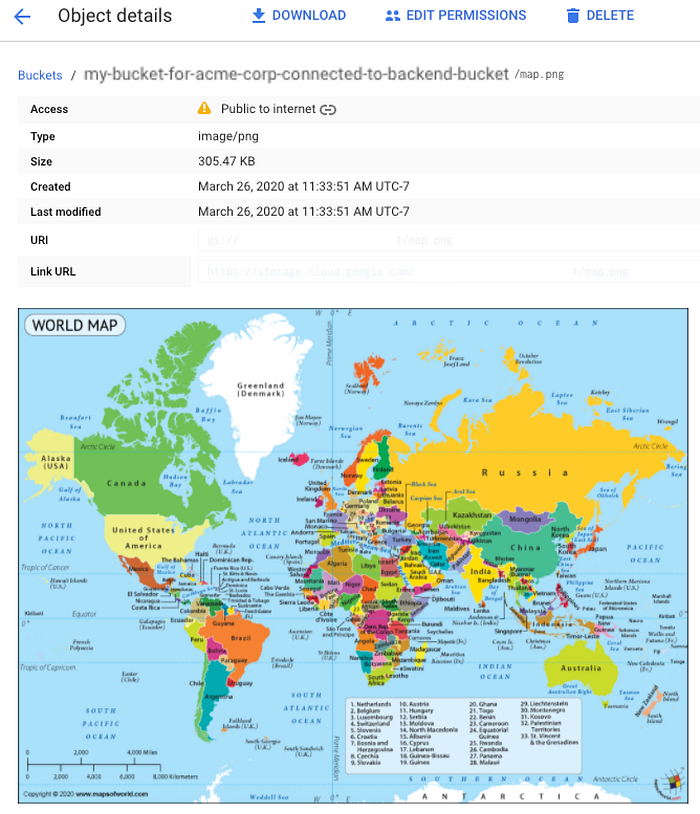
Google Cloud Storage (GCS) is a great way for applications to manage their unstructured data at a very low cost. Applications can utilize GCS APIs to integrate or share a direct GCS URL to upload or download data files. GCS also has the ability to upload data in multiple parts/chunks using resumable uploads.

Fail-proof uploads to Google Cloud Storage
The benefits of a resumable upload vs. a single upload is that applications can be resilient to network availability, as they can upload parts of data when the network is available and then pause when the network suddenly becomes unavailable. As a result, you can also reduce your bandwidth costs because you won’t have to restart large file uploads from the beginning.
One example can be when uploading photos or documents from a mobile app to the server over WiFi only; the mobile app can automatically pause the upload when the device is on cellular data and resume once back on WiFi.
GCS buckets provide an endpoint URL to make API calls as follows:
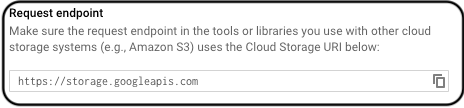
It is always recommended to hide the implementation details and tools being used from the end-users in a software application. The same principle will be applicable for GCS buckets within our application and recommendation will utilize custom URL for exposing GCS buckets.
For accessing GCS buckets via custom URLs such as https://mydrive.
Steps to Connect Backend Bucket to a GCS Bucket
- Login to the GCP console and select Network Services -> Load Balancing from the left-hand navigation bar.
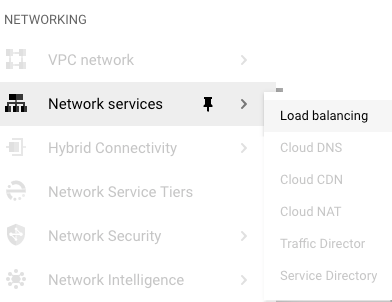
2. Click on “ Create Load Balancer”.

3. Select “HTTP(S) Load Balancing” and click on “Start Configuration”.

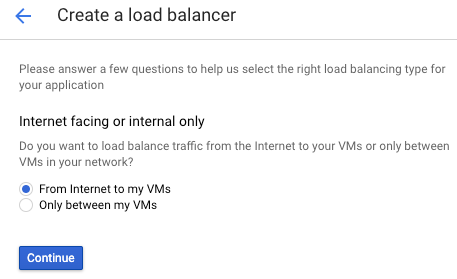
4. Select “From Internet to my VMs” as internet clients will be interacting with the bucket.
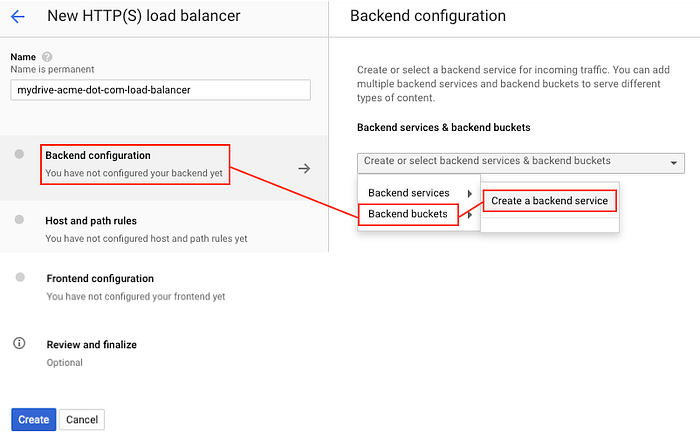
5. Provide a name to your load balancer and select your Backend configuration as Backend buckets
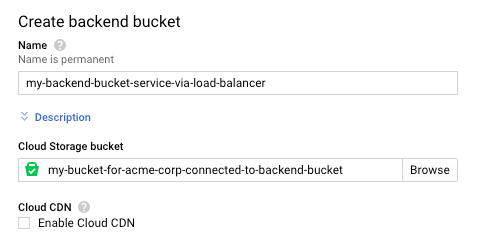
6. Provide a name for your backend bucket and select a Cloud Storage bucket to interact with this backend service. In my case: GCS bucket is publicly open to reduce the complexity of retrieving and passing authorization token in API calls.
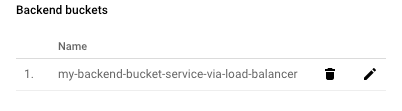
7. Once the Backend bucket is successfully created, we should see a list of Backend buckets.
8. Frontend configuration connects the static IP address to the load balancer for our services to interact with the GCS bucket.
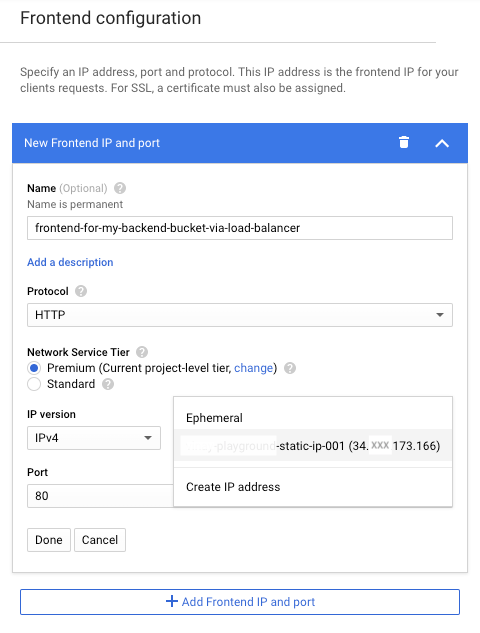
9. Review and finalize the configuration.
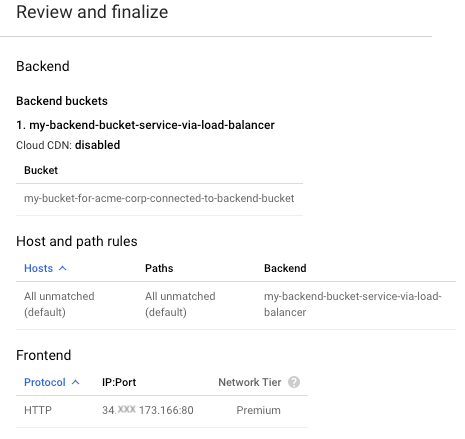
10. We should have a Backend bucket service created successfully as below.
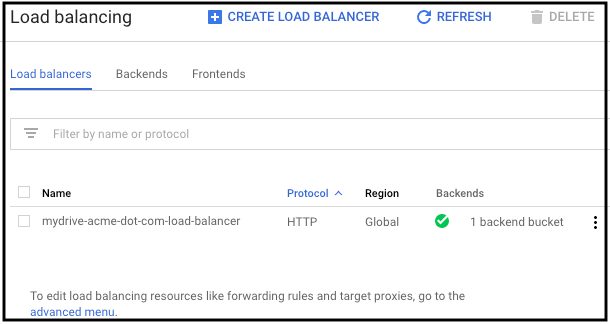
Once the Backend bucket service and load balancer are connected through a static IP address, we are ready to execute GCS APIs using our custom IP address (or URL if IP address is configured with a domain name).
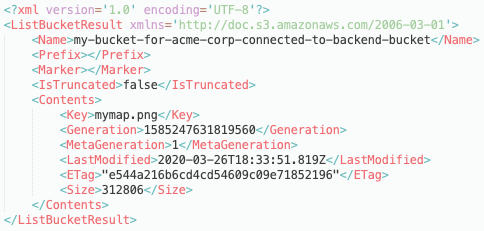
Retrieve List of Objects in a Bucket
Execute curl command as below:

Response body returned:
Upload a Single Object to a Bucket
Curl command to upload “map.png” as “worldmap_001.png” in the GCS bucket.

Retrieve the list of objects to verify the existence of “worldmap_001.png” in GCS bucket.
Upload Multiple Parts of a File with Resumable URL
Split the “map.png” file sized 312806 bytes into two parts in the multiples of 256 kilobytes. Google Cloud Storage resumable URL API requires that each part being uploaded should be in the multiples of 256kb except the final part.
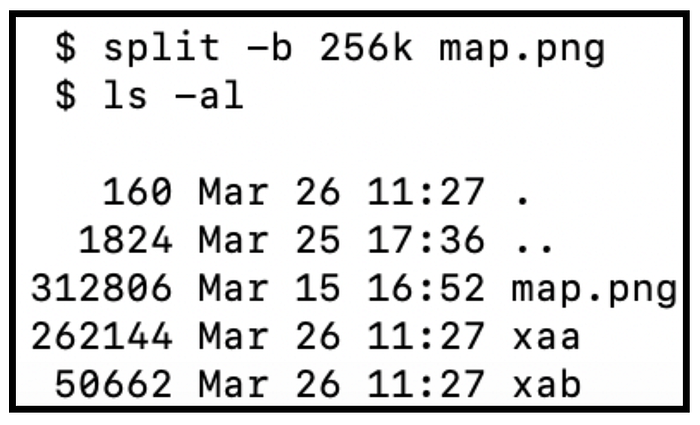
- Invoke the“ uploadType=resumable” API to retrieve the location URL in POSTMAN REST API client or any other REST API client.
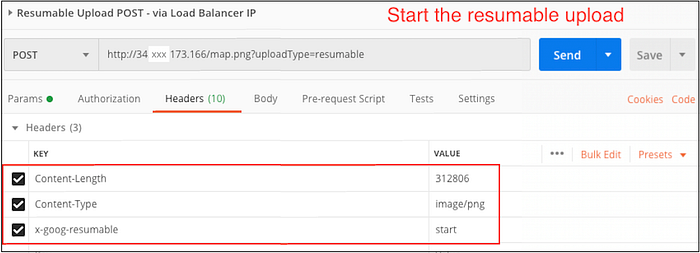
2. Capture the location URL to upload the parts from the response received.

3. Upload the 1st part, “xaa” to the bucket using POSTMAN client. Make sure that “Content-Range” header value is set from 0 to (“Content-Length” - 1) .

4. Response status received from upload call with HTTP status code “308 Resume Incomplete”.
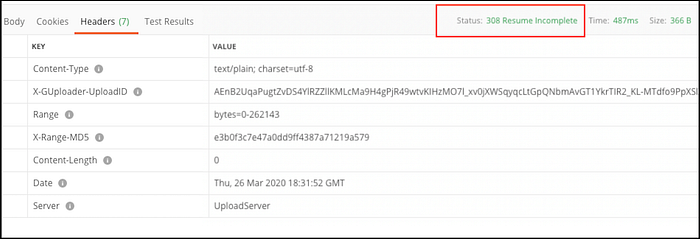
5. Upload the 2nd part (final part) “xab” to the bucket.

6. HTTP Status code “200 OK” received after the final part is uploaded.
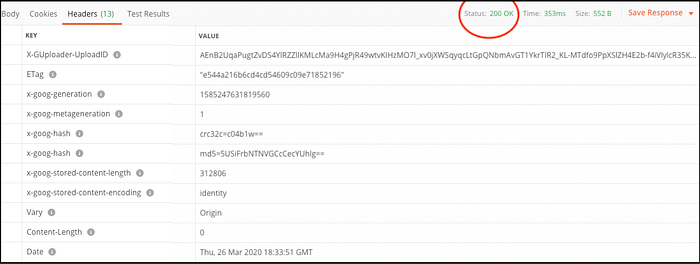
7. Review the bucket for the uploaded image (map.png).