

Ditching that VPN in favor of a modern Zero Trust solution for internal HTTPS applications
Are you still managing VPN connections for your remote workforce to access internal GKE (Google Kubernetes Engine) applications? There’s a better way. In this post, we’ll explore how to replace traditional VPN-based access with Google Cloud’s Identity-Aware Proxy (IAP) using GKE External Gateway. This modern approach not only reduces operational overhead, but also provides more granular access control through IAM authentication and authorization.
Why Make the Switch?
Traditional VPN-based access to internal applications comes with several challenges:
- High operational overhead in managing VPN tunnels
- Additional costs for VPN infrastructure
- Complex network routing configurations
- Limited granular access control
By implementing an IAP-enabled External Gateway, you can:
- Consolidate multiple applications behind a single HTTPS load balancer
- Manage access across different GKE namespaces efficiently
- Leverage Google Cloud’s robust authentication system
- Reduce infrastructure costs and complexity
GKE Ingress vs Gateway: IAP Implementation Comparison
When implementing IAP with GKE, you have two main approaches: using GKE Ingress or GKE Gateway. Understanding their differences is crucial for choosing the right solution for your environment.
GKE Ingress Limitations
- Namespace Restrictions: GKE Ingress can only reference Services within the same namespace where the Ingress resource is deployed:
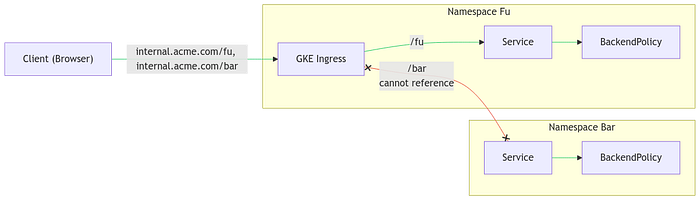
GKE Ingress in namespace Fu cannot reference Service in namespace Bar
- Load Balancer Resources: May require multiple load balancers if applications span different namespaces:

Must use 2 different HTTPS LB when services are in different namespaces — must also use domain-based routing which adds another layer of complexity
GKE Gateway Advantages
- Cross-namespace Support: Can route traffic to Services across different namespaces from a single Gateway resource
- Simplified Architecture: One load balancer can handle multiple applications regardless of their namespace
- More Flexible Routing: Easier to implement complex routing patterns across namespaces
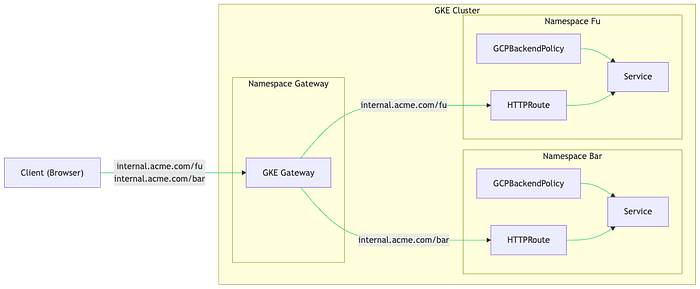
GKE Gateway in one namespace can send traffic to Services in other namespaces with a single HTTPS LB
Implementation Guide
Prerequisites
- GKE Standard v1.24+ or GKE Autopilot v1.26+
- VPC-native cluster configuration
- HttpLoadBalancing add-on enabled
Step 1: Create GKE Cluster
gcloud container clusters create test-gateway \
 --region=us-central1 \
 --release-channel=regular \
 --enable-ip-alias \
 --num-nodes=1 \
 --addons HttpLoadBalancing \
 --gateway-api=standard

gcloud container clusters get-credentials test-gateway --region us-central1
Step 2: Configure SSL Certificate
cat <<EOF | kubectl apply -f -
apiVersion: networking.gke.io/v1
kind: ManagedCertificate
metadata:
 name: gateway-nir-dns-tests-google-com
 namespace: default
spec:
 domains:
 - gateway.nir-dns-tests-google-com
EOF
Step 3: Set Up External IP and Point a DNS A Record Towards this IP
To get the ManagedCertificate provisioned you must have a DNS A record pointing towards the HTTPS LB and have the certificate attached to the HTTPS LB (which will be handled on the next step)
gcloud compute addresses create gateway --project=nir-playground --global
RESERVED_IP=$(gcloud compute addresses describe gateway --global | grep address: | awk '{print $2}')

gcloud dns --project=nir-playground record-sets create gateway.nir-dns-tests-google-com. \
  --zone="nir-dns-tests-google-com" --type="A" --ttl="60" --rrdatas=$RESERVED_IP
Step 4: Deploy Gateway Resource
Notice that the gatewayClassNamerepresents a Global External HTTPS LB, and that the listeners array specify allowance of HTTPRoutes to be attached from any namespace. Also note that we’re setting the reserved IP with the addresses[0].typebeing NamedAddresseswith a value being the name we’ve used when reserving the static IP (“gateway” in this example):
CERT_NAME=$(kubectl get managedcertificate gateway-nir-dns-tests-google-com -o=jsonpath="{.status.certificateName}")

cat <<EOF | kubectl apply -f -
kind: Gateway
apiVersion: gateway.networking.k8s.io/v1beta1
metadata:
 name: external-http
spec:
 gatewayClassName: gke-l7-global-external-managed
 listeners:
 - name: https
   protocol: HTTPS
   port: 443
   allowedRoutes:
     namespaces:
       from: All
   tls:
     mode: Terminate
     options:
       networking.gke.io/pre-shared-certs: $CERT_NAME
 addresses:
 - type: NamedAddress
   value: gateway
EOF

# Verify Gateway IP assignment
while true; do
 GATEWAY_IP=$(kubectl get gateway external-http -o=jsonpath="{.status.addresses[0].value}")
 if [ "$GATEWAY_IP" != "" ]; then
   break
 fi
 sleep 3
done
Step 5: Verify ManagedCertificate Status
# Verify certificate status
while true; do
 STATUS=$(kubectl get managedcertificate gateway-nir-dns-tests-google-com -o=jsonpath="{.status.certificateStatus}")
 if [ "$STATUS" = "Active" ]; then
   break
 fi
 echo "Certificate is in $STATUS status, will check again if it became active in 3 seconds"
 sleep 3
done
Step 6: Deploy Sample Applications
kubectl create namespace first-namespace
kubectl create namespace second-namespace

# Deploy App A in first-namespace
cat <<EOF | kubectl apply -n first-namespace -f -
apiVersion: apps/v1
kind: Deployment
metadata:
 name: app-a
spec:
 replicas: 2
 selector:
   matchLabels:
     app: app-a
 template:
   metadata:
     labels:
       app: app-a
   spec:
     containers:
     - name: app-a
       image: hashicorp/http-echo
       args: ["-text=Hello from App A"]
       ports:
       - containerPort: 5678
EOF

# Create Service for App A
cat <<EOF | kubectl apply -n first-namespace -f -
apiVersion: v1
kind: Service
metadata:
 name: service-a
spec:
 selector:
   app: app-a
 ports:
 - protocol: TCP
   port: 80
   targetPort: 5678
EOF

# Deploy App B in second-namespace
cat <<EOF | kubectl apply -n second-namespace -f -
apiVersion: apps/v1
kind: Deployment
metadata:
 name: app-b
spec:
 replicas: 2
 selector:
   matchLabels:
     app: app-b
 template:
   metadata:
     labels:
       app: app-b
   spec:
     containers:
     - name: app-b
       image: hashicorp/http-echo
       args: ["-text=Hello from App B"]
       ports:
       - containerPort: 5678
EOF

# Create Service for App B
cat <<EOF | kubectl apply -n second-namespace -f -
apiVersion: v1
kind: Service
metadata:
 name: service-b
spec:
 selector:
   app: app-b
 ports:
 - protocol: TCP
   port: 80
   targetPort: 5678
EOF
Step 7: Enable IAP and Create a k8s Secret for the IAP Credentials
echo -n CLIENT_SECRET_REDACTED > iap-secret.txt
kubectl create secret generic iap --from-file=key=iap-secret.txt
Step 8: Create GCPBackendPolicy that Enforces IAP
# Enable IAP for App A
cat <<EOF | kubectl apply -n first-namespace -f -
apiVersion: networking.gke.io/v1
kind: GCPBackendPolicy
metadata:
 name: backend-policy
spec:
 default:
   iap:
     enabled: true
     oauth2ClientSecret:
       name: iap
     clientID: REPLACE_WITH_YOUR_IAP_OAUTH_CLIENT_ID
 targetRef:
   group: ""
   kind: Service
   name: service-a
EOF

# Enable IAP for App B
cat <<EOF | kubectl apply -n second-namespace -f -
apiVersion: networking.gke.io/v1
kind: GCPBackendPolicy
metadata:
 name: backend-policy
spec:
 default:
   iap:
     enabled: true
     oauth2ClientSecret:
       name: iap
     clientID: REPLACE_WITH_YOUR_IAP_OAUTH_CLIENT_ID
 targetRef:
   group: ""
   kind: Service
   name: service-b
EOF
Step 9: Create HTTPRoute
# Create route for App A
cat <<EOF | kubectl apply -f -
apiVersion: gateway.networking.k8s.io/v1beta1
kind: HTTPRoute
metadata:
 name: route-a
 namespace: first-namespace
spec:
 parentRefs:
 - name: external-http
   kind: Gateway
   namespace: default
 rules:
 - matches:
   - path:
       value: /first
   backendRefs:
   - name: service-a
     port: 80
EOF

# Create route for App B
cat <<EOF | kubectl apply -f -
apiVersion: gateway.networking.k8s.io/v1beta1
kind: HTTPRoute
metadata:
 name: route-b
 namespace: second-namespace
spec:
 parentRefs:
 - name: external-http
   kind: Gateway
   namespace: default
 rules:
 - matches:
   - path:
       value: /second
   backendRefs:
   - name: service-b
     port: 80
EOF
Step 10: Browse the IAP Protected Apps
Navigate to the IAP protected URL. You will be prompted with the Google Sign In page. Any user who belongs to the same Google Cloud organization the application is deployed to, and is assigned with the IAP- Secured Web App User IAM permissions, will be able to access the application:
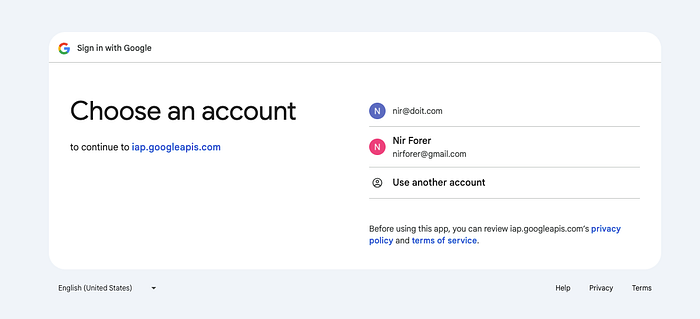
[email protected] is a user on the doit.com GCP organization , and is assigned with the required IAM permissions to access the application. [email protected] isn’t from the mentioned organization so they won’t be able to access the application
When a user outside of the organization or a user which wasn’t assigned permissions tries to sign in and access the application, they will be presented with a permissions-denied page:
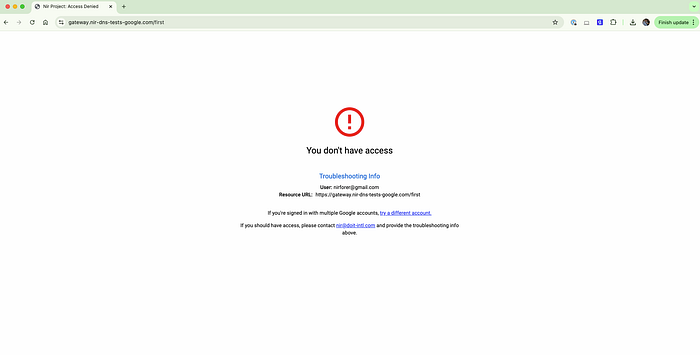
Permissions denied page displayed for non authorized principals
Modernizing your GKE access patterns from VPN to IAP-enabled External Gateway represents just one of many ways to enhance your Google Cloud infrastructure’s security and operational efficiency. This approach not only improves your security posture, but also reduces operational overhead and costs.
While this guide focuses on GKE access modernization, similar transformation opportunities exist across your cloud infrastructure. From cost optimization to infrastructure automation, and from security hardening to cloud architecture design, DoiT International offers extensive expertise across multiple cloud domains. To explore how DoiT can help modernize other aspects of your cloud infrastructure or to learn about our other cloud engineering solutions, visit doit.com/expertise/.