
This article is a spiritual successor to my last series (parts 1 and 2) about utilizing ClickHouse with replicated data from BigQuery to reduce querying costs. The main mechanism discussed in this article had not yet been announced at the time of that series; therefore, this has become a better method for replicating the data since it was released as GA earlier this year.
The main focus of this article is on a feature called Continuous Queries. It essentially is a way to have a never-ending query that will return results as they are loaded into or updated inside BigQuery tables. For those of you coming from a relational database background, this is essentially a pared-down change-data-capture (CDC) that most traditional relational databases have.
Without further ado, let’s jump into the subject at hand. First and foremost, here is a quick workflow of how this setup will look:
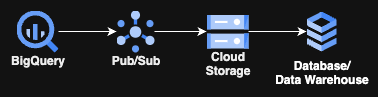
Yes, it’s not going to include any crazy Cloud Run, GKE, or anything compute-related; it just involves 3 GCP-managed services and then your choice of storage for the last stage. Best of all, the only code you will have to write for this is a few lines of SQL!
Now let’s dig in!
Before you Begin
The only real prerequisite to this is to ensure you have the correct IAM permissions to create reservations and run queries in your project. If you have Owner or Editor, that is great, but BigQuery Admin will get you everything you need. Any of the other “BigQuery * Admin” roles besides the main one will not grant enough permissions to do this.
The Workflow
The workflow for how this will work is not much more complicated than the diagram posted above. It will include a query running continuously (conveniently called a Continuous Query) on BigQuery that feeds data into a Pub/Sub topic, which in turn pushes data through attached Pub/Sub subscription(s) to a GCS bucket. Then an ETL/ELT process picks up the data and places it into the final resting, or transforming, place.
Pricing
I always prefer to temper expectations before giving implementation details on pricing, since everybody loves cool new toys till they see the price tag.
There are multiple components here where costs will come from:
- BigQuery costs
- Pub/Sub costs
- GCS costs
- Egress costs (potentially)
I will break down what to expect from each of these and put in current pricing as of the time of writing this, so any users attempting this won’t get hit by an unexpected bill.
- BigQuery Costs
BigQuery has many components that contribute to costs, but for this process, there is only one cost we need to worry about. These are the compute costs associated with he continuous query via a BigQuery Editions reservation.
Continuous querying requires a customer to use an Enterprise or Enterprise Plus reservation, which is part of the capacity-based billing model. Note that you CANNOT use the on-demand billing model (aka the “$5 or $6.25 per TiB scanned” billing model) for continuous queries. Due to this limitation, you may need to create a separate project and assign it to a reservation to run the continuous query from if you currently only use the on-demand model. I HIGHLY recommend you read my original article on BigQuery Editions here before turning this on for your entire organization. Blindly turning on Editions can be a very expensive endeavor.
Continuous queries will always consume at least one slot per Google, which translates to a minimum or “baseline” of 50 slots allocated whenever the query is running. Therefore, it’s best to create a reservation and set the baseline to 50, and then adjust the maximum slots to whatever is needed for your query. For basic testing, a baseline and a maximum of 50 slots are more than enough. Just make sure to delete the assignment or set the baseline to zero when not running the query to save costs.
The rates for each slot/hour are different per region and Edition, so it’s best to consult the official pricing table here.
- Pub/Sub Costs
Pub/Sub in this example has a single cost on it, which is the Cloud Storage subscription throughput pricing as documented here.
At the time of writing, it is currently $50 USD per TiB (note this is not TB, but TiB) that flows through Pub/Sub into GCS. Note that when using a “non-basic” subscription, the 10GiB free tier doesn’t apply.
To calculate this cost, look at how much your table’s storage grows in the course of 30 days (you can find this in the TABLE_STORAGE_USAGE_TIMELINE view by using the example queries Google provides) and then multiply that amount by $50/TiB for your monthly Pub/Sub costs.
I am assuming that this is just doing the default settings without retention periods or filters, and that messages aren’t left unacknowledged for more than 24 hours. All of these have additional charges, but we won’t be using them for this example.
- GCS costs
The associated GCS costs are where things get a little complicated and hard to calculate easily due to the number of factors involved. So we will be doing some fuzzy math here.
The first cost is going to be storage, essentially, how much data you are storing and for how long. For most applications of this that I have seen, customers will throw the data into GCS and then load it up into a new database or data warehouse immediately, with a retention period of around 7 days before it’s automatically deleted.
In this case, it’s a straightforward calculation: GB (in this case, GB, not GiB) stored * storage rate ( here is the table) * (7 days retention/30 days in a month)
The next cost is for GCS operations, which are broken down into two buckets called Class A and Class B operations. Here is the official doc on this. In this context Class A operations will be single-file writes (storage.objects.insert) and Class B operations will be single-file reads (storage.objects.get).
This is where it gets tricky, meaning how “realtime” you need your data will dictate how many of these operations will occur. Pub/Sub will do a single read of a file, and then your load of that data to the final output will constitute a read of the same file. So you will have a single write and at least a single read (more if you are loading to more destinations) for each file that Pub/Sub writes to GCS.
When setting up your Pub/Sub subscription, you can specify delivery maximum file size and time duration thresholds, then once either of these conditions are met, it will write the file to GCS. Since lowering or raising these, along with differing amounts of data, will drastically change how many operations are performed. Doing so adds multiple variables to the cost equation, and any engineer or scientist who took a multivariate differential equation class in university can tell you there is no easy way to model any multivariate equation.
So I generally say focus on the timeframe aspect of it because, as many Americans will say, “time is money.” To make the math manageable, let’s just say we have a 5-minute max duration with an impossible, consistent flow of data and a single destination reading it every 5 minutes as well.
That means every 5 minutes there will be a single Class A and a single Class B operation for a total of 8,640 of each operation per month (43,200 minutes per 30 days/5 minutes).
That means the cost per month will be ( here is the pricing table):
Class A: (8640/1000) * $0.0050 = $0.0432
Class B: (8640/1000) * $0.0004 = $0.003456
Total: $0.047/month
This may look low, but just consider that this is for a consistently low workload with constant data flowing. This would never happen in reality and give 5-minute stale data, but it does show a good way to calculate a “good-enough” price for most users.
- Egress Cost
Note this is a huge maybe for most customers, but be aware that if your destination is not in the same region or you are crossing cloud boundaries from the GCS bucket, then there probably will be egress charges for loading the data.
The pricing for this is listed here for reference.
GCS Setup
The very first (and arguably easiest) step is setting up a GCS bucket for this. The easiest way to do this is just to follow the official doc here and be mindful of the location settings. I highly recommend putting this in the same region as the output (and preferably the BigQuery dataset input) to remove any egress charges.
Pub/Sub Setup
The next step is to create a Pub/Sub topic. This has been covered many, many times, so I am just going to link the official doc here. Just ensure that you can create this topic and have the correct permissions/roles.
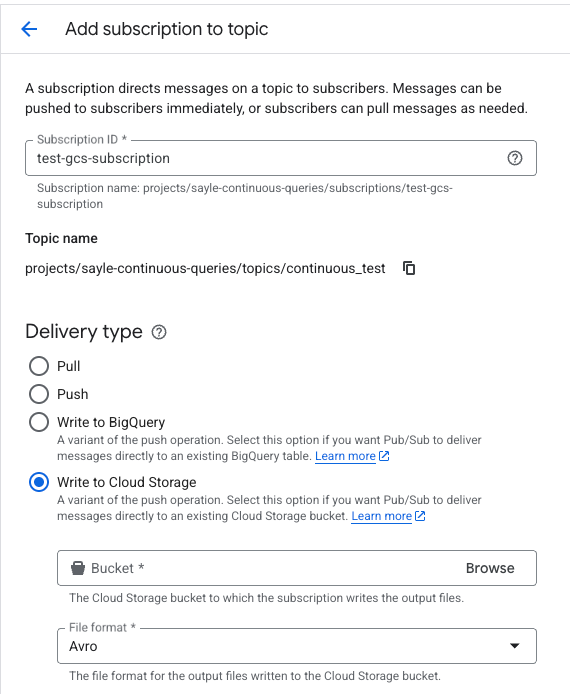
Before moving on, you will need to create a subscription for this topic with the “Write to Cloud Storage” and Avro format options set, such as this:
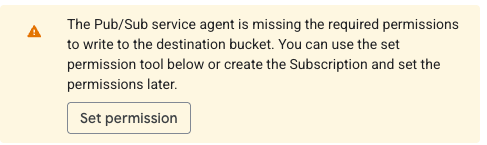
Note: if you have not set up a GCS subscription in the project before, you may see the message below. If so just click the “Set permission” button and then the grant role links that appear in the sidebar.
Service Account (IAM) Setup
At the time of this writing, continuous queries have a limitation on a user account, needing to restart the query every two days, per here. The best bet is to use a service account, which extends that limitation to 150 days instead.
With that said, for this step, create a service account with the following permissions:
pubsub.topics.publish
pubsub.topics.get
In addition, it will need the BigQuery Data Viewer role ( roles/bigquery.dataViewer). I was unable to get it to work with anything less than all of the permissions on that role, so it appears BigQuery does something under the hood that requires all of these.
I recommend creating a custom role with all of these needed permissions to follow the Principle of Least Privilege.
Note that after the first time running a continuous query, it will add a role called BigQuery Continuous Query Service Agent to this service account automatically.
BigQuery Setup
The second step of this small puzzle is BigQuery and setting up the continuous query.
Before digging in too deep, it may be a good idea to read up on continuous queries here on Google’s intro page. This will give a good intro to it and familiarize you with the abilities and limitations of continuous queries. I recommend looking at the limitations around SQL and the regions to make sure these won’t be blockers. One big blocker noticed during the writing of this article is that it doesn’t support tables that are written to by Datastream, called CDC upsert data in the docs, so if you are using Datastream then it may be best to either wait for this to be fixed or to move the data to a new table so the continuous query will be able to query it.
When you are ready to start this, I would recommend doing a brief read-over of this page in the docs to implement the correct permissions for creating jobs and exporting data. This is in addition to a role allowing you to read and write to Pub/Sub, which usually is the Pub/Sub Viewer and Publisher roles.
Next, find the table, singular at the time of writing this, since joins aren’t allowed yet, you want to export new records out of. For the below example, we are calling this table tickets, with a fully qualified name of myproject.test_dataset.tickets, and 3 rows: ticket_id, assigned_to, and assignment_time.
Here is the DDL for this table:
CREATE TABLE myproject.test_dataset.tickets
(
 `ticket_id` INT,
 `assigned_to` STRING,
 `assignment_time` timestamp
)
For the purposes of loading data into this, I am using a simple Python script located here in a gist that will create some random sample data. I am just running this script and dropping those files into a GCS bucket for the next few steps.
Running the Workflow
Before writing the query, open up an additional tab to your Pub/Sub topic so you can easily copy and paste the path into the next step.
Next up, fire up the BigQuery Studio editor and paste in this query (adjusting the project name and the pub/sub topic):
EXPORT DATA
  OPTIONS (
    format = 'CLOUD_PUBSUB',
    uri = 'https://pubsub.googleapis.com/projects/<project_name>/topics/<topic_name>')
AS (
  SELECT
    TO_JSON_STRING(
      STRUCT(
        ticket_id,
        assigned_to,
        assignment_time)) AS message
  FROM APPENDS(`myproject.test_dataset.tickets`, CURRENT_TIMESTAMP() - INTERVAL 1 MINUTE)
  WHERE assigned_to IS NOT NULL
);
To break down what this query does:
It first defines that it will export the results to a Pub/Sub topic (see the next paragraph for a quick way to get this), it creates a struct with the 3 columns from the table, and lastly encapsulates those in a JSON string as a column called message, which is required by the exporting to Pub/Sub service. I am filtering on where assigned_to is not null just as an example; if using the generating code, this will never occur.
For the URI option above, I recommend just copying the topic name from the Pub/Sub topic page (at the top of the page is something like “projects/<project_name>/topics/<topic_name>” with a copy button next to it) and using that to insert it into the URI after the “https://pubsub.googleapis.com” string to prevent typos.
The APPENDS call is something Google added late in the preview phase, which just grabs all new records in the specified time interval. Since this is a test, I am just putting it at 1 minute. If you need to go back in time to grab older data, then increasing this interval will do that.
Before hitting run on this, there are two small steps to do.
First off, you will probably see in red an error about Pub/Sub export only supporting a continuous query; this means we need to set it as a continuous query. Click the “More sprocket” above the query and select “Continuous query” as shown here:

You must choose the service account to run this as, so again select the “More sprocket” and select “Query settings.” Underneath “Continuous query IAM permissions” choose the service account created above.
Now just hit the run button and start this process.
Note: if you have not set up your reservation and created an assignment for the current project for the continuous job types, it will throw up a red error message stating something along these lines: “Continuous queries require the project to have a CONTINUOUS assignment to a reservation. No such reservation was found in region US.” To fix this, you will need to set up a reservation and then assign this project to it for the continuous job type as specified earlier in this blog entry.
At this point, the query will be running, and it just looks like a long-running query in the UI.
Note: if you remove the assignment or delete the reservation, it will stop the job.
To test the exporting to Pub/Sub functionality, run the Python script I linked earlier ( here) and upload it to a GCS bucket. Then just run a quick load like this:
LOAD DATA INTO myproject.test_dataset.tickets
FROM FILES (
  format = 'CSV',
  uris = ['gs://<bucket_name>/sample_data.csv']);
After waiting a few minutes, check the Pub/Sub subscription, and you should see something like this:
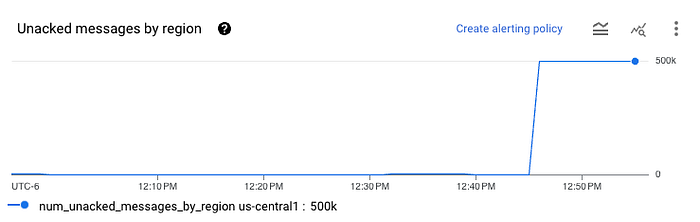
That means the data has successfully loaded into the subscription. Next, check your bucket and you should see some Avro files appear. You can download them from GCS and upload them to any online Avro file viewer to check. You will see a single column called data with the JSON-encoded data from Pub/Sub encoded in base64 format.
I wish there were a cleaner way to do this to Avro on GCS without involving Pub/Sub, but continuous queries only support going to Pub/Sub and not directly to GCS. This would also allow you to write column-to-column to match your BigQuery SQL, but alas, Google has not implemented this yet.
Data is There, Where Now?
At this point, you have your data stored in Avro format in a GCS bucket, which should be able to be loaded into pretty much any data warehouse or database with a little finagling.
Since this is a spiritual successor to my last series, let’s continue on that theme and load it into ClickHouse. Note, you can just as easily load this into DataBricks, Snowflake, DuckDB, etc., using this same method to load it as my SQL code below.
Without further ado, here is the ClickHouse SQL to perform the load below. Just make sure you update it with your bucket name and GCP information. See this link for instructions on creating an HMAC key.
SELECT
    -- Extract the 'ticket_id' field from the JSON data as an integer.
    JSONExtractInt(data, 'ticket_id') AS ticket_id,

    -- Extract the 'assigned_to' field from the JSON data as a string.
    JSONExtractString(data, 'assigned_to') AS assigned_to,

    -- Extract the 'assignment_time' field from the JSON data as a string,
    -- then cast it to a DateTime64 type for proper timestamp handling.
    toDateTime64(JSONExtractString(data, 'assignment_time'), 3) AS assignment_time
FROM
    -- The `s3` table function is used for querying files from S3 or S3-compatible services.
    -- The function signature is `s3(url, [access_key_id], [secret_access_key], format, structure)`.
    -- The URL should point to the GCS bucket endpoint using the HTTPS protocol.
    s3(
        'https://storage.googleapis.com/<bucket_name>/*.avro',
        '<YOUR_GCS_HMAC_ACCESS_KEY>',
        '<YOUR_GCS_HMAC_SECRET>',
        'Avro',
        'data String'
    )
I have to give thanks to Gemini for adding comments to my code and generating the DateTime code, as I just couldn’t get that part working.
Want to “DoiT” Better with BigQuery?
If this was useful for you and you want a subject-matter-expert on demand for helping with unique issues like this, or want a review of your cloud expenses, then take a look at the services DoiT offers.
You can find out more about these services, as well as our other services, here.