

Photo by ERIK Miheyeu from Shutterstock
This post showcases an automated video encoding pipeline that leverages the power of AWS Lambda and AWS Elemental MediaConvert. Whenever new media files are uploaded to an Amazon S3 bucket, a Lambda function is automatically triggered, prompting MediaConvert to initiate the encoding process for the uploaded video.
To streamline the deployment and management of this automated encoding solution, I’ve embraced Infrastructure as Code (IaC) principles by utilizing Terraform. The provided Terraform configuration, available in the GitHub repository HERE, enables you to provision and manage the required AWS resources programmatically. ( Note: Customize the reference code as needed to align with your environment and specific video encoding workflows. Additional Terraform modules can be incorporated to provision other infrastructure components, such as VPC configuration.)
Basic Architecture Diagram
Step 1. Create source and destination S3 buckets
- Create a private S3 bucket for input media files.
e.g. my-mediaconvert-src-bucket 2. Create a private S3 bucket for converted media files.
e.g. my-mediaconvert-dst-bucket
Step 1
Step 2. Create a service role for MediaConvert service
- Go to IAM/roles and select Trusted Entity Type — AWS service and search and select MediaConvert. Click Next.
Step 2.1
- Keep the default policies as below, Click Next.
Step 2.2
- Give the Role Name, Description, Tags (Optional) — Create Role.
e.g. mediaconvert_role
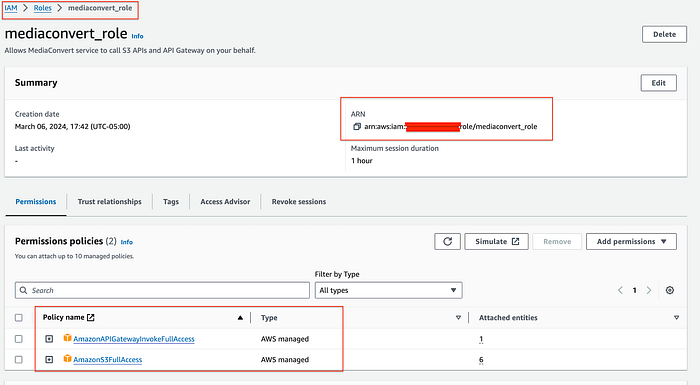
Step 2.3
Step 3. Create a service role for lambda
- Follow the same steps as Step 2 and choose lambda as a service this time & attach AWS managed policies- AWSLambdaBasicExecutionRole
Create a role.
e.g. lambda_convert_role
- Once the role is created attach an inline policy( e.g. lambda_convert_inline_policy) on the lambda role with the following JSON. (Update AWS account number — XXXXXXXXX)
{
 "Version": "2012-10-17",
 "Statement": [\
  {\
   "Sid": "VisualEditor0",\
   "Effect": "Allow",\
   "Action": "iam:PassRole",\
   "Resource": "arn:aws:iam::XXXXXXXXX:role/*"\
  },\
  {\
   "Sid": "VisualEditor1",\
   "Effect": "Allow",\
   "Action": [\
    "mediaconvert:*",\
    "logs:CreateLogStream",\
    "logs:CreateLogGroup",\
    "logs:PutLogEvents"\
   ],\
   "Resource": "*"\
  }\
 ]
}
{
  "Sid": "VisualEditor0",
   "Effect": "Allow",
  "Action": ["iam:PassRole"],
  "Resource": ["ARNforMediaConvertRole"],
}
- It should look like below.
{
 "Version": "2012-10-17",
 "Statement": [\
  {\
   "Sid": "VisualEditor0",\
   "Effect": "Allow",\
   "Action": "iam:PassRole",\
   "Resource": "arn:aws:iam::XXXXXXXXXX:role/lambda_convert_role"\
  },\
  {\
   "Sid": "VisualEditor1",\
   "Effect": "Allow",\
   "Action": [\
    "mediaconvert:*",\
    "logs:CreateLogStream",\
    "logs:CreateLogGroup",\
    "logs:PutLogEvents"\
   ],\
   "Resource": "*"\
  }\
 ]
}
- Lambda role:- e.g. lambda_convert_role
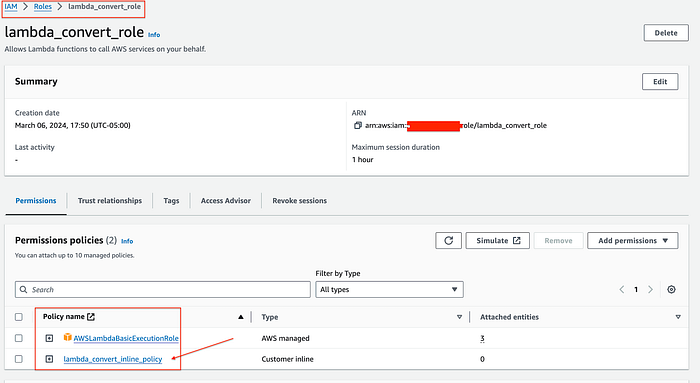
Step 3
Step 4. Create a lambda function — Create a Lambda function to respond to object create events (media files) on the source S3 bucket and trigger the MediaConvert job for the file/s.
- Create a lambda function from scratch, select the lambda role( lambda_convert_role) you created in step 3, and click Create function.
e.g. mediaconvert_lambda
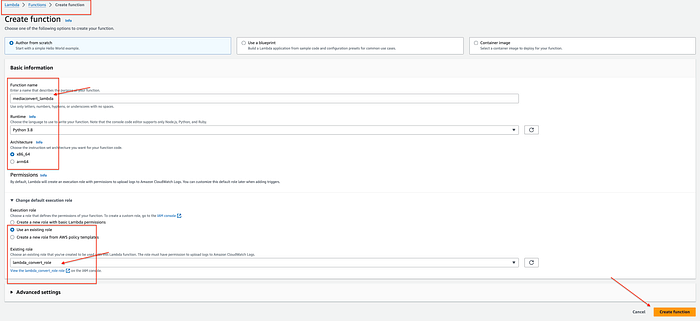
Step 4.1
- Upload — lambda.zip to lambda function & deploy. (reference lambda_zip is available on GitHub repository HERE )
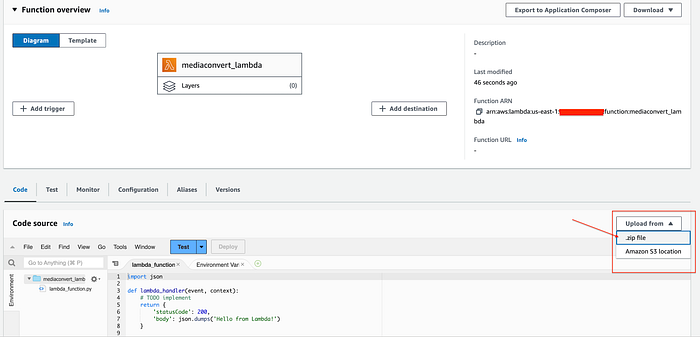
Step 4.2
- Verify lambda handler
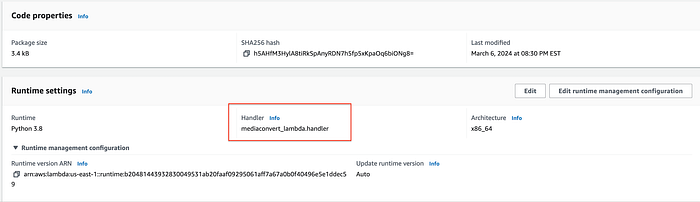
Step 4.3
- Update “environment variables” on the configuration with your values.

Step 4.4
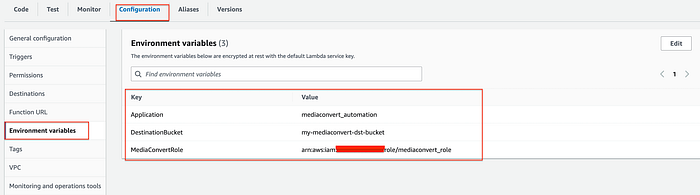
Step 4.5
Step 5. Create an S3 event notification to trigger the lambda function
- Click on the source bucket ( e.g. my-mediaconvert-src-bucket) and select properties

Step 5.1
- Scroll down and C reate event notification under Event Notification .

Step 5.2
- Select “all objects create events” and other general configuration like Event Name, etc.
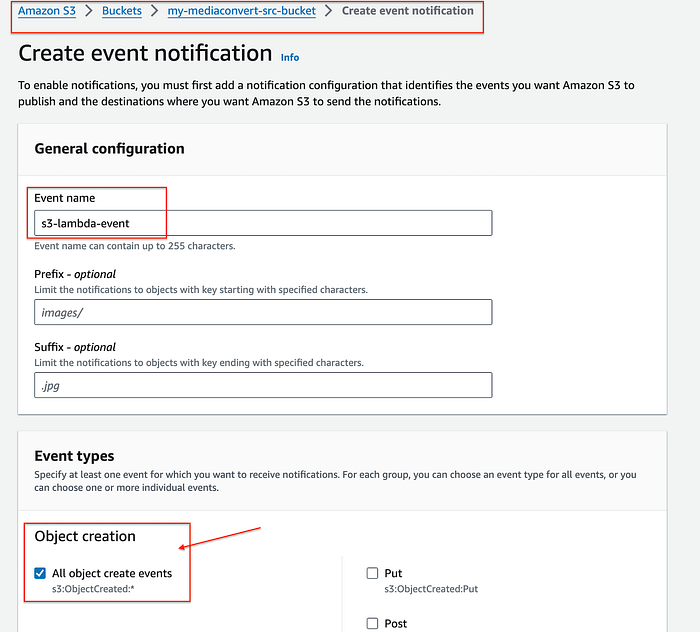
Step 5.3
- Select the Lambda Function as destination and mediaconvert_lambda function created in step 4 and save.
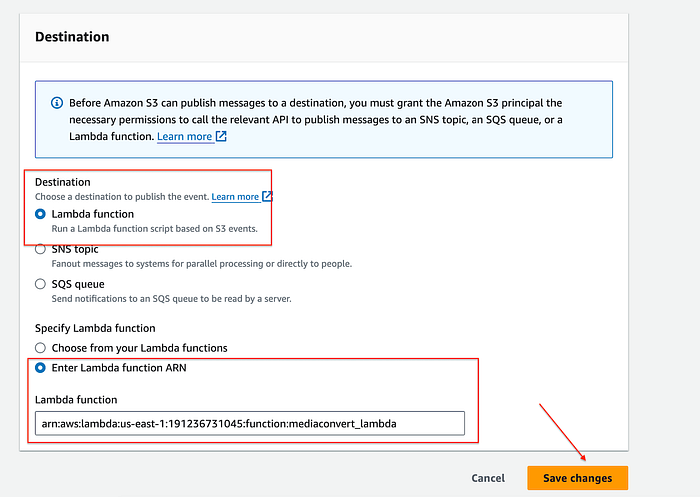
Step 5.4
Step 6. Add SNS notifications for FAILED or SUCCESS jobs. ( Optional — if not needed, jump to step 8 and test)
- Create an SNS topic and a subscription (email, message, etc), and confirm the subscription.
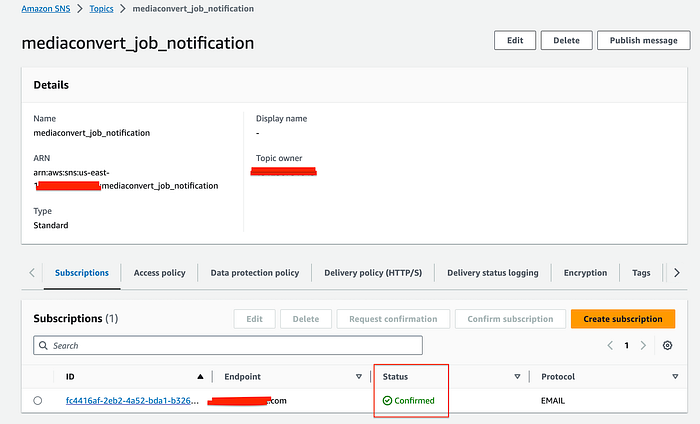
Step 6.1
Step 7(Optional):- Create a CloudWatch Event Rule to monitor the status of MediaConvert jobs and send notifications
- Create a new rule with a Name and description and select Event source — AWS events or EventBridge partner events, Selection Creation Method, and Event Pattern as below.
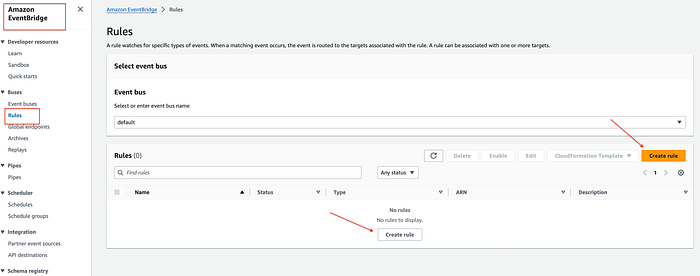
Step 7.1
Step 7.2
- Select the SNS topic as the target
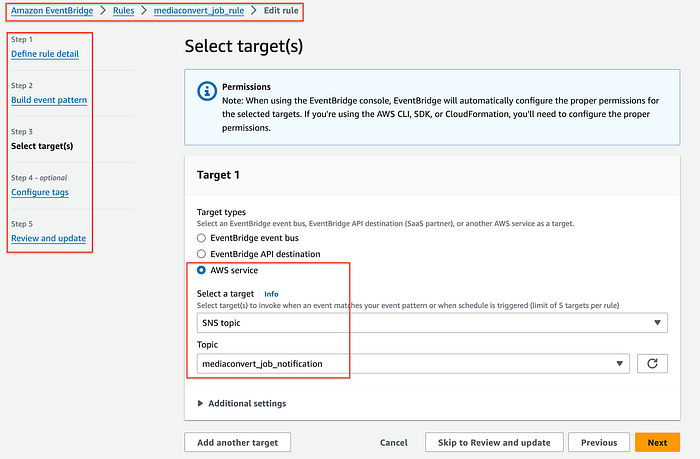
Step 7.3
Step 8:- Test and verify. ( Notification if added)
Upload some media files to the source S3 bucket, observe lambda triggering MediaConvert jobs for each file, and destination bucket have converted files.
- Upload media files into the source S3 bucket
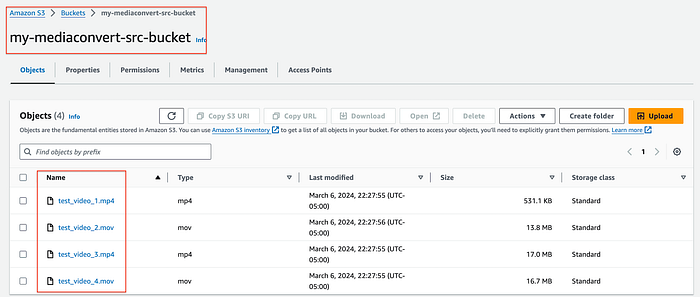
Step 8.1
- Lambda function triggering MediaConvert jobs
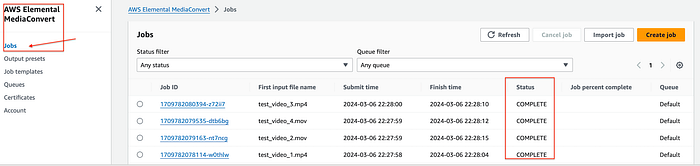
Step 8.2
- Media files will be converted as per job.json file given. Converted files can be observed under the destination bucket.
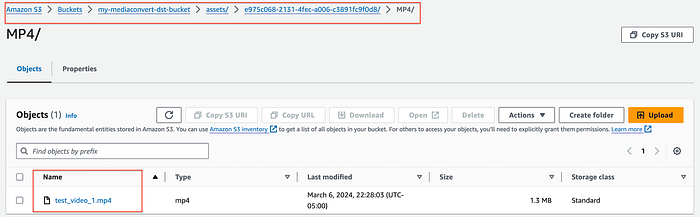
Step 8.3
- Notification (if added)
Step 8.4
Conclusion— This post demonstrated how AWS Lambda can be harnessed to automate AWS Elemental MediaConvert jobs. The proposed solution seamlessly initiates MediaConvert transcoding processes upon detecting new video uploads to an S3 bucket, streamlining your media workflow.