

· The importance of understanding AWS Networking Limitations
· EC2 Placements and resource sharing
· Troubleshooting bandwidth throttling
∘ Reading CloudWatch network metrics
· Troubleshooting Connection Tracking Throttling
· Troubleshooting throttling to the Local Proxy Services
· Troubleshooting Packet Throttling
The importance of understanding AWS Networking Limitations
In the vast landscape of AWS services, EC2 instances and the EC2 network stand as the foundational building blocks upon which most other AWS services are built, supporting various applications and services critical to the modern digital infrastructure. However, navigating the performance of these instances involves delving into the intricacies of AWS’s network, notably network throttling. Network throttling, which can manifest in various forms, directly influences the performance and scalability of EC2 instances and, by extension, many other services within the AWS ecosystem.
AWS implements network throttling through two primary mechanisms: bandwidth limitations and packets per second (PPS) restrictions. Bandwidth throttling affects the volume of data that can be transferred over the network in a given period, while PPS throttling limits the number of network packets that can be sent or received. These constraints are intricately designed to maintain the overall health and efficiency of the AWS infrastructure. Yet, they can pose significant challenges while seeking to optimise application performance and resource utilisation.
Compounding the challenge is the need for more official documentation on some aspects of AWS network throttling. Information regarding the specifics of how and when AWS applies these throttling mechanisms is hard to find, leaving developers to navigate a labyrinth of forums, user experiences, and trial-and-error investigations to understand and mitigate the impacts on their services. This lack of clear, accessible documentation on AWS network throttling adds a layer of complexity to managing and optimising network performance within the AWS ecosystem.
In this article, we will piece together the fragmented puzzle of AWS network throttling information to paint a clear and comprehensive picture of how AWS implements throttling mechanisms for the EC2 network.
What are the limitations?
On modern generations of EC2 instances built on Nitro, AWS exposes a few different metrics as counters of packets that are shaped by network throttling, which are listed in their official documentation [1].
- bw_in_allowance_exceeded: The number of packets queued or dropped because the inbound aggregate bandwidth exceeded the maximum for this instance type/size;
- bw_out_allowance_exceeded: The number of packets queued or dropped because the outbound aggregate bandwidth exceeded the maximum for this instance type/size;
- conntrack_allowance_exceeded: The number of packets dropped because connection tracking exceeded the maximum for the instance and new connections could not be established. This can result in packet loss for traffic to or from the instance.
- conntrack_allowance_available: The number of tracked connections that can be established by the instance before hitting the Connections Tracked allowance of that instance type.
- linklocal_allowance_exceeded: The number of packets dropped because the PPS of the traffic to local proxy services exceeded the maximum for the network interface. This impacts traffic to the DNS service, the Instance Metadata Service, and Amazon Time Sync Service.
- pps_allowance_exceeded: The number of packets queued or dropped because the bidirectional PPS exceeded the maximum for the instance.
While these metrics are only exposed to instances built on Nitro via the ENA driver, the limitations are not exclusive to Nitro instances. Non-Nitro instances, virtualised in Xen, will also contain network limitations (often lower than Nitro instances inclusive), however, it makes sense that AWS can only expose these custom metrics on their own ENA proprietary driver.
These counters can be viewed from the instance’s side with the command below:
[root@ip-172-31-82-248 ~]# ethtool -S eth0 | grep allowance
     bw_in_allowance_exceeded: 0
     bw_out_allowance_exceeded: 0
     pps_allowance_exceeded: 0
     conntrack_allowance_exceeded: 0
     linklocal_allowance_exceeded: 0
     conntrack_allowance_available: 136812
How is traffic shaped?
The wording in AWS documentation on how the traffic is shaped once a limit is reached is very important here, as it states that packets are queued or dropped. However, we do not know how long these packets are queued for.
While there is no way of telling if throttling was applied in the form of queued or dropped packets, from testing, we can tell that usually, when the network traffic hits the limits only slightly, the shaping will be queueing only, and often, the queuing is not longer than a couple of milliseconds, causing little to no impact.
Dropping packets only seems to take place once the limits are heavily pushed, and even in those cases, whenever the dropping is little enough, TCP-based applications will often recover from it fairly easily, by simply retransmitting the lost packets.
Moreover, the ENA metrics on network throttling are packet counters since the last ENA reset, so they are a sum of packets that were shaped.
Checking for these counters and finding a non-zero counter might not always be an issue, since the data there might be stale. To better visualise these, you can also export them as a CloudWatch metric via the CloudWatch Agent [2], which makes it possible to visualise these over time and understand whenever the counter is still increasing, and by how many packets per second.
EC2 Placements and resource sharing
EC2 instances are virtual machines; and a virtual machine is essentially another abstraction layer from the physical hardware, which is shared across multiple tenants.
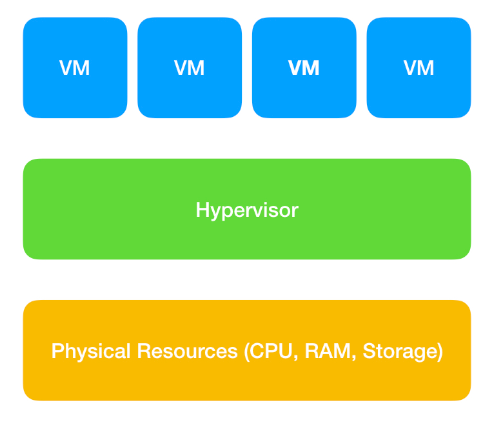
As a rough rule, the larger an EC2 instance size is within its family, the less it will share the hardware with other tenants, until it is the only virtual machine within that hardware — or an actual metal instance.
So, you can assume that, for example, a c5.24xlarge instance size, which is the largest size for that family, is very likely to have the entire underlying host for itself, not sharing its network limits with any other tenants, which means it will have the entire hardware's capability for itself, and much larger network limits than a smaller instance size.
On the other hand, a c5.large size, which is the smallest size for that family, is very likely to be sharing the underlying host with multiple tenants. Hence it will have 1/x the capability of that underlying hardware, being x the number of maximum tenants for that hardware.
While we do not have any visibility on how these placements work in the backend, this gives a rough idea that, as a general rule, the larger size an instance is, the higher the network limits will be.
Moreover, when you consider traffic that is leaving the instance, there might also be constraints that take into consideration the network stack outside of the hypervisor, due to switches and routers further up the stack.
While we also have no visibility on AWS' network stack for EC2, a typical datacenter's network stack would look something like this:
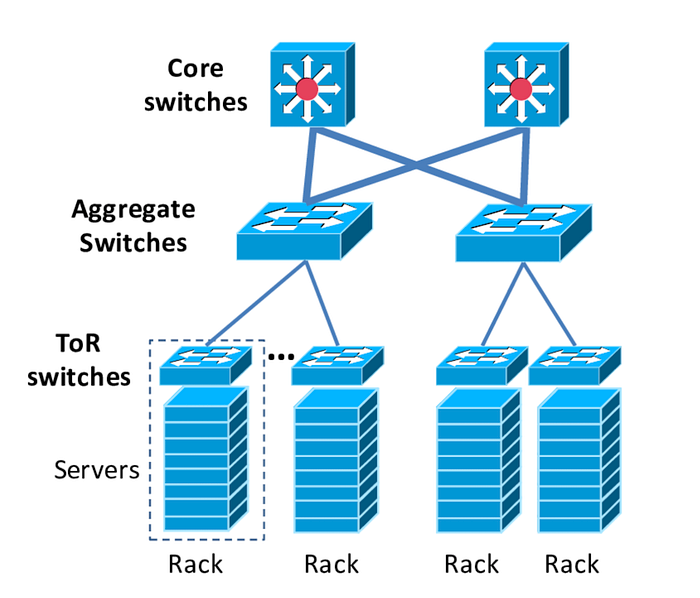
AWS does allow us, however, to define placement strategies [3], which will regulate how far instances are from each other. This also affects not only latency but also the amount of bandwidth per flow for flow limits.
Creating a Cluster Placement Group would mean that instances would be as close to each other as possible — such as within the same underlying host; within the same ToR switch; within the same aggregate switch; etc. This strategy would ensure the lowest latency possible between instances in that placement group, and the highest bandwidth limits per flow possible.
If you do not define any placement strategies, AWS' will allocate your instances randomly according to capacity, which means that sometimes out of pure luck instances can be within the same ToR/aggregate switch; and some other times not.
Each time you stop and start an EC2 instance, it will be re-placed somewhere different across AWS' infrastructure [4], meaning it can be moved in-placement (close to your other instance), or out-of-placement (far from your other instance), and being in or out of placement, affects latency and maximum throughput per flow.
Due to this phenomenon, I have seen cases before where two EC2 instances that hosted low-latency and high throughput per flow applications were in-placement out of pure luck, but once they were stop/started landing out-of-placement, and then started having network issues out-of-blue, due to reduced maximum throughput per flow after the move to out-of-placement and increased latency.
For this reason, it is important to consider your application's nature and define a placement strategy in advance for your AWS infrastructure.
Of course cluster placement is not the only valid strategy either, since placing the instances as close as possible will also increase the likelihood of all of them being affected by hardware issues. If all of your instances are within the same underlying host, and there is a hardware failure for that host, then they are all gone simultaneously.
Alternatively, AWS also offers a spread placement group strategy, which does the exact opposite, keeping your instances as far as possible physically.
Troubleshooting bandwidth throttling
While bandwidth throttling is the most straightforward network limitation that AWS imposes, a few things can make it a bit more challenging.
First, it's necessary to establish the real bandwidth capability of each instance type, as AWS has two different bandwidth limits for EC2 instances: the baseline bandwidth, and the burstable ceiling.
Whenever the documentation says "Up to" an amount, it refers to the burstable ceiling — you can hit that maximum bandwidth, but only for a specific amount of time, until you run out of burst credits. The larger the instance size, the less it will share the underlying hardware, and the longer you can burst.
Once the instance runs out of those burst credits, the limit will then drop to the baseline (much smaller than the burstable limit), and network throttling will start.
For instance sizes that AWS says "25 Gigabit" or any other amount without the term "Up to", that is your baseline limit, and there is no burstable ceiling.
For a few instance types, AWS discloses both the baseline bandwidth, and the burstable bandwidth in its documentation [5], although only a few families are disclosed.
As for how long you can burst on burstable instances, this is never disclosed by AWS. However, with some testing, it should not be that hard for us to discover it.
Launching a c5.large and a c5.24xlarge on my own AWS account, we can figure out these limits for a c5.large instance size, for example, using iperf3.
[root@ip-172-31-82-248 ~]# iperf3 -c 172.31.23.48 -i 60 -t 480 -P 5
Connecting to host 172.31.23.48, port 5201
[  5] local 172.31.82.248 port 42202 connected to 172.31.23.48 port 5201
[  7] local 172.31.82.248 port 42204 connected to 172.31.23.48 port 5201
[  9] local 172.31.82.248 port 42208 connected to 172.31.23.48 port 5201
[ 11] local 172.31.82.248 port 42212 connected to 172.31.23.48 port 5201
[ 13] local 172.31.82.248 port 42218 connected to 172.31.23.48 port 5201
[ ID] Interval           Transfer     Bitrate         Retr  Cwnd
[  5]   0.00-60.05  sec  11.4 GBytes  1.64 Gbits/sec  19684    376 KBytes
[  7]   0.00-60.05  sec  11.2 GBytes  1.60 Gbits/sec  17814    341 KBytes
[  9]   0.00-60.05  sec  11.5 GBytes  1.65 Gbits/sec  18713    428 KBytes
[ 11]   0.00-60.05  sec  16.8 GBytes  2.40 Gbits/sec  24552    507 KBytes
[ 13]   0.00-60.05  sec  17.0 GBytes  2.44 Gbits/sec  22710    524 KBytes
[SUM]   0.00-60.05  sec  68.0 GBytes  9.72 Gbits/sec  103473
- - - - - - - - - - - - - - - - - - - - - - - - -
[  5]  60.05-120.05 sec  11.4 GBytes  1.64 Gbits/sec  19955    341 KBytes
[  7]  60.05-120.05 sec  11.3 GBytes  1.62 Gbits/sec  18304    428 KBytes
[  9]  60.05-120.05 sec  11.4 GBytes  1.64 Gbits/sec  18976    428 KBytes
[ 11]  60.05-120.05 sec  16.8 GBytes  2.41 Gbits/sec  25220    498 KBytes
[ 13]  60.05-120.05 sec  16.9 GBytes  2.42 Gbits/sec  23265    481 KBytes
[SUM]  60.05-120.05 sec  67.9 GBytes  9.72 Gbits/sec  105720
- - - - - - - - - - - - - - - - - - - - - - - - -
[  5] 120.05-180.05 sec  11.5 GBytes  1.65 Gbits/sec  19194    454 KBytes
[  7] 120.05-180.05 sec  11.1 GBytes  1.59 Gbits/sec  18328    454 KBytes
[  9] 120.05-180.05 sec  11.5 GBytes  1.64 Gbits/sec  19259    358 KBytes
[ 11] 120.05-180.05 sec  16.7 GBytes  2.39 Gbits/sec  24946    542 KBytes
[ 13] 120.05-180.05 sec  17.1 GBytes  2.45 Gbits/sec  23032    323 KBytes
[SUM] 120.05-180.05 sec  67.9 GBytes  9.72 Gbits/sec  104759
- - - - - - - - - - - - - - - - - - - - - - - - -
[  5] 180.05-240.05 sec  11.5 GBytes  1.65 Gbits/sec  20069    446 KBytes
[  7] 180.05-240.05 sec  11.2 GBytes  1.60 Gbits/sec  17967    463 KBytes
[  9] 180.05-240.05 sec  11.4 GBytes  1.64 Gbits/sec  18942    323 KBytes
[ 11] 180.05-240.05 sec  16.7 GBytes  2.39 Gbits/sec  24645    498 KBytes
[ 13] 180.05-240.05 sec  17.0 GBytes  2.44 Gbits/sec  22380    507 KBytes
[SUM] 180.05-240.05 sec  67.9 GBytes  9.72 Gbits/sec  104003
- - - - - - - - - - - - - - - - - - - - - - - - -
[  5] 240.05-300.05 sec  7.89 GBytes  1.13 Gbits/sec  13304    323 KBytes
[  7] 240.05-300.05 sec  7.85 GBytes  1.12 Gbits/sec  12274    498 KBytes
[  9] 240.05-300.05 sec  7.89 GBytes  1.13 Gbits/sec  12763    350 KBytes
[ 11] 240.05-300.05 sec  11.5 GBytes  1.65 Gbits/sec  16480    454 KBytes
[ 13] 240.05-300.05 sec  11.9 GBytes  1.71 Gbits/sec  15472    647 KBytes
[SUM] 240.05-300.05 sec  47.1 GBytes  6.74 Gbits/sec  70293
- - - - - - - - - - - - - - - - - - - - - - - - -
[  5] 300.05-360.05 sec   878 MBytes   123 Mbits/sec    0    323 KBytes
[  7] 300.05-360.05 sec   879 MBytes   123 Mbits/sec    0    498 KBytes
[  9] 300.05-360.05 sec   878 MBytes   123 Mbits/sec    0    350 KBytes
[ 11] 300.05-360.05 sec  1.31 GBytes   188 Mbits/sec    0    454 KBytes
[ 13] 300.05-360.05 sec  1.31 GBytes   188 Mbits/sec    0    647 KBytes
[SUM] 300.05-360.05 sec  5.20 GBytes   745 Mbits/sec    0
- - - - - - - - - - - - - - - - - - - - - - - - -
[  5] 360.05-420.05 sec   880 MBytes   123 Mbits/sec    0    323 KBytes
[  7] 360.05-420.05 sec   880 MBytes   123 Mbits/sec    0    498 KBytes
[  9] 360.05-420.05 sec   881 MBytes   123 Mbits/sec    0    350 KBytes
[ 11] 360.05-420.05 sec  1.31 GBytes   188 Mbits/sec    0    454 KBytes
[ 13] 360.05-420.05 sec  1.31 GBytes   188 Mbits/sec    0    647 KBytes
[SUM] 360.05-420.05 sec  5.20 GBytes   745 Mbits/sec    0
- - - - - - - - - - - - - - - - - - - - - - - - -
[  5] 420.05-480.05 sec   782 MBytes   109 Mbits/sec    0    323 KBytes
[  7] 420.05-480.05 sec   933 MBytes   130 Mbits/sec    0    498 KBytes
[  9] 420.05-480.05 sec   932 MBytes   130 Mbits/sec    0    350 KBytes
[ 11] 420.05-480.05 sec  1.31 GBytes   187 Mbits/sec    0    454 KBytes
[ 13] 420.05-480.05 sec  1.31 GBytes   187 Mbits/sec    0    647 KBytes
[SUM] 420.05-480.05 sec  5.20 GBytes   745 Mbits/sec    0
- - - - - - - - - - - - - - - - - - - - - - - - -
What we have above is iperf3 connecting from my c5.large instance to the larger c5.24xlarge (so we are sure the c5.large limits will be hit first, and that's what we would get as a limiter), reporting in intervals of 60s (-i 60), running for 8 minutes (-t 480), with 5 parallel streams (-P 5).
From this output, we can see that for the first 5 minutes, the bitrate was roughly 10Gbps, which AWS adverts as "Up to" for c5.large instances. However, after 5 minutes, the Bitrate lowers to 750Mbps only.
This now gives us two undocumented limits for c5.large instances:
- 750Mbps baseline bandwidth;
- 5-minute burst limit of up to 10Gbps.
Now, we know that c5.large instances have 750Mbps of baseline bandwidth and can burst up to 10Gbps for 5 minutes only.
We can also see that after the network throttling started to kick in, the ENA counters for outbound bandwidth shaping also started increasing:
[root@ip-172-31-82-248 ~]# ethtool -S ens5|grep exceeded
     bw_in_allowance_exceeded: 0
     bw_out_allowance_exceeded: 42427304
     pps_allowance_exceeded: 0
     conntrack_allowance_exceeded: 0
     linklocal_allowance_exceeded: 0
[root@ip-172-31-82-248 ~]#
Internet Egress Bandwidth
EC2 instances can achieve their maximum bandwidth potential whenever the traffic source and destination are within AWS and in the same region. But this changes whenever the source or destination of traffic is outside the region, either in a different AWS region, or being routed to the Internet.
In these cases, if the instance size you are using is massive and has a minimum of 32 vCPUs, the bandwidth limit to other regions or the internet will be 50% of its network bandwidth. [6]
If the instance size has less than 32 vCPUs, then the limit is fixed at a maximum of 5Gbps. [6]
Flow Limitations
Another less obvious bandwidth limitation, is that AWS limits the amount of bandwidth per flow. The maximum amount of throughput per flow is 5Gbps, irrespective of instance family or size, and this is a hard limit. [6]
One of the only two ways of increasing this limit, is if both source and destination instances are within the same EC2 placement. This can either be achieved by placing the instances within the same cluster placement groupor by pure luck if they land within the same aggregate switches, as previously explained in the EC2 Placement section of this article.
In cases where both the source and destination instances are within the same EC2 placement, the maximum bandwidth per flow is 10Gbps. [6]
The other way is by using ENA Express on eligible instances within the same subnet, where the limit will be 25 Gbps per flow between those instances. [6]
Alternatively, whenever possible you should use multi-flow traffic, to ensure maximum bandwidth capability and performance, as this will also cause an impact on PPS limiters that we will see further down.
One important thing to mention here, is that throttling due to flow limitations is not exposed anywhere in the ENA throttling metrics.
We can easily tell that again with iperf3. If I run a single stream from my c5.large (which should be able to achieve 10Gbps) to my c5.24xlarge, which are out-of-placement, we can tell the maximum throughput in a single flow gets limited to 5Gbps:
[root@ip-172-31-92-221 ~]# iperf3 -c 172.31.23.48 -t 60 -P 1
Connecting to host 172.31.23.48, port 5201
[  5] local 172.31.92.221 port 42472 connected to 172.31.23.48 port 5201
[ ID] Interval           Transfer     Bitrate         Retr  Cwnd
[  5]   0.00-1.00   sec   594 MBytes  4.98 Gbits/sec    0   1.43 MBytes
[  5]   1.00-2.00   sec   592 MBytes  4.97 Gbits/sec    0   1.52 MBytes
[  5]   2.00-3.00   sec   592 MBytes  4.97 Gbits/sec    0   1.52 MBytes
However, no counters increased in the ENA throttling metrics:
[root@ip-172-31-92-221 ~]# ethtool -S ens5|grep exceeded
     bw_in_allowance_exceeded: 0
     bw_out_allowance_exceeded: 0
     pps_allowance_exceeded: 0
     conntrack_allowance_exceeded: 0
     linklocal_allowance_exceeded: 0
This is especially important because it means that network throttling due to flow limitations is silent, and very hard to spot when it is happening.
Micro-bursting
Another consideration when it comes to bandwidth throttling, is micro-bursting. This happens when you hit the bandwidth limits very briefly, which is often hard to spot.
The typical scenario for this situation would be when the ENA throttling metrics are increasing very slowly, but whenever you check CloudWatch metrics for network traffic, you don't see it ever reaching your bandwidth ceiling.
AWS throttling happens at incredibly small intervals, and while we do not have any visibility on how quickly that happens, I have already experienced situations in which only sub-second measurements could spot micro-bursting.
CloudWatch on the other hand, has data points in 5-minute intervals by default, and with enhanced monitoring, these can be lowered to 1-minute intervals.
Sometimes, the burst is so short that it gets diluted in the 5-minute intervals that CloudWatch offers, and you can't see them.
While the easiest solution here is to trust that AWS ENA counters are correct, even if you can't spot the traffic peaks, by using the CloudWatch Agent, it is possible to have datapoints as low as 1s, which then should be able to catch most bandwidth peaks.
Beyond that, the solution would be to compare the amount of traffic in the ENA RX/TX queues, versus the amount of shaping reported.
However, in most scenarios of micro-bursting, the amount of shaping isn't significant enough to worry about in the first place, as the shaping will be majorly queueing, and if using TCP-based applications, it would also easily recover from small losses.
Reading CloudWatch network metrics
Another common mistake is misunderstanding the CloudWatch network metrics. While all AWS' network limits are in bits per second, CloudWatch network metrics are in bytes over a period of time. This makes it so confusing to actually understand how close to the bandwidth ceiling you are by simply looking at the network metrics NetworkIn and NetworkOut.
In my example c5.24xlarge instance, if we open NetworkIn for example, it will show us something like this:

Here, one could easily get fooled into believing that this instance peaked above 50Gbps of inbound network traffic at 09:20; however, that's incorrect.
To understand the actual network traffic in bps, we must change the statistic to Sum, and divide that by the period in seconds (by default 5 minutes), to get an average traffic per second during that interval.
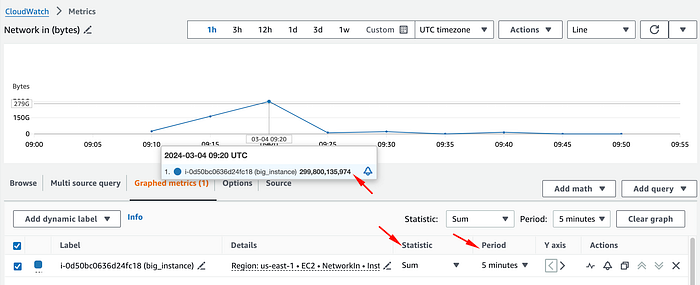
In this case, we will divide the total bytes of that data point (299800135974) by 300 seconds (5 minutes), and obtain 999333786.58 bytes per second.
Then, we must convert bytes into bits. To simplify things, we can convert it directly into Mbps by multiplying it by 0.000008, as 1 byte per second is equal to 0.000008 Mbps.
Once converted, we can tell that this metric actually shows us an inbound traffic average of 7994 Mbps during that 5-minute period, which is very far from the initial impression of 50 Gbps.
To get the total network traffic for that period, we would also have to convert NetworkOut, and add both amounts.
Troubleshooting Connection Tracking Throttling
Moving on from bandwidth limitations, AWS also imposes a limitation on how many connections are tracked, after which it will start refusing new connections.
This can be a major pain, as once this limit is reached, AWS will start refusing any new connections to your EC2 instance, until the number of connections drops back to a lower amount than the maximum permitted.
Until very recently, none of this was disclosed by AWS, and there was no mention of these limits in the AWS documentation. Luckily, AWS recently started disclosing the maximum amount of connections tracked per EC2 instance type, but only for modern generation instances based on Nitro.
While these limits also exist on non-Nitro instances, there is no disclosure of the limits, and the only way to find them out would be by testing at how many connections your instance starts refusing new connections.
The maximum amount of connections tracked on a Nitro instance can be found with the command below:
[root@ip-172-31-92-221 ~]# ethtool -S ens5|grep conntrack_allowance_available
     conntrack_allowance_available: 136813
[root@ip-172-31-92-221 ~]#
The only reason why this even exists in the first place is due to security groups. Security groups are stateful, which means that they track the connections via conntrack to allow the responses to inbound traffic to flow out of the instance regardless of outbound security group rules, and vice versa.
That said, there is a way of bypassing this limitation, without increasing the instance size by simply not using security groups.
Whenever a security group has inbound and outbound rules that allow all traffic, those flows will be marked as NOTRACK, and they won't be tracked by AWS, hence not counting towards the conntrack allowance. [7]
Alternatively, stateless network ACLs can be used, or even iptables rules directly, which can either be stateless or stateful, since in the latter case you would have control over the conntrack in Linux from the instance side, and would be able to increase the limits as needed.
The only exception to this workaround is that connections to other specific AWS services, listed below, will always be automatically tracked, regardless of the security group configuration, as this is needed to ensure symmetric routing. In this case, the only workaround would be to increase instance size. [7]
- Egress-only internet gateways
- Gateway Load Balancers
- Global Accelerator accelerators
- NAT gateways
- Network Firewall firewall endpoints
- Network Load Balancers
- AWS PrivateLink (interface VPC endpoints)
- Transit gateway attachments
- AWS Lambda (Hyperplane elastic network interfaces)
Troubleshooting throttling to the Local Proxy Services
AWS offers a few different services as local proxies within EC2, these being the AWS DNS Resolver (either the second IP of your VPC subnet, or 169.254.169.253 in any EC2 instance), the AWS-provided NTP server (169.254.169.123), and the Instance Metadata Service (169.254.169.254).
These services share a hard limit of 1024 pps (packets per second) per ENI interface. Any more than that, and the interface will be throttled due to linklocal_allowance_exceeded.
Usually, throttling in this case comes from an excessive utilisation of the Instance Metadata Service. Having an IMDS query inside a recursive function that is used often, for example, can easily cause one to hit this limit. Keep in mind that the limit is in packets per second, and an HTTP IMDS request will use multiple network packets to be completed, hence this limit is not equivalent to 1024 queries per second.
Having a mindful usage of IMDS, and caching some of the results where possible, is the way to go here, since this is a hard limit that can not be changed, irrespective of instance size.
Another common case for throttling here, would be many DNS queries, and the solution in that case, would be to implement a local DNS cache.
Whenever the ENA counters for linklocal_allowance_exceeded is increasing, you can pinpoint which of these services is causing the throttling by doing a packet capture for the traffic towards those service IPs, and isolating if the traffic is DNS, HTTP or NTP.
Troubleshooting Packet Throttling
Another form of throttling within AWS is due to the number of packets per second, which is where things get a bit more complicated, as there is minimal documentation on these limitations.
Even if an EC2 instance is under the maximum bandwidth limit, its network traffic can still be throttled due to hitting the maximum allowed number of packets per second for that instance. The limit here is per instance, and not per ENI like in the linklocal_allowance_exceeded.
However, AWS does not disclose the allowed maximum number of packets per second for any EC2 instance types without an NDA, and it is also not fixed, meaning it can vary depending on what type of packets the traffic consists of.
The PPS limits for an EC2 instance will vary depending on: [8]
- If the traffic is TCP or UDP;
- Number of flows;
- Packet size;
- New connections or existing connections (limitation of TCP SYN);
- and based on applied security group rules.
This makes it almost impossible to establish a fixed PPS limit with any certainty, even by exhaustive testing, since the actual limitation will depend on the actual pattern of the network traffic.
For instance, an application that generates many new connections, will likely hit the limitation of TCP SYN, and hence hit the PPS limit, much sooner than an application that more often relies on existing connections.
While there are ways of stress testing the instance with packets to have a rough estimation of the PPS limits, and AWS outlines the steps on how to test that in this article [8], that way is much less reliable than using iperf for discovering the bandwidth limits.
The preferred alternative is to do stress testing on the actual hosted application and monitor the ENA metrics for PPS throttling since this will consider the application network patterns.
Luckily, these limitations are often not that small, and the bandwidth limits are often hit first. Still, the preferred traffic patterns here would be an application with TCP traffic that uses mostly existing connections, larger packet sizes, many different flows, and has security groups allowing all inbound and outbound traffic on those ports for no tracking.
In the case of throttling, adapting the traffic pattern to best suit the pattern mentioned above should help, or alternatively, increasing instance size.